
7-Day Free Trial Customer Support Software: What to Test
If you've got seven days to test free trial customer support software, here's how I'd spend them: Day 1 for setting up your shared inbox and live chat widget, Day 2 for inviting your team and testing roles, Day 3 for trying email-to-ticket forwarding, Day 4 for digging into tags, filters, and reporting, and Days 5-7 for simulating real customer conversations. This isn't a random order. It mirrors how you'll actually use the tool once you commit to it.
Before you start, jot down three things each day: how much time it took, where you hit friction, and whether that day was a pass or fail against what you actually need. By day 7, you'll have a real record to make a decision from, not just a gut feeling based on whichever demo looked slickest.
Let's break down why most founders get this wrong, and what to do instead.
Why most founders waste their free trial, and how to fix it
Here's a scene I've watched play out more times than I can count. A founder signs up for a trial, pokes around for ten minutes on day one, gets pulled into a customer fire, and doesn't log back in until day six, when they suddenly remember they're supposed to be "testing something." By then, they click a few buttons, feel vaguely underwhelmed or vaguely impressed, and make a decision based on almost nothing.
Honestly, the tool usually isn't the problem. The lack of a plan is.
Before day one, write yourself a short trial brief: the workflows you need covered (chat, email, or both), your rough weekly ticket volume, any tools it needs to integrate with, and your realistic budget as you add teammates. That brief becomes your yardstick for every day that follows.
Seven days is genuinely enough time to know if a help desk tool fits your team, but only if you treat it like a mini pilot programme instead of a casual browse. Think of it like testing a new hire during a probation period. You wouldn't just chat with them once and call it done. You'd give them real tasks across a few days and see how they hold up under different conditions.
One practical note on trial mechanics: some providers (Sonny is one example) don't ask for card details upfront, which removes the "oops, I forgot to cancel" anxiety during the trial itself. Worth checking before you start, because it genuinely frees up headspace for evaluation rather than calendar-watching. Just don't assume every no-card trial behaves the same way. More on that in the FAQ below.
So let's use the week wisely. Here's your day-by-day plan.
Day 1: Set up your shared inbox and live chat widget
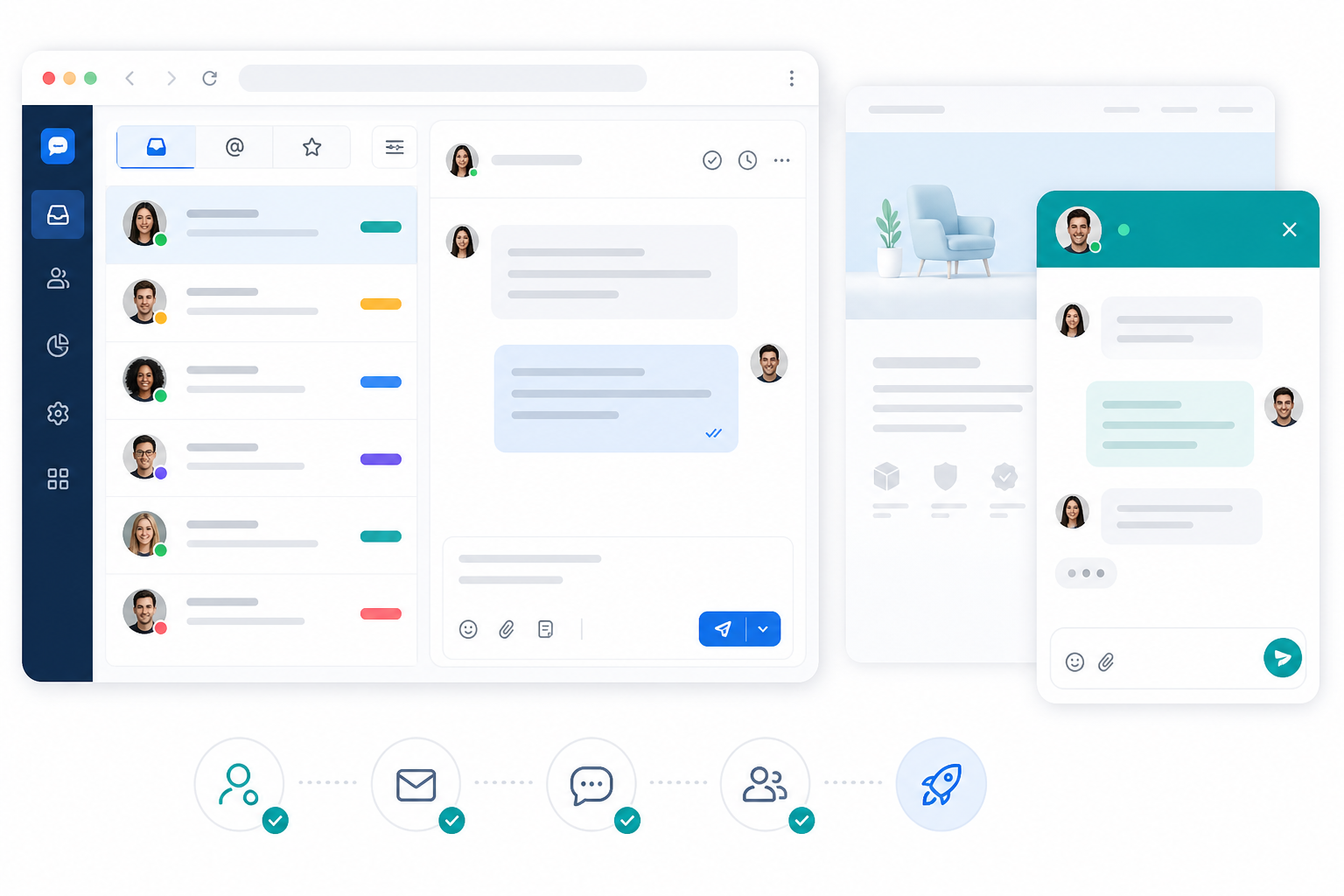
Day one is all about first impressions, but not the marketing kind. You're testing operational reality: how fast can you actually get this software running, and what does it ask of you along the way?
- Create your shared inbox and connect your support email address. This should feel straightforward, not like configuring a server.
- Install the live chat widget on your site. In most cases this is a copy-paste script that takes minutes. But test it on your actual site, not a sandbox. Check whether your cookie-consent tooling, content security policy, or CMS platform creates any friction. If you need a developer just to get the widget live, note that as a real cost, not a footnote.
- Send yourself a test message through the widget. See what it looks like from the agent side. Is the notification instant? Does the conversation appear cleanly? Check the widget on mobile too. Does it load quickly, and does it slow your page down at all?
- Check how conversations are organised from the very first message. You want clarity here, not clutter.
- Time yourself, but treat any specific setup claim as vendor-specific rather than universal. Some tools advertise something like "under 5 minutes, no onboarding call." Sonny makes a claim in that range, for instance. If you're trialling a tool with a claim like this, time it for your own setup and judge whether it held up for your site, your stack, and your team, not just in principle.
If day one takes you an hour of fiddling with settings, that's useful information. It tells you what onboarding will actually look like for your real team later, not just for you as the curious founder poking around alone.
Day 2: Invite your team and test user roles
A support tool that only works well when you're the sole user hasn't really been tested at all. Day two is about bringing in the people who'll actually live in this thing.
- Add your real support or success team members, not a placeholder account, but the humans who'll use this for real work.
- Test internal notes. Can your team leave context for each other, something like "this customer already asked about refunds twice, be gentle," without the customer ever seeing it?
- Try assigning conversations to specific teammates. Is it obvious who owns what, or does everything feel like a free-for-all?
- Test permission boundaries, not just collaboration. Who can export customer data? Who can change billing details? Who can delete conversations or edit automations? Who can see private internal notes versus just the customer-facing thread? These boundaries matter a lot more once you're a team of five than when it was just you clicking around alone.
- Check what happens to your bill when you add more agents. This is where flat-rate pricing versus per-seat pricing really shows its teeth. If adding your third or fourth teammate suddenly bumps your monthly cost, that's a growth tax you'll feel later. Flat-rate models (Sonny, for example, prices at a flat rate for unlimited agents rather than charging per seat) remove that tax, though you should confirm current pricing and whether VAT is included before comparing numbers directly.
- Ask whether everyone sees the same shared inbox, or if there are confusing silos where messages get lost between views.
This day tends to reveal a lot. A tool can look polished when it's just you clicking around, and still fall apart the moment three people, each with different permissions and habits, try to coordinate inside it.
Day 3: Test email-to-ticket forwarding
If your team currently lives in a shared email inbox (support@yourcompany.co.uk, forever CC'd and reply-all'd into chaos), this day is make-or-break.
- Forward a real or test email into the system. Confirm it becomes a proper ticket, not a mangled mess of quoted text.
- Reply from within the tool. Does the customer receive a clean, branded response, or does it look like it came from a robot with no personality?
- Check the sending setup properly. What's the reply-to address the customer sees? Does the tool give clear guidance on SPF or DKIM/domain verification so your emails don't land in spam? Are signatures and time zone formatting sensible for a UK audience?
- Test email threads specifically. Does context get preserved as the conversation continues, or does each reply start from zero?
- Look for the annoying edge cases: attachments (and any file-size limits), CC'd colleagues, reply-all chaos, and forwarded messages with mixed formatting. These are the situations that break lesser tools.
- Judge this against your current pain, not against perfection. If you're drowning in a shared inbox now, even modest improvement here is a big win.
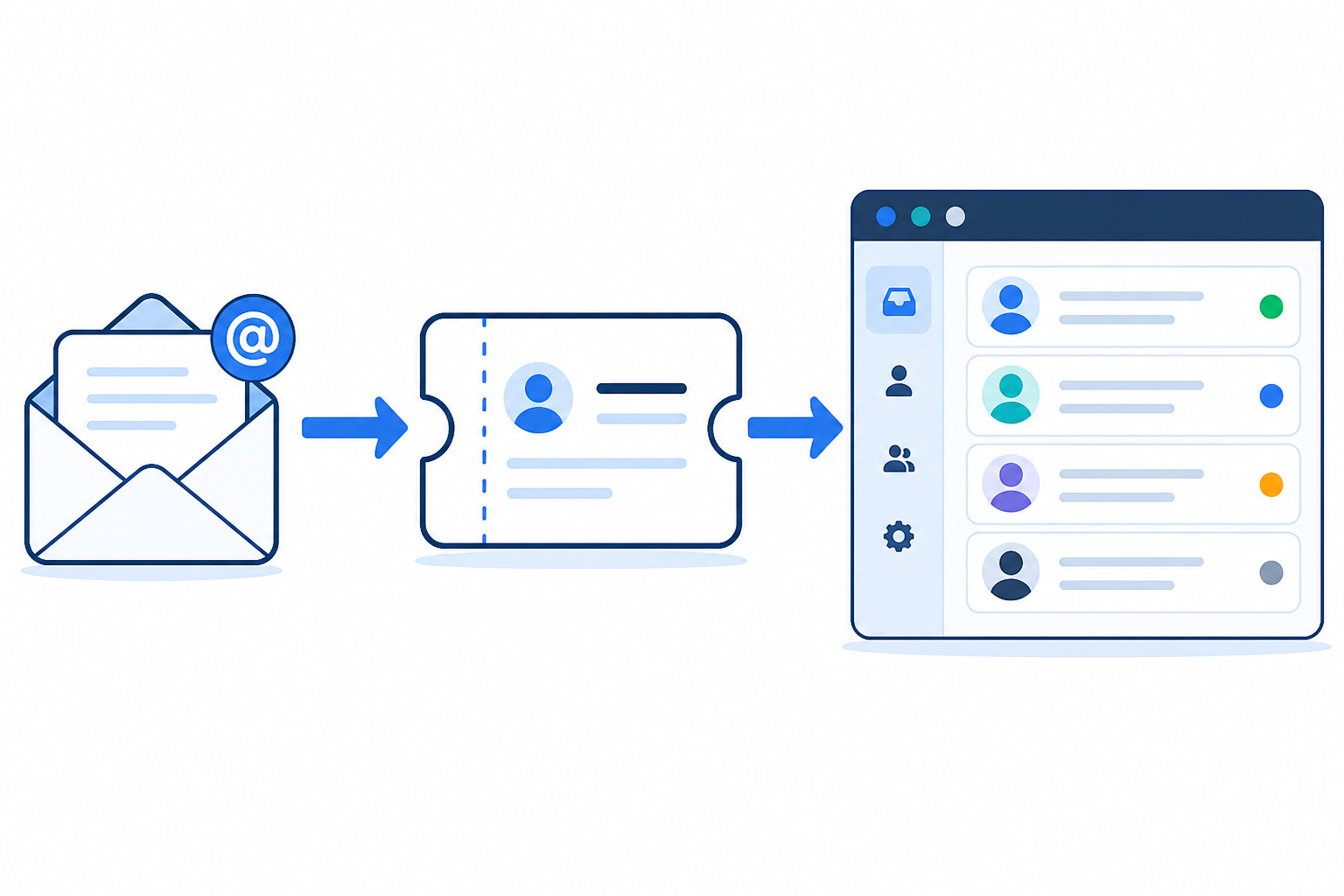
Email ticketing is one of those features that sounds simple in a sales demo. Day three of an actual trial is where you find out if it's simple in practice too.
Day 4: Test tags, filters, and customer support reporting
By day four, you've got enough test conversations in the system to actually organise something. So use it.
- Tag a handful of test conversations by topic, billing, bug, feature request, whatever categories matter to your business.
- Build a filtered view. Can you quickly see something like "unanswered tickets from yesterday"? This is the kind of view you'll rely on constantly once you're live.
- Check the reporting dashboard against specific metrics, not just a general impression. At minimum, look for first-response time, resolution time, current backlog, reopened-ticket rate, and whether the platform tracks anything like an SLA. Ask how the metric definitions are worked out. "Response time" can mean very different things depending on how a vendor calculates it.
- Check whether you can export the data. A report that only lives inside the dashboard is less useful than one you can pull into a spreadsheet for a wider team review.
- If you're a small team, test whether reporting stays useful with just 2-3 agents. A lot of reporting features are built with 20-person teams in mind and feel oddly empty at smaller scale.
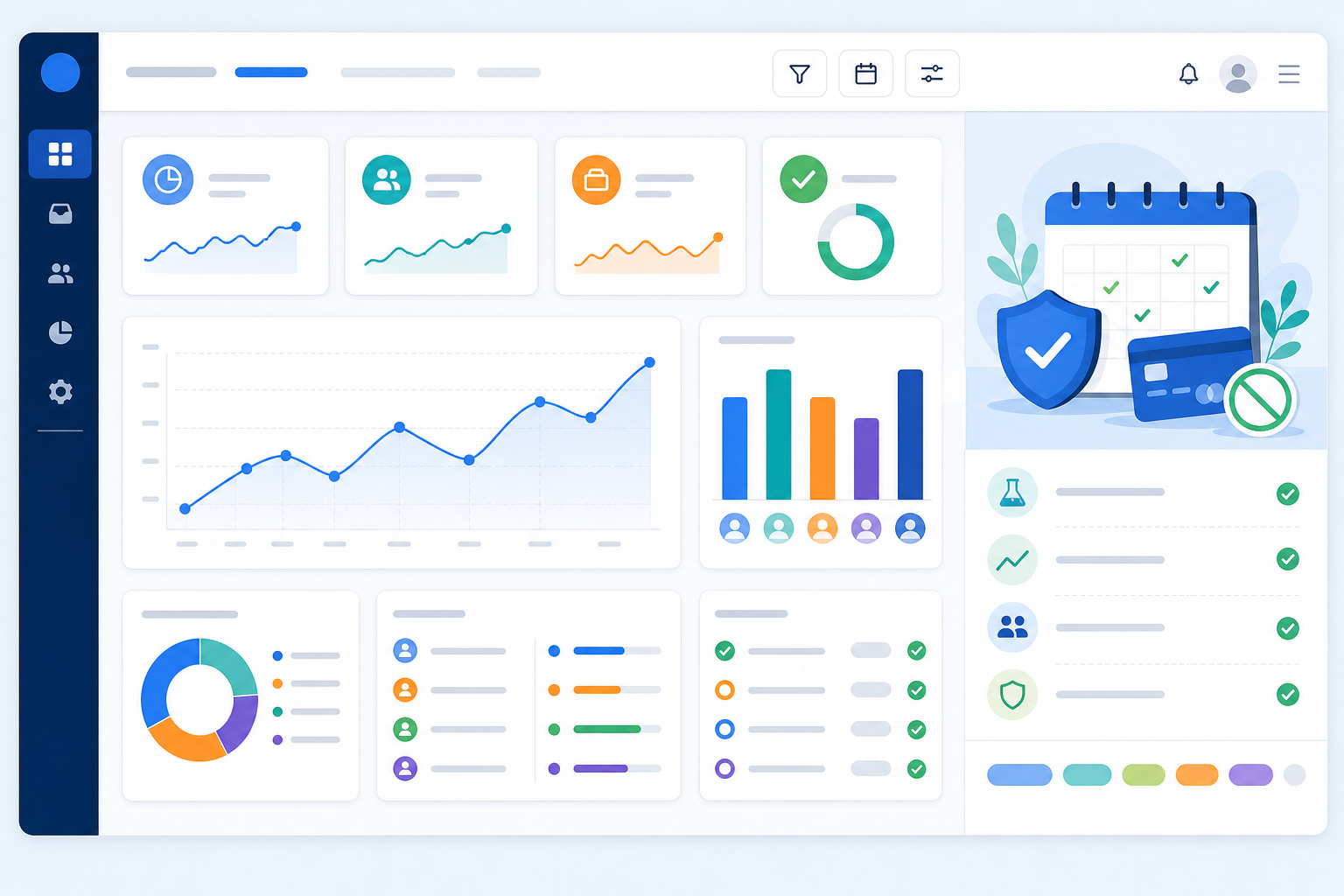
This is also where support automation starts to matter. If you're fielding the same three questions over and over, day four is when you should check whether the tool can help you handle that repetition without manual work every single time.
Days 5-7: Simulate real customer conversations
The last stretch of your trial should feel less like testing software and more like a dress rehearsal for your actual business.
- Build a representative test set based on your actual weekly volume, not an arbitrary number. If you handle 15 tickets a week, script something close to that across these three days rather than manufacturing an unrealistic flood.
- Recruit a friend, co-founder, or willing customer to send in a handful of real-style questions. Not "test test test," but the kind of messages you'd genuinely get. Include at least one duplicate ticket, one frustrated-customer tone, one message with an attachment, and, if relevant to your customer base, one in a language other than English.
- Test multi-channel handling. Have one conversation come through chat and another through email, and confirm both land cleanly in the same inbox.
- Try a handoff. Have one teammate start a conversation and another finish it. Does context transfer smoothly, or does the second person have to ask the customer to repeat themselves?
- If AI copilot features are available, test them with your own docs. Are the suggested answers actually useful, or generic filler that sounds smart but says nothing?
- On the last day, simulate a genuinely busy hour, scaled to something realistic for your team's size, say, double your normal hourly volume rather than an arbitrary spike. Does the tool help you triage and stay calm, or does everything start to feel like a pile-up?
This is where demo-only impressions fall apart, or get confirmed. Anyone can look good handling one polite test message. The real test is a busy, messy stretch, and simulating it now saves you from finding out about problems for the first time during an actual busy week later.
Red flags to watch for during a help desk software trial
Not every red flag is equally serious. It's worth separating outright blockers from things that are just annoying.
Likely deal-breakers:
- Setup that requires a sales call before you can even log in. If you can't self-serve your way into the product, that's a preview of ongoing friction.
- Features that mysteriously "require upgrading" mid-trial, especially ones that felt like they should be basic.
- No way to export your own data, either during the trial or if you decide to leave later.
Worth weighing carefully:
- Per-seat pricing that punishes you for growing your team. Growth should feel like a win, not a billing event, though for very small, static teams this matters less.
- No clear support automation for repetitive questions. Not a dealbreaker on day one, but a scaling problem waiting to happen.
Worth noting, but not disqualifying on their own:
- Slow widget load times or a clunky app on the devices your team actually uses. Test on whatever your team uses day to day, desktop, mobile browser, or a dedicated app, rather than assuming every platform is covered equally.
Any one of these alone might be forgivable, especially in the "worth noting" category. But multiple red flags stacking up during a single week of testing is a pretty strong signal, particularly if they cluster around the deal-breaker list.
How to choose customer support software on day 7
By the time day seven rolls around, resist the urge to make a snap judgement based on whatever happened most recently. Go back through your daily notes instead. Patterns matter far more than one especially great or especially rough moment.
A simple scorecard makes this easier than trying to hold it all in your head. Score each area from 1 (poor) to 5 (excellent), based on your notes from that day:
| Criterion | Score (1-5) | Notes |
|---|---|---|
| Setup time and friction (Day 1) | ||
| Team collaboration and permissions (Day 2) | ||
| Email threading and deliverability (Day 3) | ||
| Reporting usefulness at your team size (Day 4) | ||
| Handling of a busy, messy stretch (Days 5-7) | ||
| Mobile/desktop usability for your team | ||
| Total cost at your projected headcount in 6 months |
A reasonable rule of thumb: only move forward if every must-have criterion scores at least 3, and the tool feels genuinely usable by the least technical person on your team, not just by you. If something scores low, decide whether it's a dealbreaker or something you could work around, and write that down rather than relying on memory later.
On cost specifically: work out the real monthly cost at your team size now, and again at your projected size in six months, in pounds and inclusive of VAT if it applies. Flat-rate pricing tends to look more attractive the more agents you plan to add, but the maths only holds up if you actually run the comparison against per-seat alternatives rather than taking either model's marketing at face value.
And maybe most importantly, decide with your team, not just as the founder clicking around alone at 11pm. The people who'll use this daily should have a say in whether it sticks. A tool that only the founder likes tends to quietly get abandoned within a month, and I've seen that happen more than once.
Seven days sounds short, but structured well, it's enough time to know. You're not looking for perfection. You're looking for a genuine fit for how your team actually works, messy edge cases, busy days, and all.
Frequently asked questions about free trial customer support software
Is a no-credit-card free trial actually risk-free?
Usually, yes in the sense that matters most: no card details means no surprise charge if you forget to cancel. But "risk-free" doesn't mean "consequence-free." Check what happens to your data and conversation history once the trial ends, whether there's a grace period to export anything, and whether any usage limits apply during the trial that wouldn't apply once you're a paying customer.
What should I test first during a customer support software trial?
Start with your shared inbox and live chat widget setup on day one. This is the foundation everything else builds on, and it's also the fastest way to judge how much setup friction you're signing up for long-term, including whether your specific site, CMS, or consent tooling causes any snags.
How do I evaluate a help desk tool in just seven days?
Break the week into themed days rather than testing randomly. Cover setup, team collaboration and permissions, email handling, reporting, and real conversation simulation, each on a different day, so you get a complete picture instead of a shallow first impression. Score each day against a simple criteria table so day 7 is a decision, not a guess.
What features matter most before committing to a support tool?
For small teams, prioritise ease of setup, whether pricing scales fairly as you add agents (and whether it's clearly quoted in GBP with VAT accounted for, if you're a UK business), and how well the tool handles live chat, shared inbox, and email in one place. Flashy AI features matter less than whether your team will actually use the core tool daily without friction.
What happens to my data if I don't continue after the trial?
This varies by provider, so it's worth checking before you commit real conversations and customer data to any platform. Ask specifically whether you can export your tickets and contacts, and how long your account and its data are retained after a trial lapses, particularly relevant given UK data protection obligations if you're handling real customer information during testing.
Do I need a developer to set up the live chat widget?
Often not. Many modern help desk platforms offer a copy-paste script that takes minutes. But this isn't universal: sites with strict content security policies, certain CMS platforms, or heavy cookie-consent tooling can complicate things. Test it on your actual live site during the trial, not just a demo page, so you know for certain rather than assuming every platform is covered equally.