
The 7-Day Free Trial Checklist for Help Desk Software (No Card Required)
A good free trial checklist means more than poking around for ten minutes and hoping for the best. It means deliberately testing the exact workflows your team will rely on every day. This guide breaks a 7-day help desk software free trial into daily tasks: setting up your shared inbox and live chat widget, inviting your team, testing email forwarding, trying tagging and filtering, reviewing reporting, and finally deciding if the tool fits.
Follow it day by day and you'll walk away with real evidence instead of a gut feeling.
I've watched plenty of founders sign up for a trial, click around for a few minutes, get pulled into a customer fire or a product meeting, and then remember on day 6 that they were supposed to be testing that support tool. By then, the trial's basically over and all you've got is a vague impression. That's not a personal failing. It's just what happens without a plan.
So let's fix that. Grab a coffee, block out fifteen minutes a day this week, and use this support software trial checklist as your roadmap. At the end, you'll also find a simple scorecard so the decision doesn't come down to a hunch.
Why Use a Free Trial Checklist Instead of Random Clicking?
A 7-day free trial disappears fast. One day you're excited to explore, the next you're buried in customer emails, and suddenly it's day 7 and you never tested the thing that matters most, like whether your reporting will actually tell you anything useful three months from now.
Founders often gravitate towards surface-level stuff first: does the live chat widget look nice, is the colour scheme customisable? Those things matter, but they're not what determines whether help desk software actually works for your team long-term. The real decision-makers usually sit a bit deeper: email routing, permissions, and whether reporting actually surfaces something you'd act on.
A checklist keeps you honest. It forces you to ask both 'does this look nice?' and 'will this hold up when we're juggling fifty conversations a day and three people are using it at once?' Only one of those questions predicts whether you'll be happy with your choice in six months.
Day 1: Set Up Your Shared Inbox and Live Chat Widget
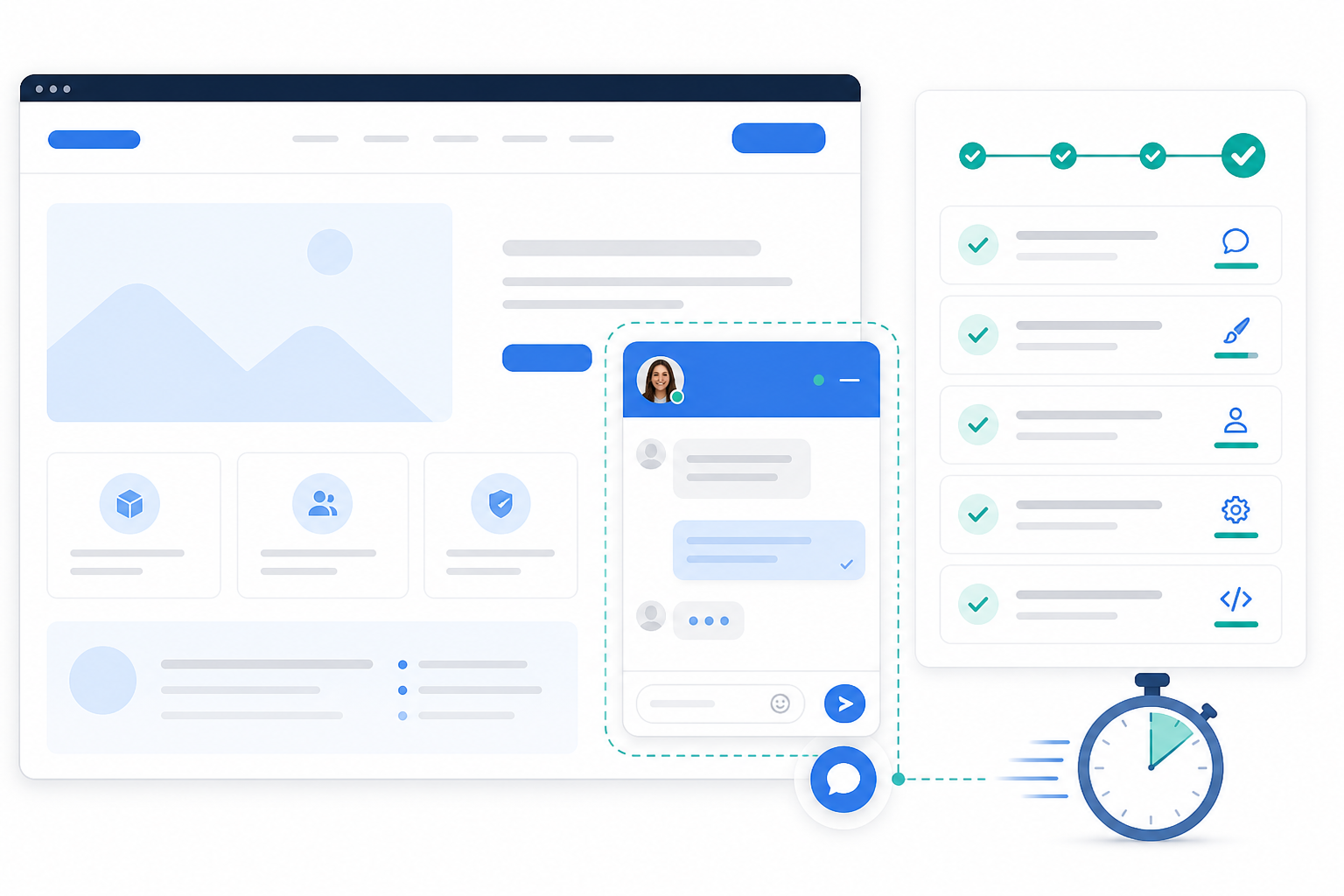
Your first day is about getting the basics running and paying attention to friction along the way. Target: a working shared inbox and live chat widget within 15–20 minutes, without needing a developer or a support call.
- Create your shared inbox and connect your support email address. This is the foundation everything else sits on, so get it working properly before moving on.
- Install the live chat widget on your website. This should take minutes, not hours. If you're stuck reading documentation for half a day just to get a snippet of code onto your site, that's worth noting as a red flag.
- Customise the widget's colours, greeting message and availability hours. Make it feel like your brand, not a generic bolt-on.
- Send yourself a test chat message to confirm it lands in the inbox correctly, with no delay and no missing notification.
- Note how long setup actually took. This tells you a lot about onboarding friction later. If day one is painful, imagine training a new hire on it in six months.
Some tools, including Sonny, advertise a five-minute setup with no onboarding call required. Pricing, onboarding steps and features change over time though, so treat any specific claim like this as something to verify directly on the provider's current site rather than take at face value.
Day 2: Invite Your Team and Test Permissions
A support tool that works well for you solo but falls apart with three people using it isn't actually solving your problem. Day 2 is about bringing the team in and checking who can do what.
- Add every teammate who'll eventually touch support, not just one or two people you trust to 'test things'. You want to see how the tool behaves with your real future setup.
- Check how the tool defines a seat, agent, collaborator and viewer. Some providers charge differently depending on the role, and it's easy to misjudge your real cost if you only look at the headline price.
- Test permissions. Can you restrict who sees billing information, who can delete conversations or who can access reporting? This matters more once you have more than two or three people in the inbox.
- Test internal notes. Can your team leave context on a conversation without the customer seeing it? This seems minor until you desperately need it mid-refund conversation.
- Assign a conversation to a specific teammate and check notifications. Does the right person get pinged, or does it disappear into the void?
- Ask a teammate for honest feedback on how intuitive the interface felt on their first login. You've been staring at it for a day already, you're not the objective judge anymore.
Pass/fail check: if a teammate can't find how to reply, assign or leave an internal note within a minute or two of guidance, that's a real usability signal worth writing down.
Day 3: Test Email Forwarding and Ticketing
Most support conversations still start as email, so this step matters more than people expect going in. It's one of the most important parts of any help desk software free trial.
- Set up email-to-ticket forwarding from your existing support address.
- Send a handful of test emails, including one with an attachment and one with a long quoted thread, and confirm they convert cleanly into tickets without formatting glitches or missing information.
- Reply from the shared inbox and check the customer receives it as a normal email, not something stripped of formatting or clearly 'sent from a system'.
- Try CC'ing a teammate on a reply to see how collaboration works over email threads. Customers loop in colleagues all the time, so this mirrors real life.
- Check for duplicate tickets. Send a follow-up reply from the same email thread and confirm it appends to the existing ticket instead of creating a new one. This is one of the more common quiet failures.
- Check that signatures, auto-replies and attachments survive the round trip. A corrupted screenshot or a vanished PDF only shows up once you've actually tested it, not when you're reading a features page.
This is the day a lot of clunky tools quietly disappoint people. Email ticketing sounds simple on paper, but the execution (threading, formatting and attachments) separates the platforms that work from the ones that just checked a box.
Day 4: Try Tagging, Filtering and Search
By now you've got real test conversations sitting in your shared inbox, so organise them the way you actually would in production.
- Create a few tags that mirror your real support categories, billing, bugs, onboarding, whatever fits your business.
- Tag several test conversations and confirm filtering actually surfaces them correctly. Sounds basic, but this breaks in subtle ways more often than you'd expect.
- Test filtering by status, assignee and tag combined. A filter that works alone but breaks when combined with two others is exactly the kind of thing you want to catch now, not three months in.
- Try searching for a specific customer or keyword and check whether the results are fast, accurate and easy to use.
- Imagine your busiest week and picture whether this tagging and filtering system would still make sense at 10x the volume. If it feels shaky with ten test tickets, it won't magically improve at two hundred.
Good tagging, filtering and search aren't glamorous, but they're the difference between a shared inbox that stays organised and one that turns into a junk drawer within a month.
Day 5: Review Help Desk Reporting Features
This is the section people skip most often during a trial, and it's exactly the one that comes back to bite you later.
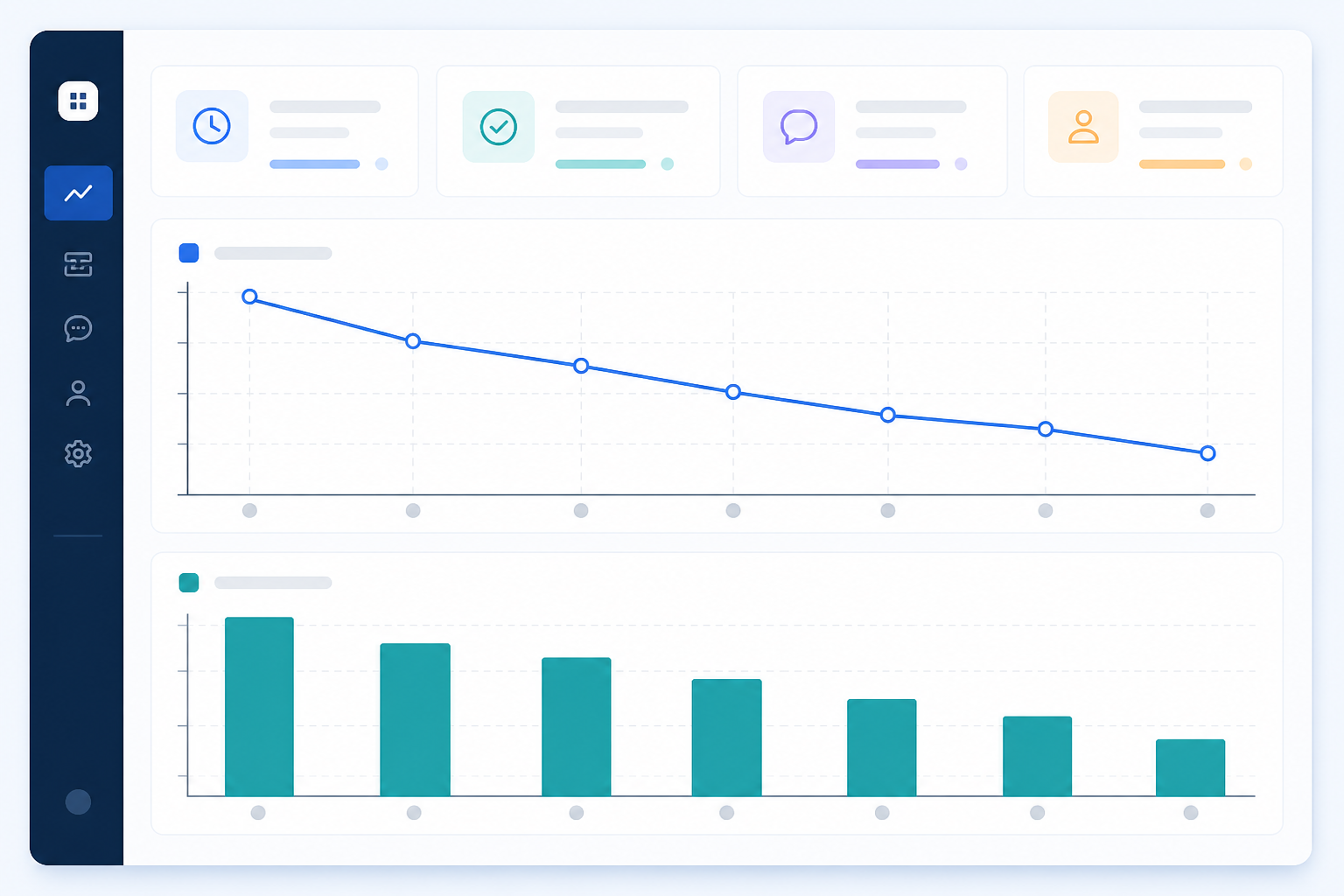
- Check response time and resolution time metrics. Are they easy to find, or buried three menus deep?
- Look at team performance reporting if you have more than one agent. Can you see who's handling what, and how quickly?
- Check whether reports filter by date range, tag or team member. A single static report that never changes isn't reporting, it's a screenshot.
- Try answering a real question with the data. For example: which channel has the slowest first response, are any test tickets sitting unanswered, and would this report help you spot a problem before a customer complains about it? If you can't answer at least one of those from the dashboard, the reporting probably isn't actionable enough yet.
If you're planning to grow your team even a little, this is worth extra attention. Reporting on response times and team performance is how you'll know if support is scaling well or quietly falling behind.
Other Things to Check Before Choosing Support Software
The daily checklist above covers the core workflow, but a few other areas deserve at least a quick look before you commit:
- Integrations. Does it connect to the tools you already use, CRM, e-commerce platform, Slack? A tool that requires manual double-entry adds work rather than removing it.
- Data export. Can you export your conversations and customer data if you ever switch providers? You shouldn't need to ask permission to get your own data out.
- Security and privacy. Where is data stored, and does the provider meet UK GDPR requirements? This matters more once customer data is involved.
- SLA support. If something breaks, what's the actual response commitment from the vendor, not just the marketing promise?
- Accessibility and mobile usability. Can a teammate reasonably reply from a phone if they're away from their desk? Is the interface usable with a screen reader if that matters for your team?
- Migration effort. If you're moving from another tool, how much manual work is involved in bringing your history across?
None of these need a full day of testing, but a quick check now saves a nasty surprise later.
Days 6–7: Decide Whether the Help Desk Tool Fits Your Workflow
Your last two days are about stepping back and making the call, with a method, not just a feeling.
- Revisit your notes from each day and score the tool against your must-haves using the scorecard below.
- Compare the pricing model against your expected team size. Flat-rate pricing tends to become more attractive as you scale past two or three agents, but always check the current price and whether VAT is included before comparing numbers.
- Test any AI or automation features if available. These often need a day or two to show their value, since many improve as they learn from your actual conversations and documentation. Treat early results as a preview, not a final verdict.
- Check uptime history and how responsive the vendor's own support team is. It's a little ironic to judge a support company by their own support, but it's telling. If they're slow to help you during a trial, that's a preview of life after you're a paying customer.
- Make the call: does this replace your current tools, or does it just add another login to juggle?
A Simple Help Desk Software Trial Scorecard
Rather than relying on impression alone, score each area from 1 (poor) to 5 (excellent) based on what you actually tested:
| Category | Weight | Your Score (1–5) |
|---|---|---|
| Setup speed and ease | 15% | |
| Shared inbox usability | 15% | |
| Email reliability (Day 3) | 20% | |
| Team collaboration and permissions | 15% | |
| Reporting usefulness | 15% | |
| Integrations and data export | 10% | |
| Pricing fit for your team size | 10% |
Multiply each score by its weight and add them up for a rough percentage. As a starting rule of thumb: if any must-have category (for most teams, that's email reliability or reporting) scores below 3, treat that as a dealbreaker regardless of the overall total. If the weighted total comes in below 70%, it's probably not the right fit yet, even if a few individual features impressed you.
Compare Pricing Before the Trial Ends
Pricing structures vary a lot between per-seat and flat-rate models, and the actual pounds-and-pence difference depends on the provider, your team size and whether VAT is included. As an illustrative example only, not a live quote, always check current pricing directly with any provider before deciding:
| Team Size | Illustrative Flat-Rate Plan | Illustrative Per-Seat Range |
|---|---|---|
| 2 agents | £15–20/month total | £24–40/month total |
| 5 agents | £15–20/month total | £60–100/month total |
| 10 agents | £15–20/month total | £120–200/month total |
Figures above are simplified examples to illustrate how the two pricing models scale differently, confirm actual GBP pricing, VAT treatment and billing terms with any provider before comparing options.
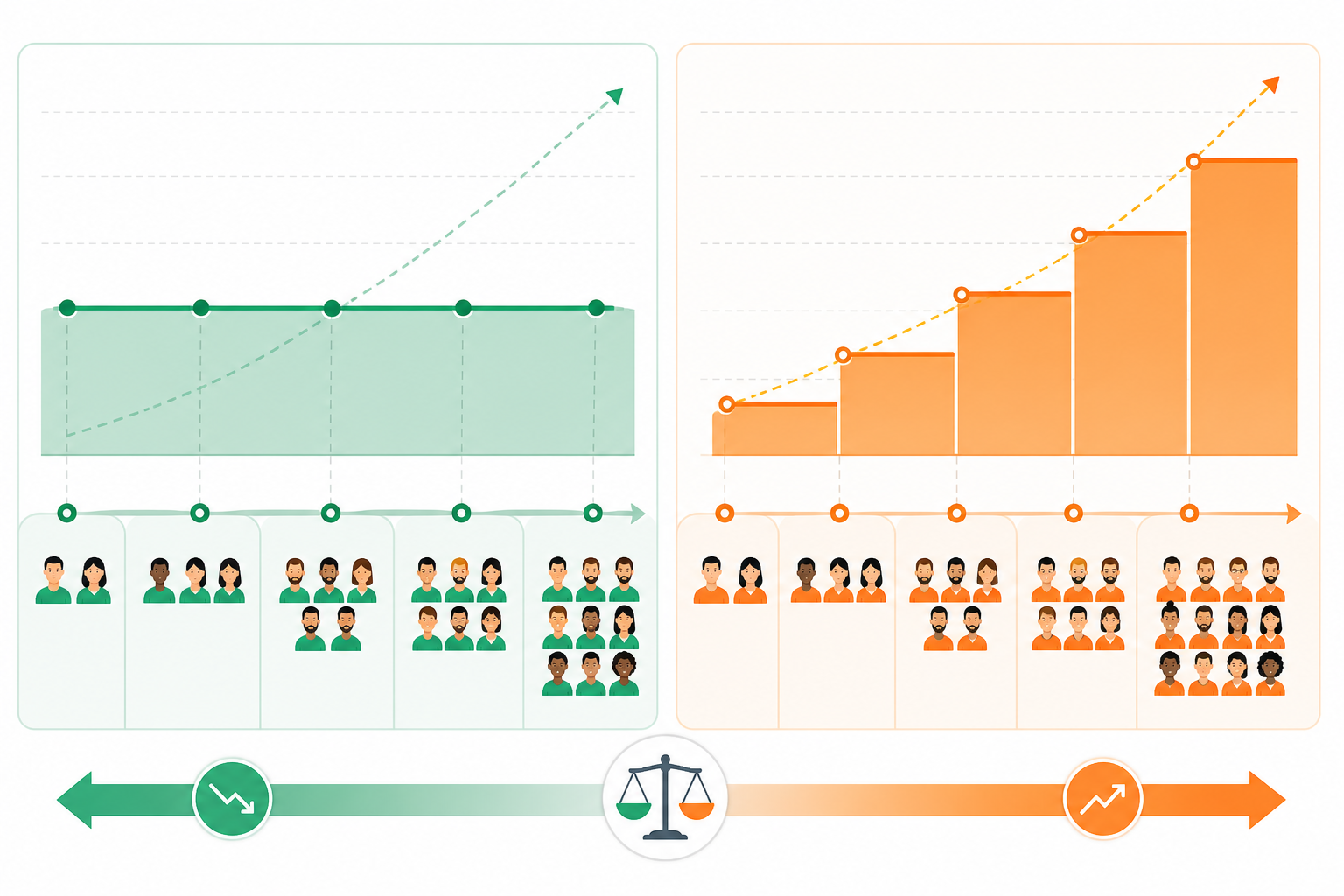
The general pattern holds even if exact numbers shift: the gap between flat-rate and per-seat pricing tends to widen as your team grows, which is worth factoring in if you expect to add agents over the next year.
What to Watch Out for During a Support Software Trial
A few things are worth flagging no matter which support software you're evaluating:
- Trials that require a credit card upfront. This isn't automatically a red flag, some legitimate providers do it to prevent abuse, but it does mean you need to check the cancellation process and auto-renewal terms carefully before you start the clock.
- Setup processes that require a sales call before you can even log in. If you can't self-serve into the product within minutes, that's a preview of what onboarding your whole team will feel like later.
- Feature gating during the trial that hides the exact things you're trying to evaluate. If reporting or team features sit behind a 'contact sales' wall, you can't make an informed decision.
- Vague or missing documentation on integrations and mobile apps. If you can't find clear answers about iOS, Android or desktop apps before you commit, you'll find out the hard way after you've paid.
The most useful trials let you test everything that matters upfront: shared inbox, live chat widget, email ticketing, team collaboration and reporting, without a sales call standing between you and the answer. Some providers, including Sonny, offer a 7-day trial without requiring a card, though it's always worth double-checking current terms directly on their site since policies do change.
Frequently Asked Questions About Support Software Trials
What should I test during a support software free trial?
Focus on the workflows your team will actually use daily: setting up your shared inbox, inviting teammates, forwarding email into tickets, tagging and filtering conversations, and reviewing reporting on response times. If a tool feels smooth across all five areas by day 5 or 6, that's a strong signal it'll hold up once you're relying on it for real customers.
How do I evaluate help desk tools in a short trial period?
Treat the trial like a sprint, not a browse session. Assign one task per day using a checklist like the one above, involve your actual teammates instead of testing solo, and score each area against a simple weighted scorecard rather than relying on overall impression. Pay attention to how long setup and daily use actually take, not just whether the features technically exist.
Do I need a credit card to start a support software trial?
It depends on the provider, plenty of good tools require one, and plenty don't. If you'd rather avoid the risk of an accidental charge, look specifically for a no-card trial and check the cancellation terms either way. Sonny, for example, has offered a 7-day trial without requiring a card, though it's worth confirming current terms directly on their pricing page before you sign up.
Your Next Step: Use This Free Trial Checklist
A trial is only as useful as the plan behind it. Print or copy the checklist and scorecard above, block fifteen minutes a day this week, involve your team from day 2 onwards, and score the result honestly rather than going on gut feel. By day 7 you'll have an actual weighted answer, not just a nice-looking widget and a vague sense that it was 'fine.'