
Email ticketing: a beginner's guide for first-time founders
Email ticketing turns your customer support inbox into something more organized: every email becomes a trackable ticket, assigned to a team member, tagged by topic, and monitored until it's actually resolved. For early-stage SaaS founders, that means no more duplicate replies, no more "wait, did we answer this?" moments in Slack, and a much clearer picture of how fast your team is actually responding to people.
By the end of this guide, you'll know how email ticketing works, how to set up a basic shared inbox and ticket queue, how to define a simple ownership rule, and how to start tracking response times, even if you've never touched help desk software in your life.
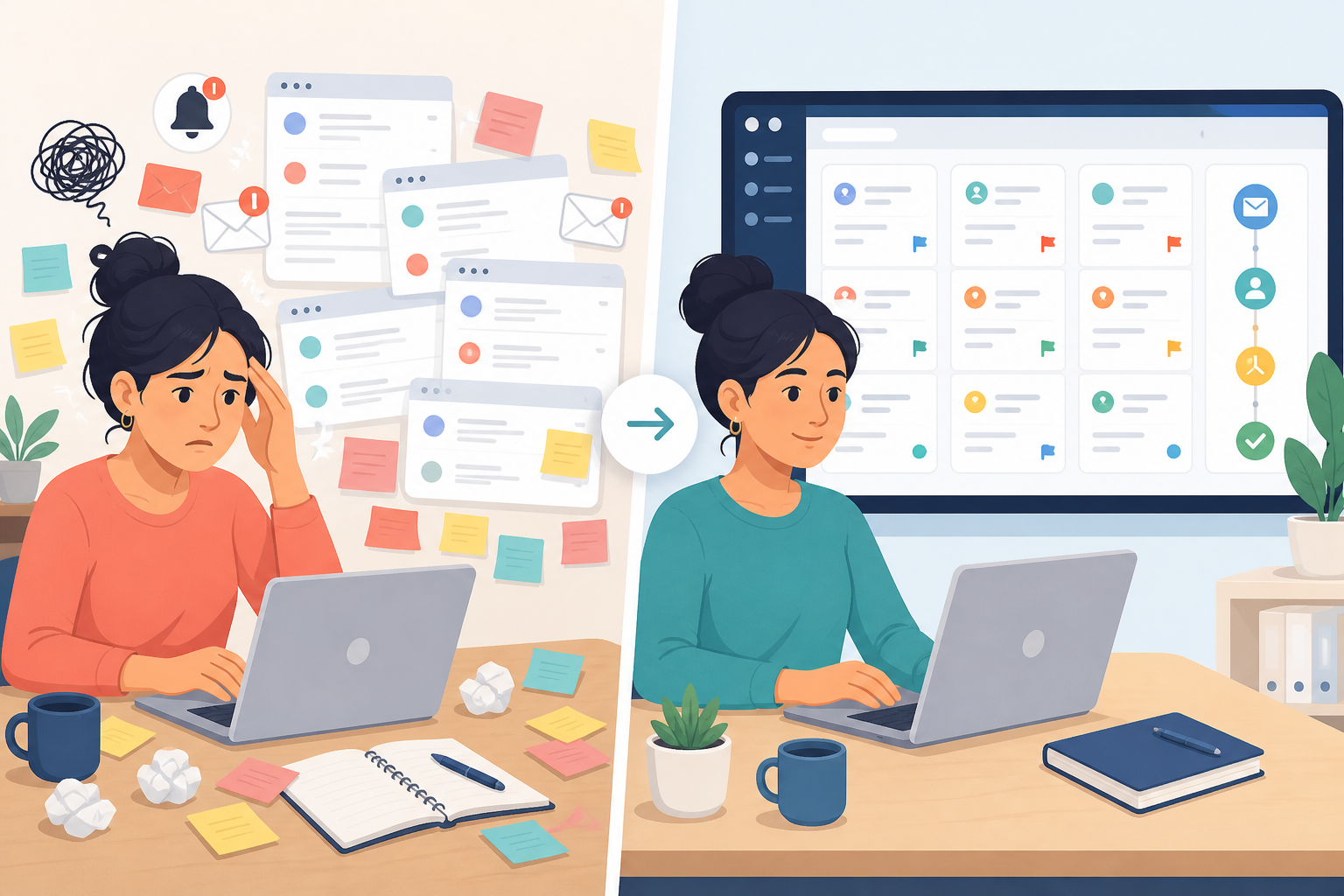
If you're running a startup, you already know customer emails have a way of multiplying overnight. One day it's a trickle. The next, you've got forty unread messages, three people replying to the same customer, and no real idea what's been resolved and what hasn't. That's the exact problem email ticketing was built to fix.
This guide is written in plain English, and I'm not assuming you've done any of this before. We'll walk through what email ticketing actually means, how email forwarding works under the hood, and how to get your first ticket queue running with sensible defaults.
What is email ticketing in customer support?
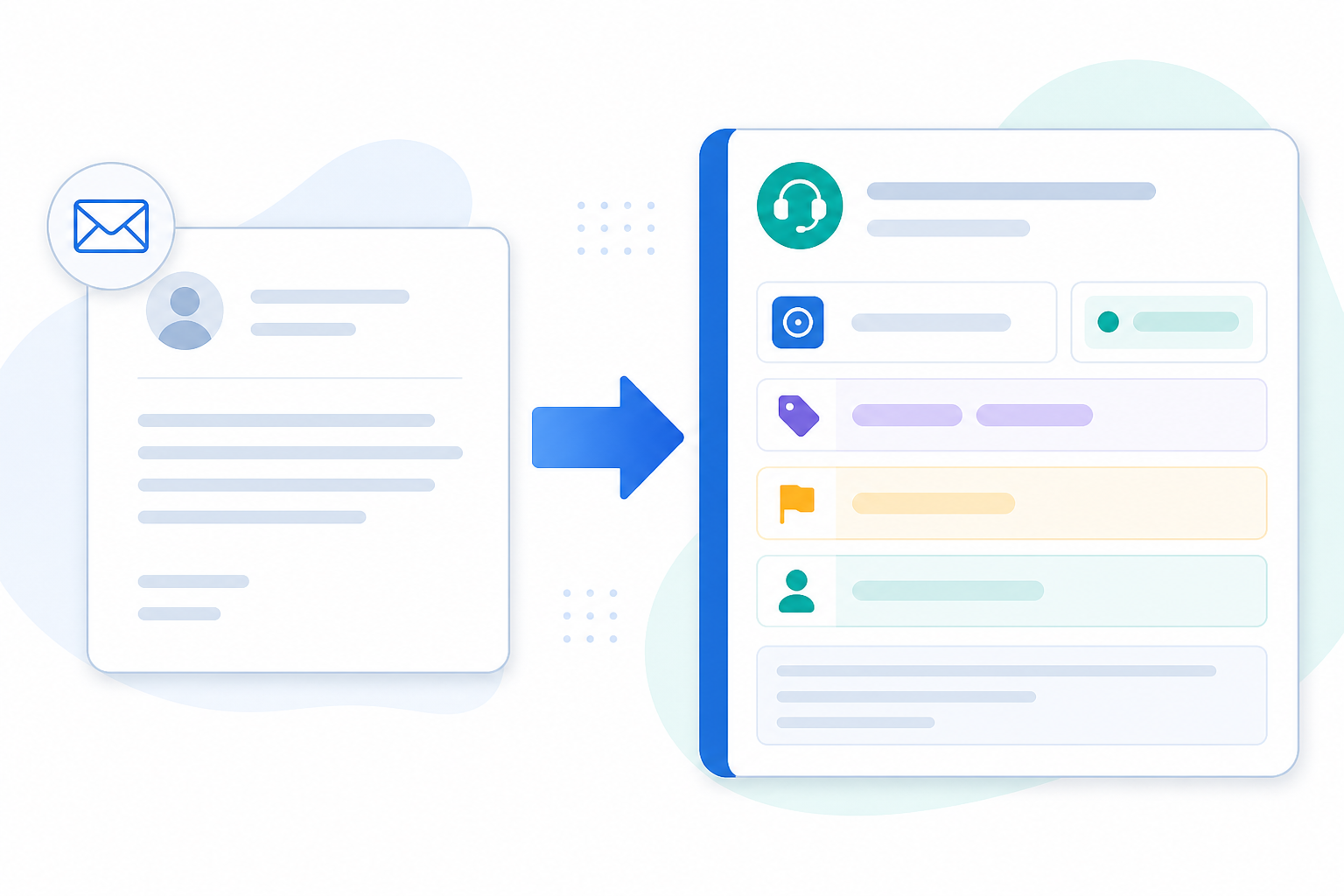
At its core, email ticketing is a simple idea: every customer email that comes in gets turned into a "ticket," a structured record instead of just another message floating around in an inbox. Think of it like a coat check for your support conversations. Each item that comes in gets a tag, a home, and someone responsible for handing it back out.
A typical customer support ticket has these key parts:
- Status — is it open, pending a customer reply, or closed?
- Owner — which team member is responsible for answering it?
- Priority — how urgent is this compared with everything else in the queue?
- Tags — what's it about? Billing, bug report, onboarding question?
- History — the full back-and-forth, threaded automatically so replies stay attached to the original conversation instead of becoming separate emails, plus any internal notes your team added along the way.
A few concepts are worth understanding early, because they explain what email ticketing does behind the scenes that a plain inbox simply can't:
- Threading groups every reply in a conversation under one ticket, instead of treating each new message as something unrelated.
- Collision detection warns a teammate if someone else is already viewing or replying to the same ticket. This is what actually stops duplicate replies, not just seeing who's assigned.
- Automation rules can tag or assign tickets automatically based on keywords or sender, though most tools make you set these up yourself rather than handing them to you out of the box.
- SLAs (service level agreements) are target response times you set for yourself, like "first reply within 4 working hours," that your reporting can then measure you against.
Here's a quick example of how the lifecycle plays out: a customer emails about a failed payment. It comes in as a new ticket, gets tagged "Billing" automatically, and lands with whoever's on support duty. It sits as "pending" while you wait for the customer to confirm their card details, then moves to "resolved" once the payment goes through, with the whole exchange logged in one place instead of scattered across three separate email threads.
Why email ticketing matters for SaaS startups
Your support@yourstartup.com address probably felt manageable when you launched. Maybe it was just you, checking it a few times a day. But as you add customers, that inbox gets messy fast. Someone on your team replies to a billing question, doesn't mention it anywhere, and two hours later a teammate replies to the exact same thread with a completely different answer.
Email ticketing prevents that. Instead of a flat list of messages, everyone can see exactly what's been touched, by whom, and what's still waiting. A shared inbox with ticketing also gives your team something solid to build on as support volume grows.
How does email-to-ticket forwarding work?
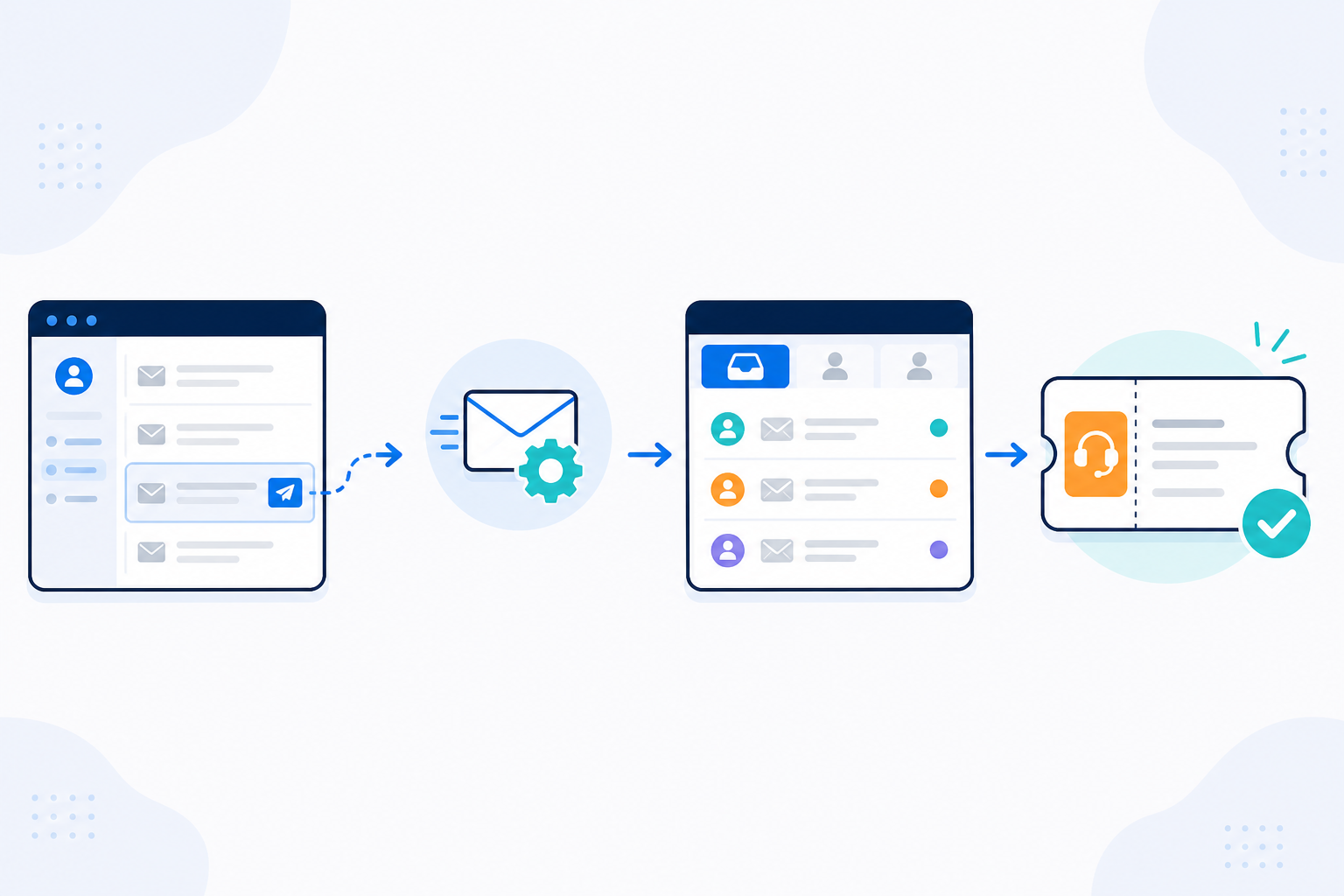
Email-to-ticket forwarding connects your customer support address to help desk software. It's not an IT project, but it's worth understanding the setup properly rather than assuming it works the same way everywhere. The exact steps depend on your email provider and whichever help desk tool you pick.
Teams generally connect their support email to a ticketing tool in one of three ways:
- Forwarding rule. You add a forwarding rule in Gmail, Outlook, or Microsoft 365 that sends a copy of incoming mail to a unique address your help desk gives you. This is usually the fastest option, but forwarded mail sometimes needs SPF, DKIM, or DMARC settings adjusted so it doesn't get flagged as spam. Your provider's forwarding limits can occasionally get in the way too.
- Direct mailbox connection. Some tools let you connect the support@ mailbox directly via IMAP or an API integration instead of forwarding. This tends to be more reliable for two-way sync, but setup varies depending on your provider.
- Custom domain alias. If you want a dedicated address, something like help@yourstartup.com, fully hosted by your help desk, this usually just means a quick DNS record change with your domain registrar.
How are replies sent from your support address?
This is the part that trips people up. In most setups, customers still see replies coming from your normal support@ address. But that depends on your help desk being properly authorized to send on your domain's behalf, which usually means adding a sender record to your DNS.
Check this specifically with whichever tool you choose. Don't assume it works identically everywhere. Correct email authentication protects your deliverability and makes it less likely your support replies end up in spam.
Once it's set up, the everyday flow looks like this:
- A customer email lands in your support inbox.
- Thanks to the forwarding rule or mailbox connection, it also shows up in your shared inbox as a proper ticket, tagged, timestamped, and ready to be assigned.
- Your team works from inside the shared inbox, replies, and the customer just sees a normal email land in their inbox.
What's genuinely nice about this, once it's configured correctly, is how invisible it is to your customers. There's no "please note our new support system" email needed. The whole change happens on your team's side only.
Setup speed varies by tool and by how much configuration your domain needs. DNS changes, for instance, can take a few hours to propagate. Sonny is one example of a shared inbox that combines email ticketing, live chat, and team collaboration in one place. It's worth checking its current setup docs and pricing directly, since both flat-rate and per-seat models exist across the market, and comparing a few options before you commit is time well spent.
Why use email ticketing instead of a shared Gmail inbox?
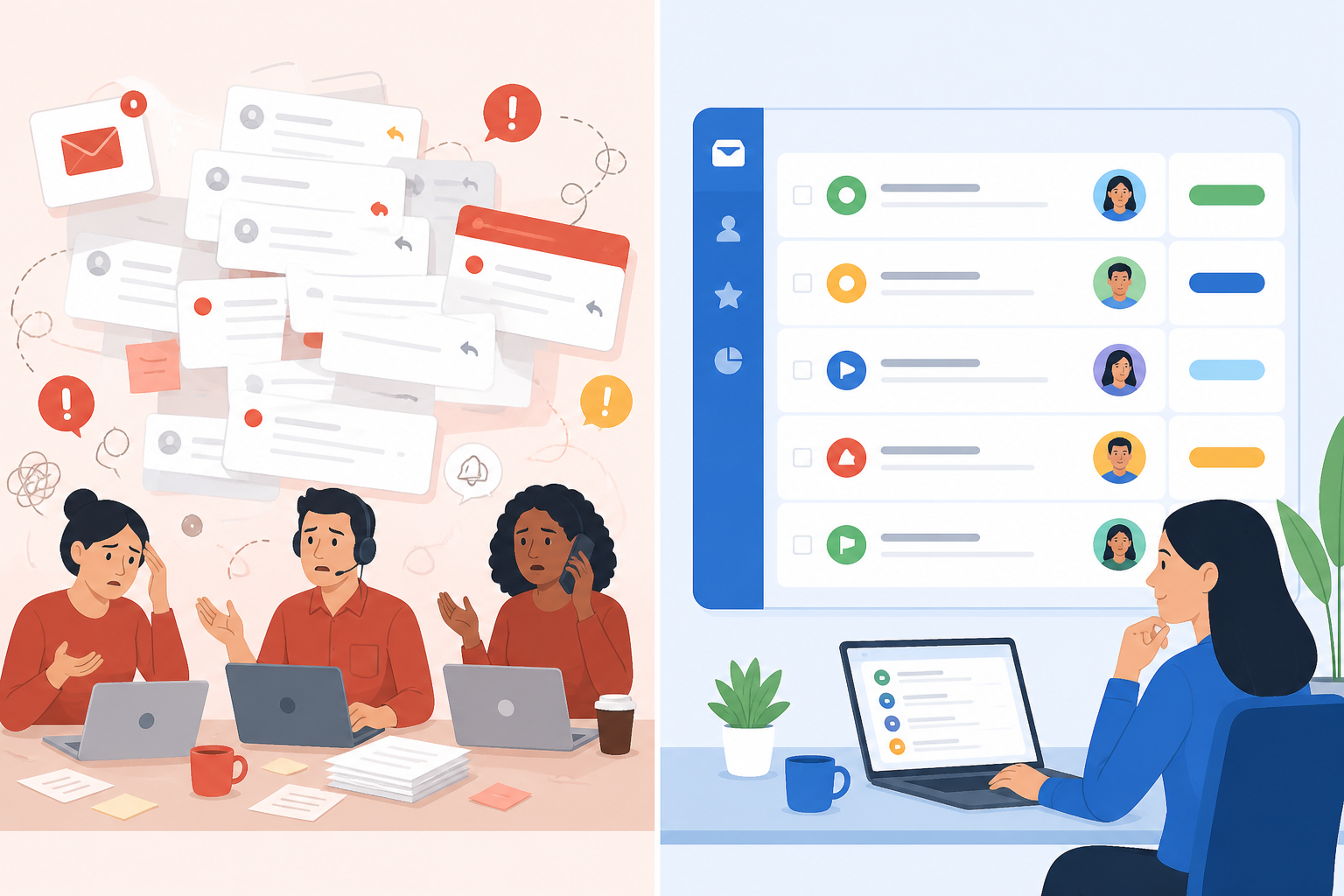
A lot of early-stage teams start with a shared Gmail or Outlook inbox. Everyone logs into the same account, or emails get CC'd around to whoever's free. It works for a while. Then the cracks start showing.
Here's a general comparison of what commonly goes wrong with a shared inbox, and what dedicated help desk software is built to fix:
| Shared Gmail inbox | Typical help desk software |
|---|---|
| Two teammates reply to the same email, confusing the customer | Collision detection and clear ownership mean only one person handles each conversation |
| No easy way to see who's working on what | Assignees are visible at a glance across the team |
| Little to no reporting, so you're guessing how quickly you respond | Built-in reporting tracks first-response and resolution times automatically |
| No internal notes, so conversations move to Slack mid-thread | Internal notes let your team discuss a ticket without leaving it |
| Labels and searches get harder to manage as volume grows | Filtering and tagging make related tickets easy to find |
| No complete record of who changed what or when | Audit history logs status changes and reassignments |
Some shared inbox tools, Gmail included, can replicate a few of these features through labels and add-ons. The real gap is usually collision detection, reporting, and structured tagging. Those are genuinely hard to bolt onto a personal email client.
How a shared inbox improves team collaboration
The Slack problem is common for early teams: someone starts replying to a customer, realizes they need input from a teammate, and the conversation splits, half in email, half in Slack, with nobody holding the full picture. Internal notes fix this cleanly. You leave a note directly on the ticket, your teammate sees it in context, and the customer never knows there was a conversation happening behind the scenes.
How to set up your first email ticket queue
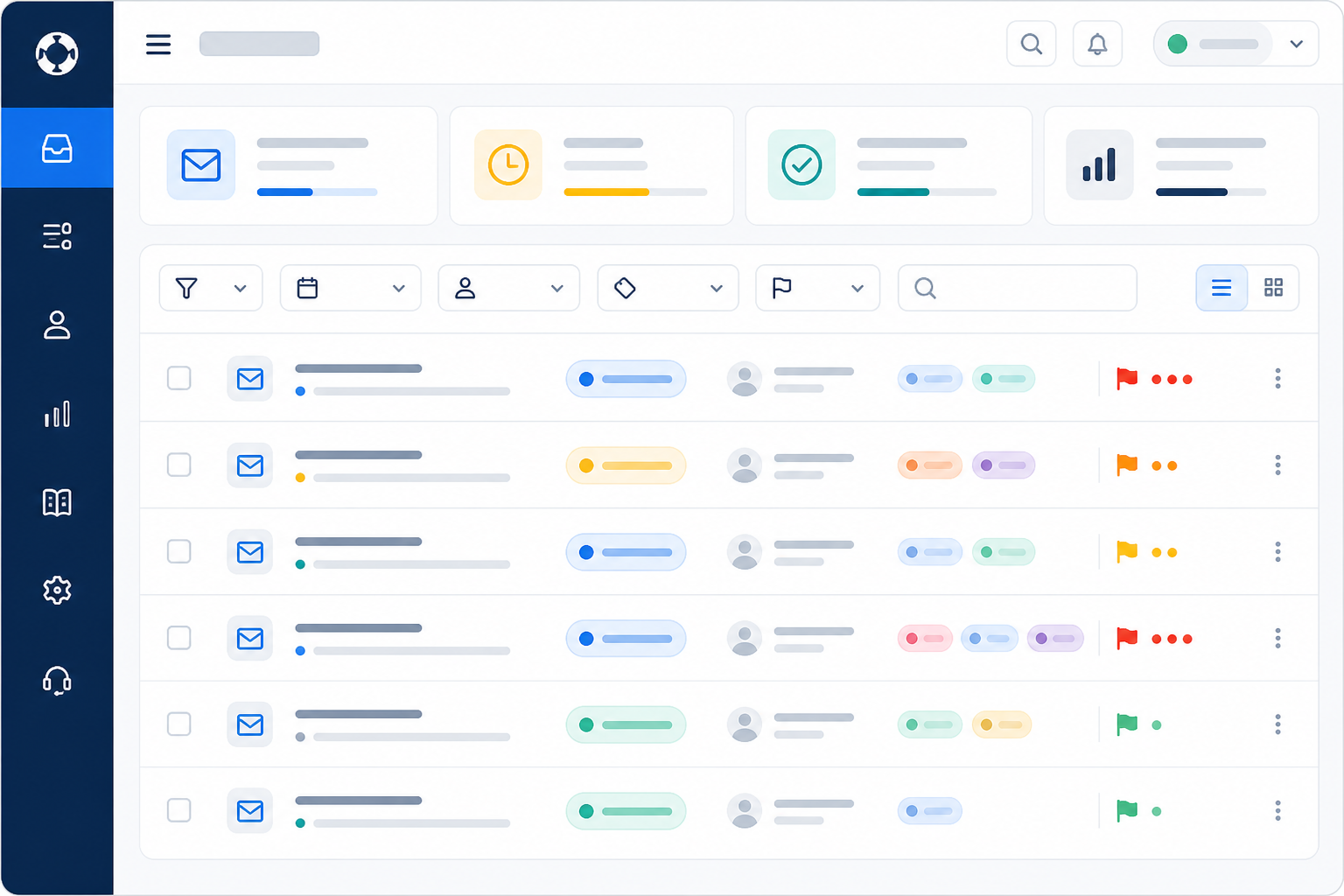
Setting up your first ticket queue doesn't need to be complicated. Here's a practical starting configuration you can adapt:
- Pick a small starter tag set. Four to six tags is plenty to begin with, for example Billing, Bug Report, Feature Request, Onboarding, and General. Resist the urge to build a huge taxonomy on day one. You'll see the real patterns once tickets start coming in, and it's much easier to split a tag later than merge fifteen overlapping ones.
- Define three statuses and a basic priority scale. Open, Pending (waiting on the customer), and Resolved cover most early needs. For priority, "Urgent / Normal / Low" works well. A billing failure affecting a paying customer might be Urgent; a typo report is Low.
- Set an ownership rule. Decide who picks up new, unassigned tickets. Something as simple as "whoever's online grabs new tickets within 15 minutes" is enough for a small team. Add an escalation rule too: anything tagged Urgent and still unassigned after 30 minutes could automatically notify the founder or team lead.
- Turn on reporting from day one. Track first-response time, resolution time, and how many tickets are sitting in your backlog. It's much easier to build this habit early than to bolt it on six months in, once customers are already complaining about slow replies.
- Review your numbers weekly. A five-minute weekly check of first-response time, backlog size, and reopen rate (tickets marked resolved but later reopened) tells you far more than staring at your inbox ever will.
- Consider an AI copilot later, once volume increases. If you already have documentation, some help desk tools offer AI-assisted drafting for repetitive questions. It can genuinely save time at scale, but it's not something you need in week one.
Choosing help desk software in the UK
Help desk tools price themselves differently. Some charge per agent, others offer flat-rate plans regardless of team size. As a UK-based team, check whether quoted prices are in GBP or USD and whether VAT is included, since this varies by vendor.
It's also worth checking where a tool processes and stores your customer data, particularly given UK GDPR requirements. Most reputable providers publish a data processing agreement (DPA), and it's worth reading before you connect real customer emails.
None of this needs to be perfect on day one. The goal is a lightweight email ticketing system that stops tickets slipping through the cracks while your team is still small.
Common email ticketing mistakes for beginners
A handful of mistakes come up again and again with teams setting up their first ticketing system. Here's how to sidestep them:
- Treating tags as an afterthought. It's tempting to "figure it out later," but tags are far easier to define now than after you have 500 untagged tickets to sort through retroactively.
- Building too many tags or automations too early. The opposite mistake is just as common: teams create 20 tags and 10 automation rules in week one, before they understand their own patterns. Start small and expand once real needs show up.
- Letting tickets sit unassigned. An unassigned ticket is basically invisible. Set a default owner or assignment rule from the start.
- Ignoring reporting until something breaks. Don't wait for a customer complaint about slow replies before you check response times. A quick weekly review is enough.
- Choosing a tool based on price alone. Per-seat pricing might work fine for a three-person team but get expensive fast at ten. Flat-rate pricing isn't automatically better either, so compare the actual features and integrations you need.
- Skipping the trial period. Test any tool with your real team and real tickets before committing. Many help desk tools offer a free trial, but check the current terms on the provider's website, since these change.
Where live chat and team collaboration fit in
Email ticketing is a solid foundation, but it's just one part of the bigger customer support picture. As your product grows, customers may want to reach you through more than email. Live chat on your website is a common next step, helping answer real-time questions before someone gives up and leaves in frustration.
If your live chat and email ticketing live in the same shared inbox, your team isn't juggling separate tools or losing context every time they switch between them. Internal notes and tagging can work across both channels, keeping team collaboration in one place instead of scattered across email, chat, and Slack.
That said, live chat means someone needs to be genuinely available to answer in real time. Think about staffing before you turn it on. There's not much point adding a channel you can't consistently support.
Starting with email ticketing now sets you up well for whatever your support needs look like in six months or a year. You don't need to solve everything on day one, just get the foundation right and build from there.
Email ticketing FAQs
What does email ticketing mean in customer support?
Email ticketing is a system that turns incoming customer emails into trackable tickets, organized records with a status, owner, priority, and history. Instead of emails disappearing into a crowded inbox, each conversation gets tagged, assigned to a team member, and tracked from open to resolved. It's the backbone of most help desk software platforms.
How is a ticketing system different from a regular inbox?
A regular inbox is just a list of messages in chronological order, with no built-in way to assign ownership, track status, or see if someone's already replied. A ticketing system adds structure: each email becomes a ticket with a status, assignee, tags, and internal notes. Features like collision detection also help stop two teammates from replying to the same customer at the same time.
How do I set up email forwarding to a help desk?
Most platforms give you a unique forwarding address or let you connect your support mailbox directly. The exact steps depend on your provider. Gmail, Outlook, and Microsoft 365 all handle forwarding rules a bit differently, and you may need to adjust SPF, DKIM, or DMARC settings so forwarded mail doesn't get flagged as spam.
If you want replies sent from your existing support address, check with your chosen tool whether that requires a DNS change, since it's not automatic with every provider.
Do I need help desk software if I'm a small team?
Even a two- or three-person founding team can benefit once you're receiving more than a handful of support emails a day. The moment you catch yourself asking "did anyone reply to this?" in Slack, that's usually a sign a shared inbox with email ticketing could save time and stop duplicate replies.
Will switching to a ticketing system disrupt my customers?
Not if it's set up correctly. Customers keep emailing the same support address while the change happens entirely behind the scenes for your team. With email-to-ticket forwarding configured properly, including the sending authentication mentioned above, customers shouldn't notice anything different apart from faster, more consistent replies.