
Live Chat Widget: Native Apps vs. Browser-Only Help Desk Software
A practical comparison of native apps and browser-only customer support software for founders who need to answer a live chat widget conversation from their phone between meetings — not just from a desk.
If you're running a startup, you're not chained to a desk, so ideally your customer support software shouldn't force you to be either. Browser-only help desk software relies on you keeping a tab open, remembering it's there, and noticing the notification when it fires. A proper native app on your iPhone, Android, or Mac means you're far more likely to catch a live chat widget conversation from wherever you actually are, whether that's the school run, a client meeting, or the queue at Pret. ☕
I've talked to enough founders to know the pattern by heart: you're wearing five hats before lunch, and "check the support inbox" is somewhere between "approve the invoice" and "actually eat something." If your help desk software only lives in a browser tab, it's competing for your attention against everything else open on your laptop, and it doesn't always win. Let's talk about why that matters more than it might seem, what's actually true (and not quite true) about browser notifications, and what to look for instead.
The problem with browser-only customer support tools
To be fair to browser tabs: modern browsers can send desktop notifications, even from a tab that isn't active, as long as you've granted permission and the browser is running. Pinning a tab helps. So does leaving your laptop open. So the honest version of this problem isn't that browsers can't notify you. It's that the whole system depends on a chain of small conditions holding up: the browser has to be open, the permission has to be granted, your laptop can't be asleep, and you have to actually be near it.
That's a lot of conditions for something as important as a customer waiting on a reply. You open twenty tabs a day, and the moment your laptop starts groaning under the weight of Chrome, something gets closed or the browser gets force-quit to free up memory. Usually it's not the tab you meant to lose. When your customer support software lives entirely in a browser, you're relying on a setup that works fine at a desk and gets shakier the further you get from one.
And that's the real cost here: founders end up feeling tethered to their laptop, just in case a customer message comes through. That's not sustainable when you're also handling sales calls, product decisions, and the eighteen other things on your plate today. You didn't start a company so you could babysit a browser tab.
Here's a scenario that'll feel painfully familiar: you step into a 20-minute meeting, phone on silent, laptop closed. You come back to three unanswered live chats and one customer who's now typing in all caps. Nothing dramatic happened. You were just doing your job. But from the customer's side, it looks like nobody's home. That's the quiet cost of browser-only support tools: not one big failure, but a steady drip of small, avoidable ones.
What native apps add for on-the-go support teams
This is where it's worth pausing on what "native app" actually means, because the term gets used loosely. A genuine native app is built specifically for iOS, Android, or macOS, using the platform's own tools, which is why it can plug into real push notifications, the lock screen, and the dock. A mobile-optimised website just resizes your browser tab to fit a smaller screen; it's still a browser tab underneath. And some "apps" are really a website wrapped in a thin shell (sometimes called a PWA or an Electron-style wrapper), closer to native than a plain website but not quite the same thing in terms of performance or offline behaviour. None of these are automatically bad, but they're not interchangeable, and it's worth knowing which one you're actually being sold.
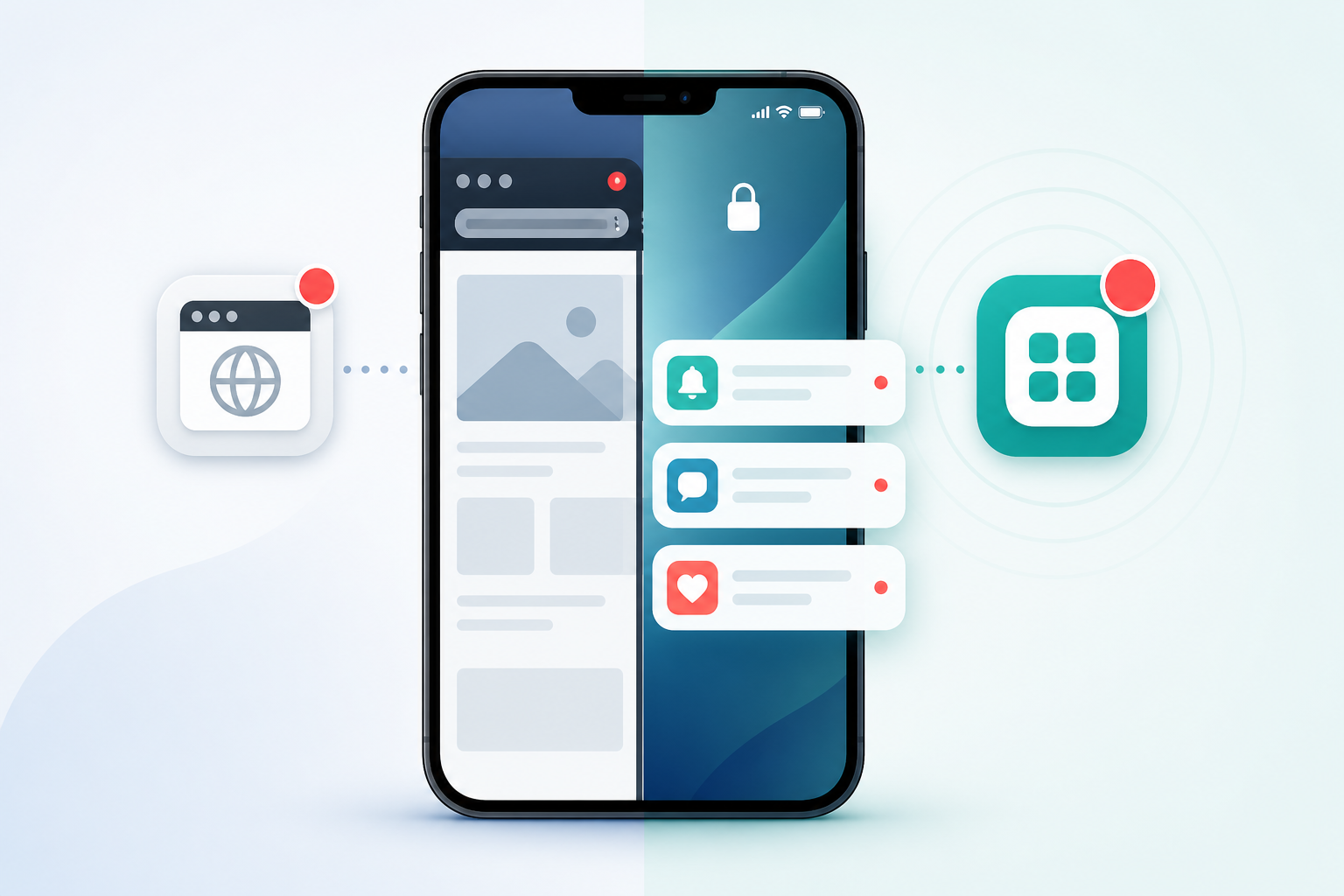
Here's what a genuine native app typically adds over browser-only access:
- Push notifications that land on your lock screen by default, without needing a tab open, pinned, or even running
- Faster load times, often, since the app isn't sharing memory with fifteen other browser tabs and three Zoom calls, though this depends on how the app itself is built, not just the fact that it's an app
- Some offline access, like reading recent conversations or queuing a reply without signal, though what actually works offline varies a lot between tools, so it's worth testing rather than assuming
- A dedicated space that feels like a tool you rely on, rather than something you'll accidentally close with a stray Cmd+W
- Smoother performance on mobile, generally, than running a full support dashboard through a mobile browser, though battery impact depends more on how often the app polls for updates than on it simply being native
That middle point about performance is the one people underestimate. Mobile browsers weren't built to run complex, real-time apps smoothly. You'll notice the lag, the occasional refresh that loses your scroll position, the general clunkiness. A well-built native app is designed for the device it's on, so it tends to feel steadier. But "tends to" is the honest phrasing here. It's not a law of physics; it's a result of engineering effort, and quality varies between providers.
Answering a live chat widget from an iPhone or Android
Let's paint the actual picture, because "mobile support" sounds abstract until you see what it looks like day to day.
You're between meetings. Your phone buzzes, not a vague notification, but one that tells you a customer's asking about a refund policy. You tap it, and ideally you're straight into the full conversation: the thread, the tags your teammate added yesterday, the internal note that says "this customer's been burned before, be extra clear." You reply in under a minute, and you're back to your day.
That's the promise of a genuinely mobile-friendly shared inbox, but let's be plain: feature parity between desktop and mobile isn't guaranteed across every tool. Some apps genuinely mirror the full desktop experience. Others give you a simplified inbox that's fine for quick replies but strips out internal notes, tags, or assignment history. Before you commit to anything, check specifically for:
- Full conversation history, not just the latest message
- Internal notes and tags visible on mobile, not just desktop
- The ability to assign or reassign a conversation from your phone
- Saved replies or templates available on mobile
- Attachments that open properly, not just as a broken link
- Notification settings you can actually control, so you're not drowning in pings
For small teams especially, this matters enormously. If you don't have a dedicated support hire yet (and most early-stage startups don't), then customer support software has to fit into the cracks of your day rather than demanding its own dedicated block of time. A founder replying to a live chat widget conversation on their commute, instead of leaving the customer hanging until they're back at a desk three hours later, adds up. Multiply that by every commute, every school run, every five minutes waiting for a coffee order.
Using a Mac app vs a browser tab for customer support
Even if you're mostly working from a laptop, there's a real argument for a dedicated Mac app over just keeping a browser tab open. It sounds like a small thing until you actually use both side by side.
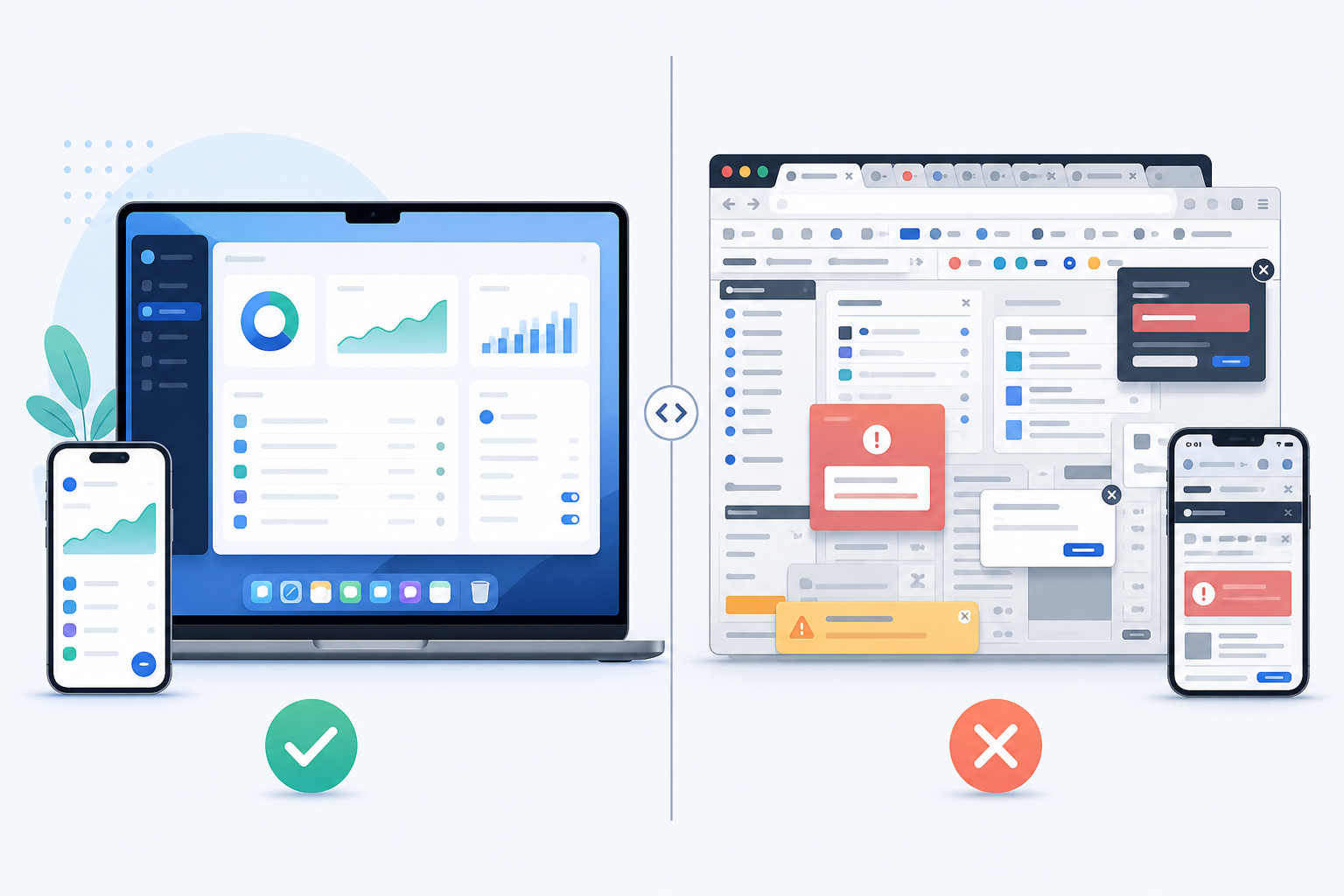
| Native Mac App | Browser Tab | |
|---|---|---|
| Window | Dedicated app window, generally stays where you left it | Competes with every other open tab |
| Notifications | Native alerts plus a dock badge count | Possible via browser permissions, but easy to miss if the tab isn't active or permissions lapse |
| Shortcuts | Often has app-level keyboard shortcuts built for speed | Limited to generic browser behaviour |
| Startup | Can usually be set to launch automatically, if you enable that setting | Relies on you remembering to open it each time |
| Performance | Runs independently, often snappier | Shares memory and CPU with everything else open |
None of these differences are enormous on their own, and browser notifications can absolutely be configured to work well if you take the time to set permissions properly. But add the small frictions up over a working week, and it's the difference between support feeling like a natural part of your rhythm and support feeling like one more thing you have to remember to check.
Choosing customer support software that works everywhere you do
So if you're shopping around for help desk software right now, here's what I'd actually check before signing up for anything, ideally during a free trial, not just from a features page:
- Confirm there's a genuine native app: ask directly whether it's built natively for iOS, Android, and macOS, or whether it's a mobile-optimised website or a wrapped web app. Both can work, but you should know which you're getting.
- Look for flat-rate pricing. If your plan charges per seat, adding your third hire six months from now becomes a pricing conversation instead of a two-minute setup. Flat-rate models with unlimited agents mean you're not penalised for growing.
- Prioritise fast setup. If a tool needs an onboarding call before you can even send your first reply, that's a red flag for a small team that needs to move quickly. You want to be live in minutes, not scheduling a call for next Tuesday.
- Check that everything syncs properly across devices: the live chat widget, email ticketing, internal notes, tags. It's not enough for mobile to show a basic inbox if it strips out the context that makes replies actually useful.
- Check mobile security and permissions. Can you remove a lost device remotely? Can you control who sees what? For a support tool handling customer data, this isn't a nice-to-have.
- Look for a free trial with no credit card required. This is honestly the easiest way to judge the mobile experience for yourself, rather than trusting a features page. If a company's confident in their product, they'll let you try it without asking for card details upfront.
That last point is worth dwelling on. A lot of software still hides its actual usability behind a sales call or a payment wall. If you can't test the mobile app experience risk-free before committing, that tells you something.
How Sonny handles mobile live chat support
Quick disclosure before I go further: Sonny is our own product, so take the rest of this section with that in mind. I'm obviously not a neutral party here, though I've tried to be straight with you about native apps generally.
Sonny gives you native apps for iPhone, Android, and Mac, alongside full browser access, so however you prefer to work, you're covered. The mobile apps carry over full conversation history, internal notes, and tags, not a stripped-down version, and you can queue a reply while offline that sends once you're back online (attachments and some richer actions currently need a connection, which is worth knowing if you're somewhere with patchy signal, like the London Underground).
Pricing is flat-rate at £15.99/month (plus VAT where applicable), billed monthly, with unlimited agents and unlimited conversations. That means your whole team, even as it grows, can have the app on their phone without you renegotiating your plan every time you hire someone new. No per-seat surprises.
Setup takes under five minutes, and there's no onboarding call standing between you and your first reply. The 7-day free trial doesn't ask for a credit card either, so you can actually test the mobile experience properly before deciding anything, including checking notification settings and permission controls for yourself.
Teams like Shopstar and CleanMyList use Sonny for day-to-day support: a shared inbox that keeps live chat, email tickets, and internal team notes in sync, whether someone's replying from a desktop or from their phone on the way to a meeting. There's also an optional AI copilot trained on your own docs, useful when you're typing a reply on a small screen and want a confident first draft to work from, though like any AI feature, it's worth testing during your trial how it handles your specific product and tone before relying on it for real customer replies.
The point is simple: your support tool should keep up with how you already work.
FAQ: Mobile customer support and live chat widgets
Do I need a mobile app for customer support software?
Not strictly, but if you're a founder or small team without dedicated support staff, a mobile app makes a real difference. It means you're far more likely to catch and answer live chat widget conversations close to when they come in, rather than waiting until you're back at your laptop, though how much difference it makes depends on how good that specific app actually is on mobile.
Can I answer a live chat widget from my phone?
Yes, as long as your help desk software has a genuine native app with full feature parity, not just a notification that sends you back to a desktop. Worth checking during a trial: can you see internal notes, assign conversations, and use saved replies from your phone, or only send basic messages?
What's the difference between a native app and browser access?
A native app is built specifically for your device (iPhone, Android, or Mac) using that platform's own tools, which is why it can offer reliable push notifications and steadier performance. Browser access works through your browser instead. It can also send notifications if you grant permission, but that setup depends on the browser staying open and the permission staying active, which makes it a bit more fragile away from a desk.
Which help desk tools have iPhone and Android apps?
This varies by provider and changes over time, so it's worth checking directly with each tool rather than assuming. A quick way to test it yourself: download the app during a free trial, turn on notifications, then walk away from your laptop for an hour and see what actually reaches your phone, and how much of the conversation context comes with it. Sonny includes native apps for iPhone, Android, and Mac as standard, alongside browser access, under one flat-rate plan with unlimited agents, but it's one option among several worth comparing.
Before you commit to a mobile help desk tool
Your customers don't care whether you're at a desk or not. They just want a quick, thoughtful reply. Before you pick a tool, run this quick test during any free trial: install the mobile app, check whether notifications actually reach your lock screen, confirm internal notes and tags show up on mobile, try replying with your Wi-Fi off, and see how it feels on a Mac versus a browser tab over a normal working day. Give yourself the tools to actually deliver a fast reply, wherever your day happens to take you, just make sure you've tested them properly first.