
Managing a live chat widget on the go: a founder's guide to mobile customer support

Yes, you can run a live chat widget, a shared inbox and your email tickets straight from your phone. For growing UK startups, mobile customer support isn't really a nice-to-have anymore. It's closer to a survival skill. With the right setup, a native app, real push notifications, and full functionality for live chat and email, you can handle support from pretty much anywhere.
Let's look at what this actually looks like day to day: what features are worth caring about, and where mobile support genuinely hits a wall.
Why mobile access matters for small teams
Here's the truth about founder life nobody puts on the LinkedIn highlight reel: you're in back-to-back meetings, jumping on a supplier call, dashing out for the school run, and somehow still expected to answer customers in between it all. There's no support desk down the hall to hand things off to. When you're a team of two to five people, you are the support desk, at least some of the time.
Customers don't really care whether you're "in the office" or not. Picture someone browsing your pricing page at 9pm on a Tuesday, trying to decide if your product is worth the monthly spend. If your live chat widget pops up and nobody's there to answer, they don't think "fair enough, it's evening." They just close the tab.
A missed chat message or a ticket sitting unanswered overnight doesn't just create an internal backlog. It can mean a lost sale, or a customer who quietly goes elsewhere, especially if you're competing with bigger companies that have a rota covering evenings and weekends.
That's why mobile access to your live chat widget matters so much. It lets small teams punch above their weight without needing a call centre or a formal shift pattern. Really, you just need your phone, sensible notification settings, and the right support tool underneath it all.
What to look for in a mobile support app
Not all "mobile-friendly" support tools are built the same. Some are genuinely designed for phones. Others are desktop websites squeezed onto a smaller screen, and you'll feel that difference the first time you try to tag a conversation with your thumb. Here's what actually matters, especially if live chat is your primary channel:
- Native apps for iPhone, Mac and Android, not just a mobile-optimised website that loads slowly and feels dated
- Real-time push notifications, with clear guidance on setting the right permissions on your phone. A notification that's technically "supported" but silently blocked by your device settings isn't much use
- Visible agent availability status, so the live chat widget on your site reflects whether someone's actually reachable, or shows visitors a sensible offline message and a way to leave their details
- Sensible routing and handoff rules, so an urgent chat gets reassigned to a teammate if you don't respond within a set window, rather than sitting unanswered
- Full shared inbox functionality on mobile, including tagging, internal notes, filtering and the ability to assign conversations to teammates
- Team collaboration features, so founders and support staff can share context, leave notes and manage conversations without duplicating work
- Fast, low-friction setup. If you have to book a lengthy demo just to get the app on your phone, that's friction you don't need
- Flat-rate pricing, so adding your co-founder or first support hire doesn't quietly inflate your monthly bill
- Clear data handling practices, which matters in the UK given GDPR expectations around how customer conversations and personal details are stored
When you're evaluating help desk software as a founder, these aren't extras. They're the difference between a tool that fits your actual life and one that adds another login to manage.
Responding to live chat from your phone
Let's make this concrete. You're at a coffee shop, laptop closed, catching your breath between calls. Your phone buzzes with a live chat notification. Someone on your website is asking about pricing before they commit to a subscription.
With a proper mobile app and notifications turned on, you open it, see the full conversation history, and reply in under a minute. No fumbling with a tiny browser window, no re-logging in, no losing context. If a teammate already left an internal note flagging that this visitor came from a specific campaign, you'll see it in the thread before you even type a word back.
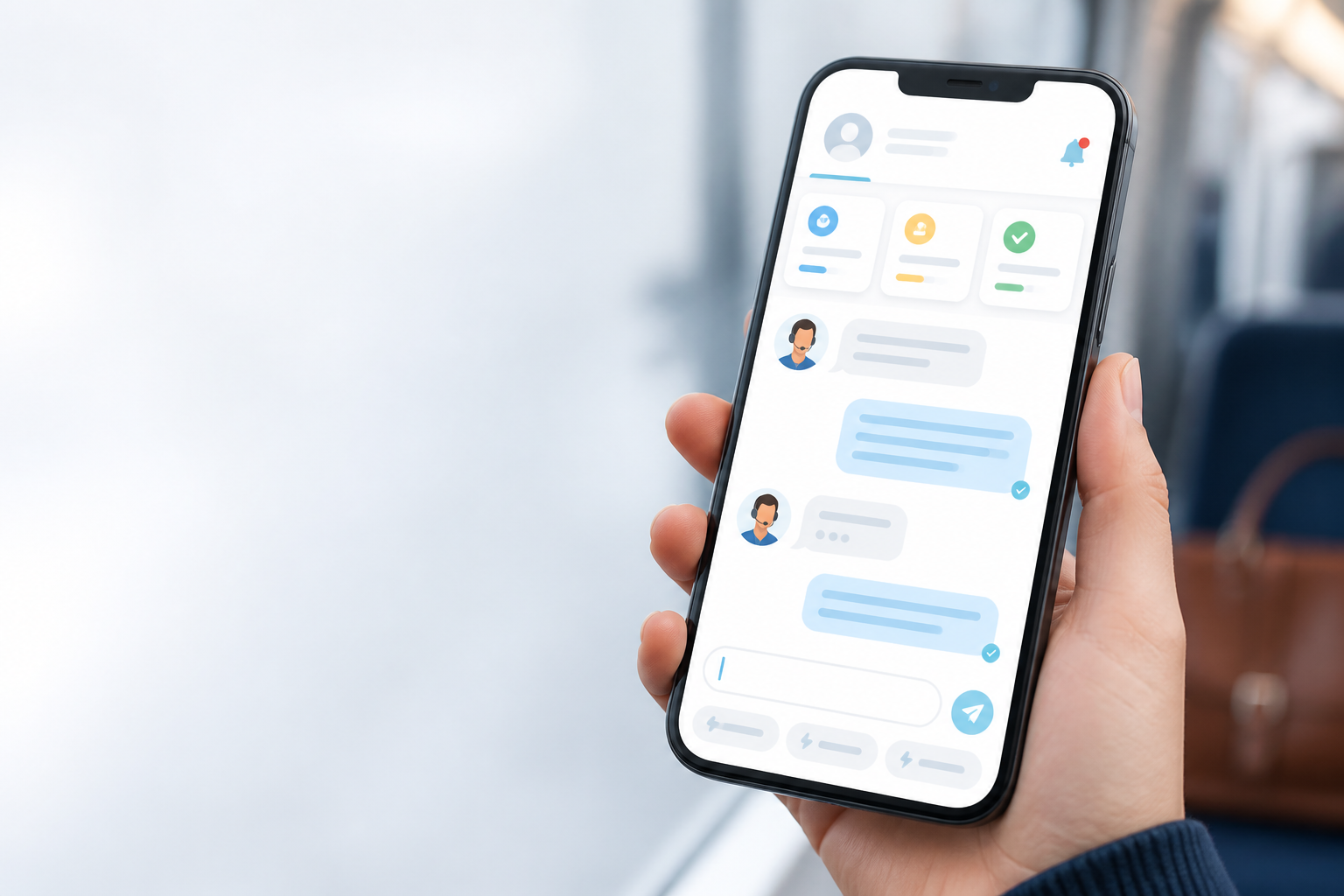
But what happens when you genuinely can't get to a chat? This is where availability settings and routing matter just as much as the reply itself. A good setup lets you mark yourself unavailable, so the live chat widget either shows an offline message with an expected response time, or automatically routes the conversation to a teammate who's online.
Without that, a visitor's left staring at a chat bubble that never replies, which honestly might be worse than not having live chat at all.
When you can respond, small details make a big difference. Tagging a conversation as "pricing question" while you're on the move makes it easier to spot patterns later. Saved quick replies mean you're not typing the same answer to "Do you offer a free trial?" for the tenth time that week.
A visitor's attention span on live chat is measured in seconds, so being able to respond properly in that window, rather than firing off a rushed "we'll get back to you soon," can change how customers see your business. They don't know you were standing in a queue. They just know you replied quickly.
This is also where team collaboration quietly earns its keep. Even if you're the one physically answering, you're not doing it alone. A note from a teammate, a tag from earlier, a mention saying "can you take this one? I'm heads-down" - all of it flows through the same shared inbox, whether you're on a laptop or a phone.
Managing customer support tickets between meetings
Most founders don't get one long stretch of "support time" in a day. What they get is a series of small gaps: five minutes here, fifteen there. The goal isn't to block out a big chunk of time. It's to make those small gaps actually count.
Here's a rhythm worth trying. Check that your support app actually handles each of these steps on mobile before you rely on it:
- Glance at the shared inbox during a short gap and triage by priority. Anything urgent, like a payment issue or bug report?
- Use filters to separate urgent live chat notifications from lower-priority email tickets. A "how do I change my password?" email doesn't need the same urgency as a customer stuck mid-checkout.
- Leave an internal note for a teammate if you can't fully resolve something on the spot. This keeps work moving even after you've put your phone away.
- Batch-process quick replies, refund confirmations, simple FAQ answers, that kind of thing, in short bursts throughout the day instead of letting them pile up.
- Set aside 15 to 20 minutes at the end of the day to properly clear anything that's built up, so tomorrow doesn't start already behind.
None of this requires perfect discipline. It just requires a tool that lets you do real support work from your phone, instead of forcing you to wait until you're back at a desk.
Native app vs. browser access: does it matter?
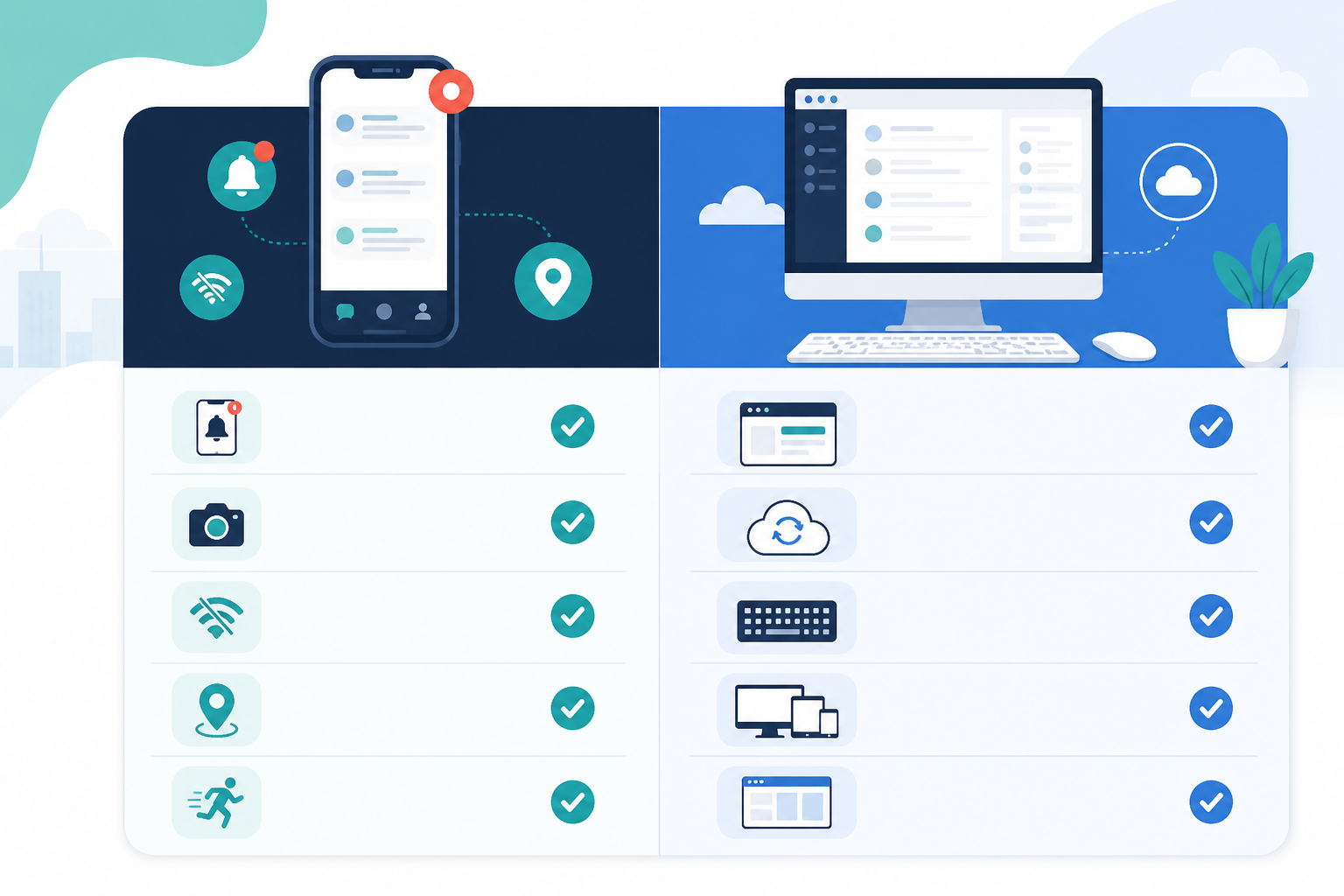
Short answer: usually, yes, though it's less clear-cut than it used to be. Plenty of support tools technically work in a mobile browser. Modern mobile browsers, especially on Android, can even support push notifications through progressive web apps. Working, and working well, are still often two different things though.
| Feature | Native app | Browser access |
|---|---|---|
| Push notifications | Generally instant and consistent once permissions are granted | Possible on many devices, but depends on the browser, operating system and notification permissions |
| Load times | Usually fast and optimised for mobile | Can be slower, especially on a weak signal or older device |
| Performance on unreliable connections | Handles interruptions more gracefully, often with offline caching | More likely to lag or time out |
| Team collaboration features | Built for touch and small screens, easier access to tagging and internal notes | Can feel clunky, more room for misclicks |
| Overall experience | Feels like a dedicated support tool | Can feel like a workaround, though this varies by provider |
For founders, notification reliability tends to be the deciding factor in practice. You can't realistically keep a browser tab open all day. You might be in a meeting, driving, or standing at the school gate. A native app, with the right permissions switched on, means fewer things you need to remember to check manually.
Browser access still has its place, particularly for occasional desktop use when you're already at your laptop. If it's your only mobile option, though, test the notification reliability yourself before you rely on it. Results vary by phone, browser and settings.
What mobile customer support can't replace
Worth being honest here. Mobile support is great for quick replies, triage, and keeping the shared inbox moving. It's not great for genuinely complex issues, like a customer with a tangled billing problem across multiple invoices, or a technical bug that needs screen-sharing and a proper look at the logs.
Those still deserve focused time at a desk. The point of mobile access isn't to replace complex support work. It's to stop small gaps from turning into missed messages, cold leads, and frustrated customers.
Choosing a live chat widget tool: an example in Sonny
Using the checklist above, Sonny is one tool built with this kind of mobile-first live chat use in mind. It offers native apps for iPhone, Mac and Android alongside full browser access, so the shared inbox, live chat widget and email ticketing travel with you.
The following is based on Sonny's published information at the time of writing. Check its website before deciding anything, since pricing and features can change:
- Flat-rate pricing with unlimited agents, listed at $19.99 a month on Sonny's website. That's in US dollars, so UK teams should check the current converted cost and whether VAT applies before budgeting.
- Quick setup, described as taking a matter of minutes with no mandatory onboarding call. Your own experience may vary depending on how much configuration your live chat widget needs.
- A seven-day free trial with no credit card required, which gives you a low-risk way to test the mobile experience and notification reliability on your own phone.
- An optional AI copilot, trained on your company documents, that can help draft replies when you're typing on a small screen and short on time. Treat its output as a first draft to check over, not a final answer.
- A published 99.9% uptime SLA for the platform itself. Uptime is about the service being available; it doesn't guarantee every push notification reaches your specific device. Delivery also depends on your phone settings, network connection and operating system.
Sonny markets this kind of setup toward smaller teams who want full access without per-seat costs. Whichever tool you pick, verify things like uptime, setup time and pricing directly on the provider's website, since these details change.
Frequently asked questions about mobile customer support
Can I answer customer support tickets from my phone?
Yes. Most modern help desk platforms let you access your shared inbox, live chat conversations and email tickets from a native iPhone or Android app. Look for the ability to reply, tag, add internal notes and assign conversations to teammates, not just view tickets.
Check notification permissions on your phone specifically. Even a capable support app can't help you if notifications are silently switched off at the device level.
Is there a native Mac app for customer support software?
Some platforms offer a native Mac app, though not all do, so check before committing. A dedicated Mac app means you're not relying on a browser tab when you're at your laptop, which some founders prefer for speed and reliability.
Sonny, for example, offers a native Mac app alongside its iPhone and Android apps.
How reliable are mobile apps for handling live chat?
Reliability varies by platform, connection quality and your notification settings, so test the app rather than assuming it'll work perfectly. A well-built mobile support app should give you real-time push notifications, minimal lag and stable performance on patchy connections.
No uptime figure guarantees an individual notification will reach your specific phone at a specific moment. Treat a published uptime SLA as a sign the underlying service is reliable, not as a guarantee covering your device, network or notification permissions.
If you're currently relying on a browser tab and hoping you don't miss anything, try a native app for a week and pay attention to how many notifications actually reach you. That's usually the clearest signal of whether a tool genuinely fits how you work, rather than how it's described on a features page.