

Yes, you can handle live chat and email tickets from your phone. Sonny's native iPhone and Android apps (plus a Mac app) put the same shared inbox in everyone's pocket. The trick to making mobile customer support sustainable is to sort out notifications, notes and coverage rules before you start. That way, you can reply quickly without being on call around the clock.
I'll walk you through it step by step. If you're a growing startup, you probably don't have time for a three-week rollout, so everything here can be done in an afternoon, or less.
When does mobile customer support help (and when doesn't it)? 📱
Picture this. It's 6:40pm, you're squeezed onto the train home, and a visitor on your website asks, 'Does the plan include unlimited users?' You pull out your phone, type a friendly two-line answer, and by the time you reach your stop they've signed up for a trial. That reply would have sat unread until tomorrow morning if you'd needed a laptop.
That's the sweet spot for mobile support. It's brilliant for short, time-sensitive conversations and much less so for anything that needs real concentration.
Good fits for mobile support:
- Quick pre-sales questions (pricing, features, 'do you integrate with X?')
- Order or account status checks
- Triaging new conversations: reading, tagging and assigning
- Picking up a chat you've been waiting on
Poor fits for mobile support:
- Complex bug investigations
- Long technical write-ups
- Anything that needs several tabs or screenshots to resolve
- Emotionally sensitive cases that deserve your full attention
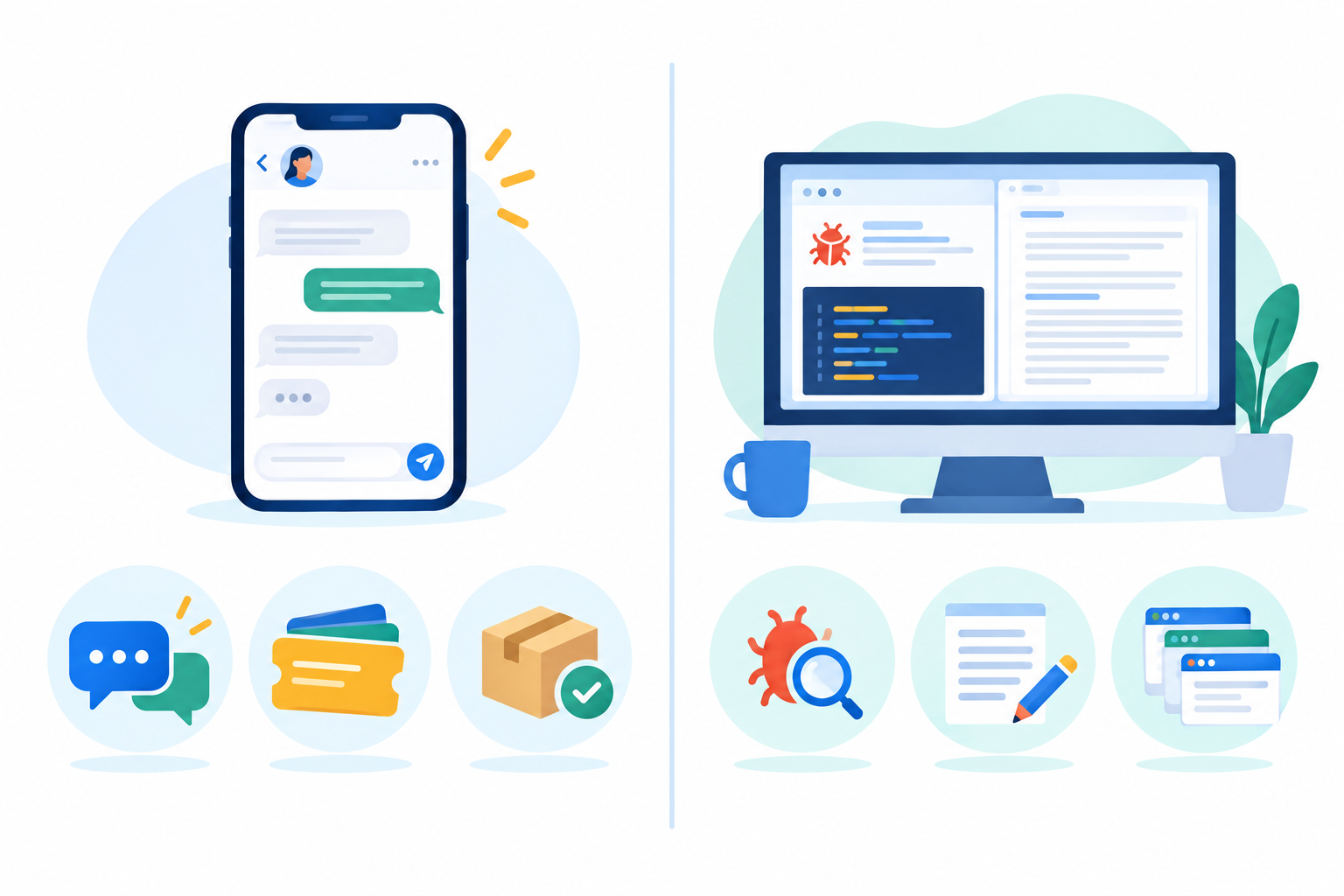
The goal isn't to solve everything from the sofa. It's to acknowledge and route fast. Customers mostly want to know a real person has seen their message and knows what happens next. If you can give them that in a minute or two, the full answer can wait for your desk.
This matters most for small teams, where one person might be the entire support function. Customers still expect quick replies, and they don't know (or care) that you're also the person shipping features and chasing invoices. Salesforce's State of the Connected Customer report found that 80% of customers say the experience a company provides is as important as its products or services. Responsiveness is a big part of that experience, and your phone helps you deliver it.
One caution before we go on. Being reachable on your phone is not the same as being continuously available. Mobile support works best as planned flexibility, not an always-on obligation, and the rest of this guide is built around that.
How to install and sign in to the mobile app
Sonny takes under five minutes to set up, with no onboarding calls. You can also try it free for 7 days without a credit card, so there's no risk in testing the mobile app with real customers. Here's the order I'd do things in.
- Set up your workspace in a browser first. Add the live chat widget to your site and forward your support email address so there's something to answer. An empty inbox makes for a very dull app test.
- Download the Sonny app. Grab it from the App Store on iPhone or Google Play on Android.
- Sign in with your team account. Check that the shared inbox shows live chats and email tickets together, in one list.
- Send yourself a test chat. Open your own website, start a conversation through the widget, and see how it looks on your phone. Reply from the app and make sure it lands properly on the other side.
- Invite the rest of the team. Sonny has unlimited agents, so nobody gets left out to save on seats. Your part-time developer, your co-founder and your weekend helper can all have access.
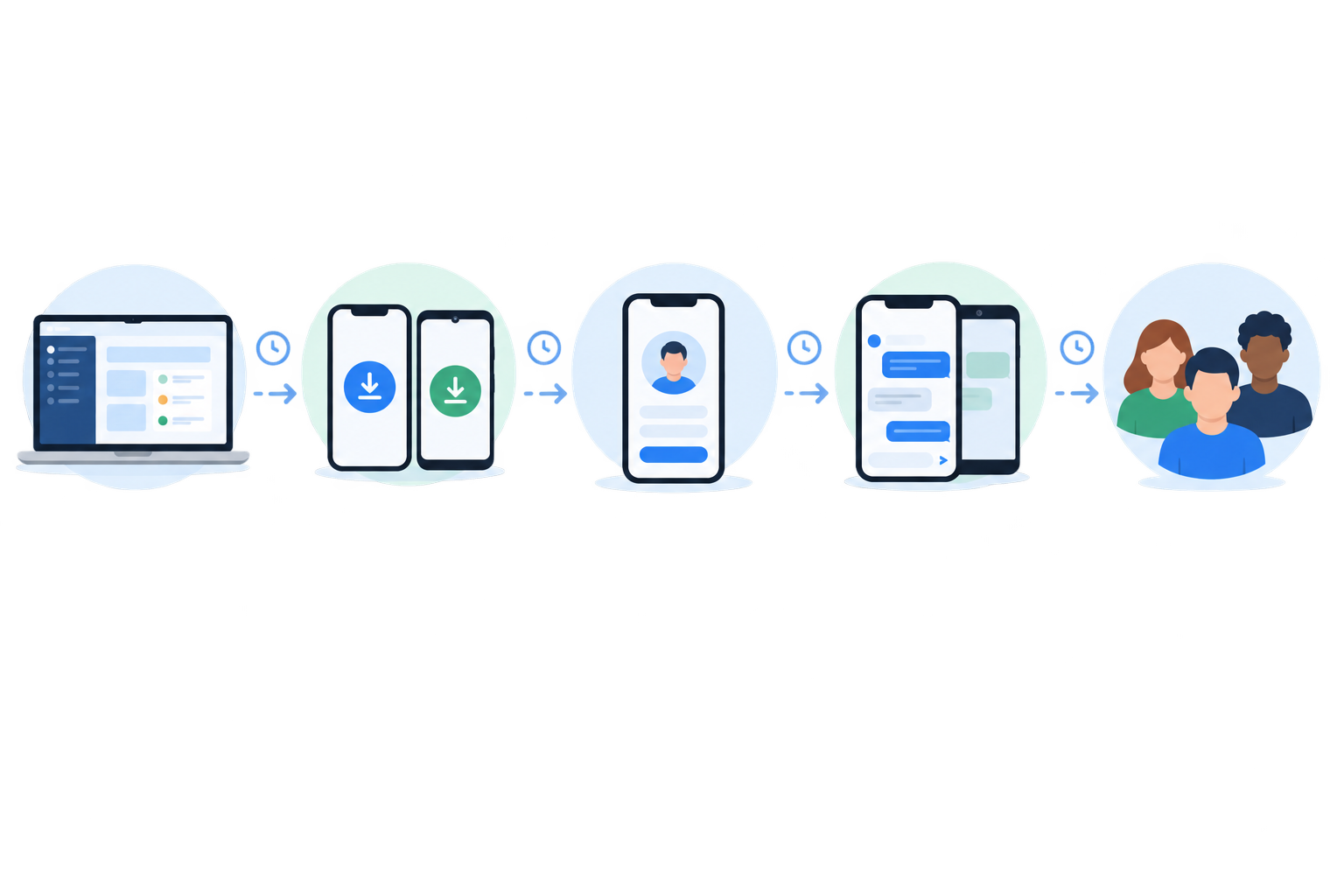
The phone apps aren't the only way in. There's also a Mac app, and you can use Sonny in any web browser. Most teams end up using the desktop for deep work and the phone for the in-between moments, which is exactly the balance we want.
How to set mobile support notifications for off hours
Notifications decide whether a tool helps you or wears you out. I once chatted with a founder whose phone buzzed all weekend because every single email ticket triggered a push alert. By Sunday evening he'd muted the whole app, and then, of course, missed the one message that actually mattered. Too many alerts don't make you more responsive. They make you numb.
Microsoft's 2023 Work Trend Index found that 68% of people don't have enough uninterrupted focus time during the workday. That isn't a statistic about support apps specifically, but it's a good reminder that every ping has a cost.
Decide which support conversations deserve a push alert
Not every message is equally urgent. A sensible starting point:
- Yes, alert me: new live chats during working hours, conversations assigned directly to me, and mentions from teammates
- No, let it wait: every new email ticket, especially outside core hours
A simple rule that works well for small teams: only assigned-to-me conversations ping outside core hours. Everything else is there when you next open the inbox.
Use your phone's quiet-time settings
Use Sonny's notification settings alongside the quiet-time tools built into your phone:
- iPhone: Focus modes can silence selected apps and be scheduled. Create a Work Focus that ends when your shift does, and let a few personal contacts through.
- Android: Do Not Disturb can be scheduled with exceptions for chosen people and apps. Menu names vary between versions and manufacturers, so check your own device's settings.
Set these to match your UK working hours, then test them. If you've allowed any exceptions, send a test message to confirm the right things get through and the rest stay quiet. Phone settings only cover your own device, not your whole coverage plan, which we'll get to shortly.
Keep desktop notifications separate from mobile alerts
Here's a trick I like: treat the browser or Mac app as your 'main' place for lively notifications, and keep the phone calmer. At your desk, a sound for every new chat is useful. In your pocket at the weekend, it's just noise.
Review your mobile notification settings after week one
Your first settings won't be perfect. After a week, ask yourself: did anything urgent slip through? Did anything unimportant interrupt me? Adjust and carry on.
There's a cultural point underneath all this that's worth saying out loud to your team: 'available' is not the same as 'always on.' The American Psychological Association's Work in America survey found 95% of workers said it's important to work for an organisation that respects boundaries between work and non-work. Good boundaries help you keep people as much as they help wellbeing.
How to reply to customers from your phone
Typing on a small screen changes how you write, and mostly for the better. Customers on live chat expect conversational answers, not essays.
- Keep it short, warm and specific. Answer the actual question, then stop.
- Acknowledge when you can't solve it yet. Something like, 'I've got this, and I'll be back to you within the hour' is far better than silence.
- Proofread before you hit send. Reread once for autocorrect disasters (a stray 'duck' has ruined many a support reply), check the customer's name, and make sure your tone isn't accidentally curt. Short messages can read as cold, so a 'thanks for your patience' goes a long way.
- Don't put sensitive details in chat. If a conversation needs identity checks or private information, move it to your secure workflow rather than handling it from a quick phone reply. It's also wise to keep your phone screen-locked and message previews discreet.
- Know when to hand off. Reassign to a teammate, or move the customer to email, when the answer needs detail.
Sonny also offers optional AI copilot features trained on your company docs. They can help you draft accurate replies faster when you're short on time. Think of it as a colleague who has read all your documentation, not a replacement for your judgement. You still read it, tweak it and send it.
Mobile support replies: a good example versus a rushed one
Rushed: 'try clearing ur cache'
Better: 'Thanks for flagging this, Priya! Could you try clearing your browser cache and reloading? If that doesn't fix it, let me know and I'll pick it up properly from my desk this afternoon.'
The second one is barely longer, but the customer knows who's helping, what to try, and what happens next. Context matters here too: Zendesk's CX Trends 2024 reported that 70% of consumers expect anyone they interact with to have full context of their situation. Clear, friendly replies make handoffs much smoother.
Use internal notes and tags in your mobile inbox
This is the part that makes mobile support feel like real teamwork instead of one person firing off answers alone.
Internal notes let you leave context for teammates that the customer never sees. For example: 'Refund approved, needs processing Monday.' Your colleague opens the conversation at their desk, reads the note, and picks up right where you left off, with no need to ask the customer to repeat themselves.
Tags are your quick-sort system. Take two seconds to label a conversation as billing, bug, feature request or urgent, and your desk team can filter and prioritise later.
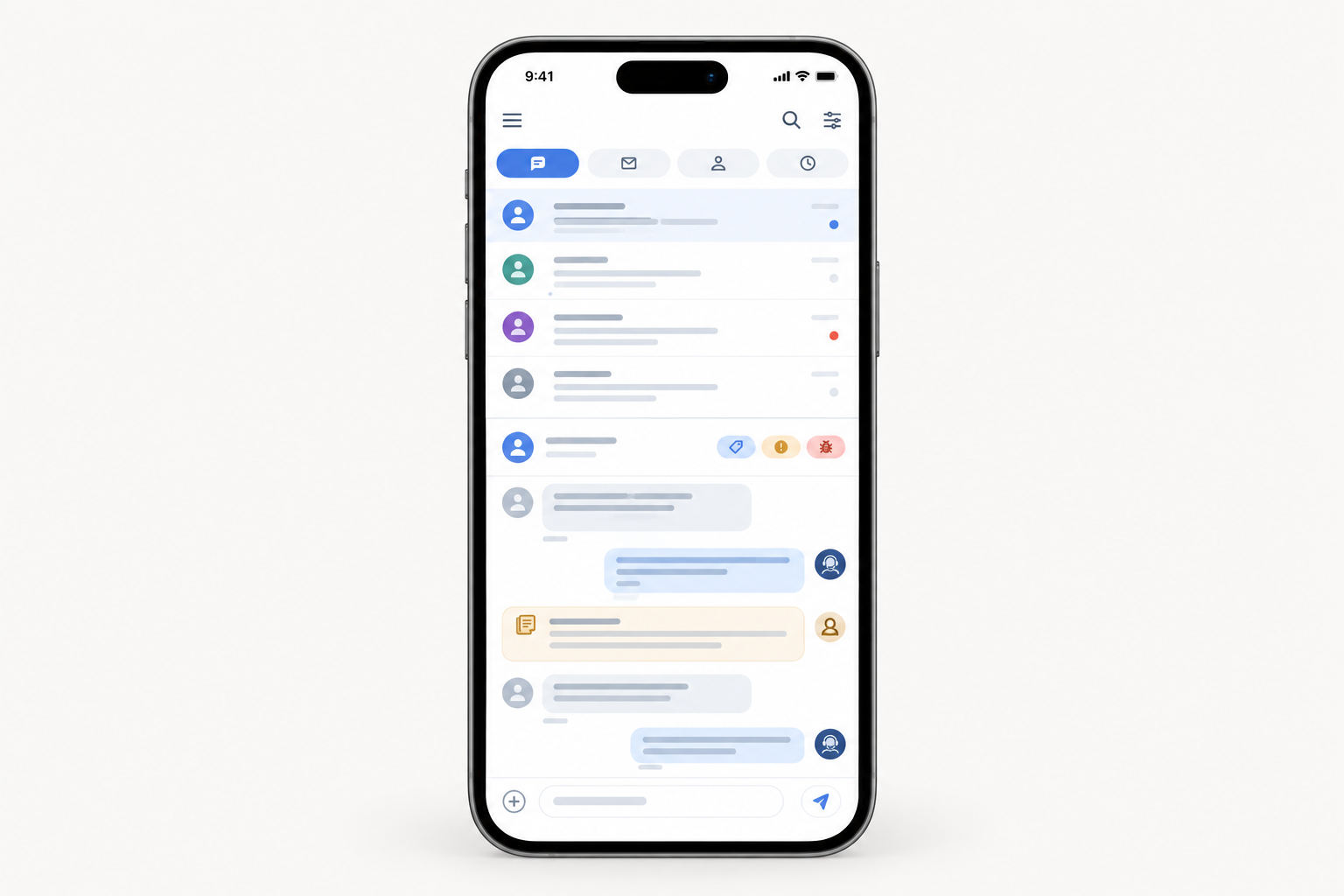
A few habits that pay off:
- Filter when you're short on time. Looking only at unassigned or urgent chats on a five-minute break is far less overwhelming than scrolling the whole inbox.
- Leave a one-line handoff note whenever a conversation moves from phone to desktop: what you've told the customer, and what's still outstanding.
- Be consistent with tags. Agree a short list as a team and stick to it. Consistent tags make Sonny's reports on response times and team performance more useful later, because you can see what kind of conversations are slow, not just how many.
Notes and tags added from the app appear for your teammates in the shared inbox, so nothing gets lost between devices.
Set team coverage rules for sustainable mobile support
Notification settings protect you personally. Coverage rules protect the whole team. Without them, mobile notifications quietly turn everyone into an unofficial on-call worker, which is how good people burn out. Gallup's 2024 global workplace data found 41% of employees experienced a lot of stress the previous day. That's not about support teams specifically, but it's a good reason to treat workload and recovery as operational concerns.
Here's a simple five-step framework.
- Define your support hours and publish them. Put them on your live chat widget and help page so customers know what to expect. Avoid promising 24/7 unless you genuinely have staffing and escalation to back it up.
- Create a simple rota. For example, one person is on 'first look' for evenings or weekends, rotating weekly. Name a backup too, so cover doesn't depend on whoever happens to glance at their phone.
- Agree an escalation path for real emergencies. Decide what actually counts (for example, your product being down for customers) and who responds, separately from routine messages.
- Set response-time targets. For instance, within minutes for chat during working hours, and next working day for email or out-of-hours messages. Write them down so everyone is working to the same expectation.
- Review monthly. Check your response times in reporting, then tweak the rota or notification rules based on what you see.
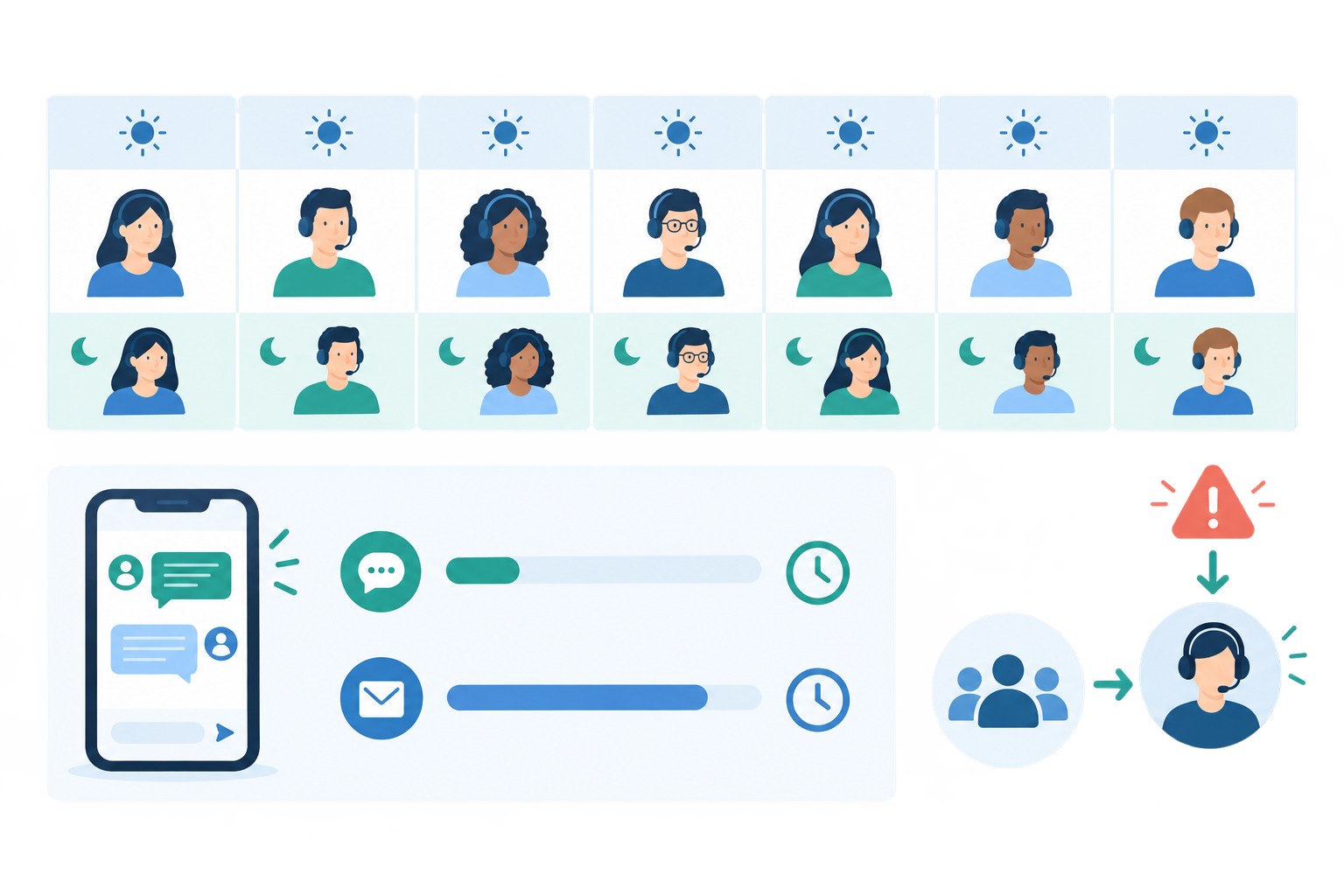
This is where flat-rate pricing quietly helps. With unlimited agents, you can spread the load across the whole team instead of rationing seats and leaving one poor person holding the phone. A rota of five people is far kinder than a rota of one.
It's also reassuring to know the tool will be there when someone's covering. Sonny comes with a 99.9% uptime SLA, so the person on first look isn't wondering whether the app will work.
One last note for UK teams: working-time rules, including minimum daily rest, can affect how you design out-of-hours cover, so check the current guidance for your situation. In Australia, there's now a formal right to disconnect, which shows how seriously boundaries are being taken. Good rota design protects your people and your business.
What does mobile customer support cost? 💷
The iPhone, Android and Mac apps are included in Sonny's single flat-rate plan: $19.99 per month, with unlimited agents and unlimited conversations. There's no mobile add-on, no extra fee for a teammate who mostly works from their phone, and no per-seat maths to do.
That's a gentle contrast with per-seat help desk software, where adding another person (especially a mobile-first one covering evenings) adds to the bill each time. Some tools do offer free messaging apps, which is fair enough, but 'free' rarely covers everything. You'll still have the underlying subscription, any paid upgrades, and your team's time to think about. With Sonny, the price is one number.
Two practical notes. Because Sonny bills in US dollars, UK teams will see the exact sterling cost move slightly with exchange rates. And the 7-day free trial needs no credit card, so you can install the apps, connect your widget and email, and try it with real customers before spending anything.
Mobile customer support FAQ
Can I use live chat from my phone?
Yes. The Sonny apps for iPhone and Android let you answer live chat conversations as they arrive, alongside email tickets, all in the same shared inbox as your desktop.
Is there a Mac app?
Yes. Sonny has a native Mac app as well as iPhone and Android apps, and you can also use it in any web browser.
How do I avoid being always on?
Set quiet hours, limit push alerts to assigned conversations and mentions, publish your support hours on your chat widget, and share out-of-hours cover through a simple rota. Because Sonny has unlimited agents, the whole team can share the load.
Do the mobile apps cost extra?
No. The mobile and Mac apps are included in the flat-rate plan at $19.99 per month, with unlimited agents and unlimited conversations.
Can my team see internal notes I add from my phone?
Yes. Notes and tags added from the app appear for your teammates in the shared inbox, but customers never see internal notes.
Ready to try mobile customer support?
Mobile customer support doesn't have to mean living with your phone in your hand. Set your notifications, agree who's covering what, leave good notes, and let the app handle the in-between moments. Start a free 7-day trial of Sonny, no credit card needed, send yourself a test chat, and see how it feels on your commute. Your next 6:40pm pricing question will thank you. 😊