

How to Triage Support Tickets in a Shared Inbox: A Customer Support Workflow for Small Teams
Triage is simply deciding what to answer first, who should answer it, and how. For a small team, the easiest way is to ask two questions of every new conversation: how urgent is it, and what type is it? Sort the answers with a simple matrix, then let tags, saved filters and a short daily routine do the repetitive work. You can set up this lightweight customer support workflow in an afternoon, and it works the same way for live chat and email.
That's the short version. The rest of this post walks through each step, with tags, filters and a sample note you can copy straight into your own shared inbox. I've kept it deliberately light, because most of you reading this don't have a dedicated ops person. You've got a handful of teammates, a lot of customers and not much spare time. ☕
Why Unsorted Inboxes Slow Down Small-Team Customer Support Workflows
Picture this. There are three of you, one shared inbox, and a billing complaint has been sitting there since 9am. Everyone has seen it. Everyone assumes someone else has picked it up. At 11:40 two of you reply within a minute of each other, with slightly different answers, and the customer is now more confused than when they wrote in.
It's a very common pattern in shared inboxes, and nobody in it is lazy. Nobody has simply decided who does what.
Support ticket triage is the fix, and it's less grand than it sounds. It's the quick sorting step where you decide how urgent a new conversation is, what kind of request it is and who should handle it. Bigger companies have ops people and routing rules for this. In a team of two to ten, triage has to be so simple that it happens without anyone being in charge of it.
Without it, a few costs creep in:
- Duplicate replies. Two people answer, or worse, give different answers.
- Urgent tickets buried under easy ones. It's human nature to pick off the quick wins first, so the customer who's locked out of their account waits while someone answers a simple how-to.
- Customers waiting while the team looks busy. Everyone is working hard, but not necessarily on the right thing.
Messy inboxes also cost time in general. The McKinsey Global Institute's 2012 report, The social economy, estimated that knowledge workers spend around 28% of the working week managing email and about 19% searching for and gathering information. That research is old and isn't specific to support teams, so I wouldn't treat it as a measurement of your inbox. Still, it shows how much time an email-heavy workflow can quietly absorb, and an inbox that's hard to scan makes it worse.
Live chat and email also pile up differently. Chat arrives in real time and the customer is watching the screen, so patience runs out in minutes. Email builds up overnight and in waves. If those live in two separate tools, you end up triaging twice, with two sets of habits. A unified shared inbox, where the live chat widget and email ticketing feed the same place, means you only need one system. That's why a good customer support workflow starts with putting everything in one view before you start sorting.
As for effort, expect about an afternoon to set this up, then a few minutes a day to keep it going.
The Two Questions to Ask When Triaging Every New Support Ticket
Here's the heart of the system. Every time something new lands in the inbox, ask:
- How urgent is this? Is the customer blocked, losing money or about to churn? Or can it wait until this afternoon, or tomorrow?
- What type of conversation is this? Is it a bug, a billing question, a how-to, a pre-sale enquiry or general feedback?
That's it. Two questions.
Why two questions beat a complicated priority scheme
It's tempting to build a five-level priority ladder with colour codes and escalation paths, and equally tempting to abandon it within a fortnight. When you're a team of 2-10, a complicated scheme is one more thing to remember on a busy Tuesday. Two questions are easy to remember and easy to teach to a new starter or a part-timer.
Keeping urgency and type separate matters too. Help desk tools such as Atlassian's Jira Service Management treat priority and request type as separate fields, and for good reason. Type describes what the customer needs, while urgency describes how fast it needs attention. If you mash them together, a routine request can end up being treated as urgent just because it belongs to a scary-sounding category.
How to triage a support ticket in under 30 seconds
You don't need to read the whole thread to answer either question. Skim the first message, look at the customer's tone and what they say they can't do, and decide. If you can't tell, treat it as normal until proven otherwise. You can always change the tag later.
A quick live chat and email triage example
Say two things arrive at 10:02:
- A live chat: 'Hi, I'm trying to pay and the checkout keeps erroring.' That's urgent (the customer is trying to give you money and can't) and the type is bug. It goes to the top of the pile, and whoever is watching the widget answers now.
- An email: 'Could you tell me how to export my reports as a CSV?' That's normal urgency and a how-to. It's a perfectly good question, but it can wait for the next email batch.
Two glances, two tags, and you've decided what to answer first. Notice that the chat and the email were handled with the same two questions, just on different clocks. More on that next.
Build a Simple Urgency and Ticket Type Matrix
Once you've got the two questions, a matrix turns them into an instant decision. Here's a starter grid, with urgency down the side and type across the top. The times are example first-response targets that apply during your published support hours, so you can see at a glance what 'first' means for each combination.
| Bug / outage | Billing / account | How-to | Sales / feedback | |
|---|---|---|---|---|
| Urgent | Within 15 minutes | Within 30 minutes | Within 1 hour | Within 1 hour |
| Normal | Within 4 working hours | Within 4 working hours | Same working day | Within 1 working day |
| Low | Within 1 working day | Within 1 working day | Within 2 working days | Within 2 working days |
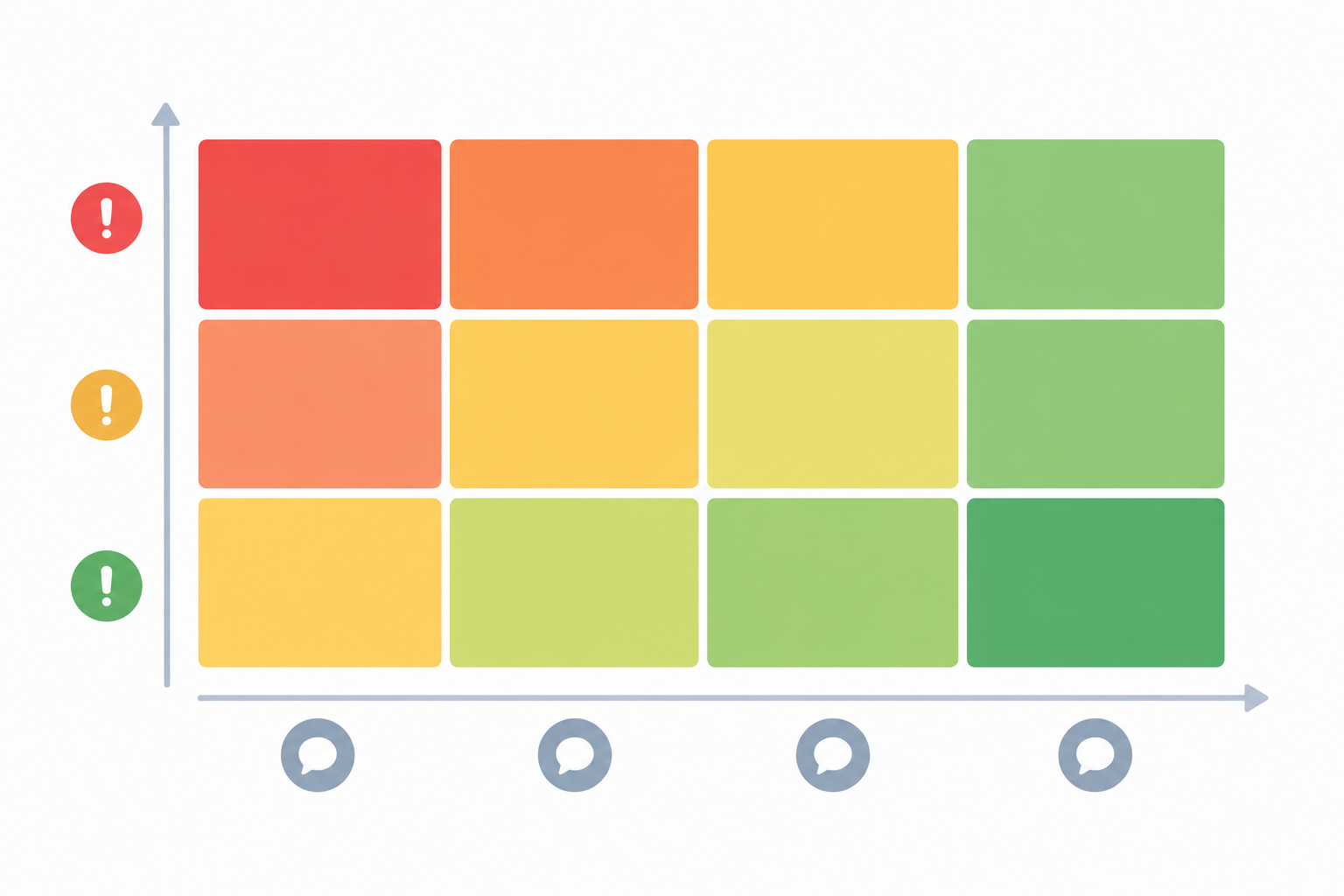
Treat those numbers as a starting point, not gospel, and please don't copy them onto your website as promises. There's no universal first-response target that suits every team, channel and ticket type. Set yours from your own capacity and what you've already told customers, then compare like with like over time.
How to set realistic first-response targets
A few ground rules stop the matrix from becoming a source of stress:
- The clock runs during staffed hours only. If you answer email 9am to 5:30pm UK time, Monday to Friday, an urgent bug that arrives at 6pm starts its 15-minute clock the next morning. Say so on your help page, and remember bank holidays.
- Match targets to your people. If a 15-minute urgent target would need someone glued to the inbox all day, make it 30 or 60 minutes. A target you hit is worth more than an ambitious one you keep missing.
- Decide what a miss looks like. When a target slips, don't just quietly carry on. Send the customer a short holding reply, mention it in your team chat, and note why it slipped. Patterns in misses tell you where the system needs to change.
What counts as an urgent support ticket?
Write this down in plain terms, because 'urgent' means different things to different people. A good test: is the customer blocked, losing money, or at real risk of leaving? Typical examples:
- Checkout is broken or a core feature has stopped working
- A customer is locked out of their account
- Someone has been double-charged
- A widespread outage that's hitting several people at once
A how-to question, a cosmetic glitch or a feature suggestion is normal or low, however politely or impatiently it's worded. Publishing concrete definitions like these helps teammates apply the labels the same way.
Should live chat and email use the same triage system?
Same matrix, different clock. Chat is triaged in real time and the customer's patience window is short, so someone should be watching the widget whenever chat is switched on. Email can be batched, with scheduled checks through the day. The urgency and type questions stay identical. Only how often you look changes.
But what if you can't watch chat all day? Plenty of small teams can't, and that's fine. Pick chat hours you can genuinely cover (say 10am to 4pm UK time on weekdays), show them on your site, and set an away message outside those hours that points people to email and says when they'll hear back. Within those hours, assign named coverage blocks so it's always clear who's on the widget.
Make the support ticket matrix yours in 20 minutes
Copy the table above into a shared doc and get everyone in a room (or on a call) for twenty minutes. Argue about the times, rename the types, decide what 'urgent' means for your product. The conversation itself is half the value, because it gets the whole team applying the same judgement.
Set Up Support Ticket Tags and Filters to Automate the First Sort
A matrix in a doc is useful. A matrix built into your inbox is better. This is where tags and saved filters come in, and where the repetitive work stops being repetitive.
A starter set of support inbox tags you can copy
Aim for around eleven tags in three families:
- Urgency:
urgent,normal,low - Type:
bug,billing,how-to,pre-sale,feedback - Status:
waiting-on-customer,waiting-on-team,needs-handoff
Resist the urge to add more at the start. A bloated tag list gets ignored, because nobody wants to scroll through forty options when a customer is waiting. Short lists get used consistently, and consistent tags are what make reporting meaningful later.
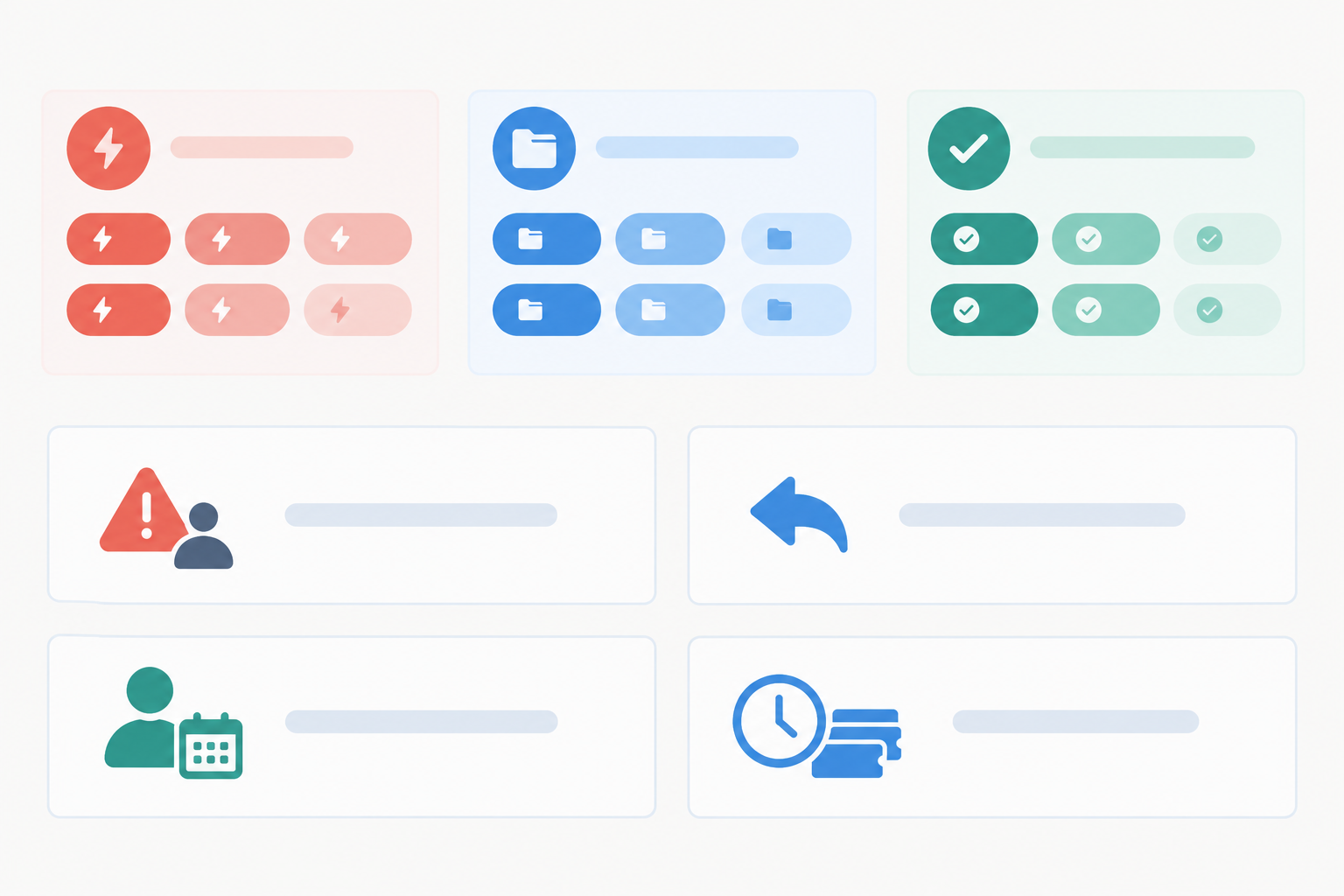
How support ticket tags change as a conversation moves
Urgency and type are set once, at triage, and rarely change. Status tags are the ones that move. Here's how a single ticket might travel:
- A customer reports a double charge. You tag it
urgentandbilling, and assign it to yourself. - You reply and ask for a screenshot, so you add
waiting-on-customer. - The customer replies. Swap
waiting-on-customerforwaiting-on-teamand carry on. - You need a colleague to check the refund, so you swap in
needs-handoffand reassign it. - Once it's resolved, remove the status tag and close the conversation.
Only one status tag should be on a ticket at a time. If you keep that rule, your filters stay trustworthy.
Four saved filters for a small support team
Tags only help if you can see them in useful groupings. Four saved filters cover most of what a small team needs:
- Urgent and unassigned. Your emergency view. This should be empty or nearly empty almost all of the time.
- Waiting on us. Everything where the customer is expecting a reply from you.
- Mine today. Your personal to-do list.
- Oldest open. Catches the conversations that have quietly drifted.
Because forwarded support emails and the live chat widget both feed the same shared inbox, one set of tags and filters covers both channels. You're not maintaining a chat system and an email system. In Sonny, for example, you forward your support address into the inbox, drop the widget on your site, and everything lands in one place where the same tags apply.
Where support inbox automation fits
Lightweight support automation can handle the first pass, like suggesting a tag or pre-filling a draft. If you use an AI copilot trained on your own docs, it can suggest answers for common how-to questions. I'd treat it as a helpful colleague who drafts things for you to check, not one who decides priorities. Judgement calls, like whether a customer sounds like they're about to churn, still belong to a human.
Review support tags monthly
Once a month, look at which tags nobody used and retire them. Fewer, better tags always beat a long list.
Assign Support Tickets Without Creating Bottlenecks
A common question is: how do I assign tickets fairly when everyone shares one inbox? There are three simple models, and each suits a different team.
- Claim it yourself. Anyone picks up whatever they like. It's quick and low-friction, but it tends to leave the awkward tickets for last, and it's how the billing complaint ends up unclaimed.
- Rotating triage owner of the day. One person sorts and assigns new conversations for the day, then the role passes on. It spreads the load and keeps things consistent.
- Assign by specialism. Billing goes to Priya, bugs go to Tom. It works when you have clear expertise, but it falls apart when that person is off sick.
For most teams of 2-10, I'd go with the rotating daily triage owner. No single teammate becomes the gatekeeper for everything, so you avoid the one-person bottleneck. It also means everyone understands the whole inbox, which is handy when you're short-staffed.
Add one simple rule on top: if a conversation is urgent and unassigned, anyone can take it, and they say so by assigning it to themselves. The assignment is the important bit. It's the signal that stops two people replying at once.
How to handle holidays, part-timers and time zones
Keep it practical. When someone's on leave or it's a bank holiday, skip them in the rotation. Part-time staff can take a shorter triage slot or simply use the claim rule. If you've got teammates in different time zones, let the earliest-starting person own the first sweep, and use notes to hand over at the end of their day. Whatever you decide, make sure your published support hours match who is actually working.
A note on support inbox pricing models
This is worth thinking about because it shapes how you share the work. With per-seat pricing, teams often ration logins and end up with a few people doing all the triage. A flat-rate tool makes the rotating model far easier, because you can give everyone access, including part-timers and founders who only dip in occasionally. At the time of writing, Sonny's flat rate is listed at $19.99 a month (US dollars) with unlimited agents and unlimited conversations. Pricing and currency can change, so check Sonny's pricing page for the current price you'd pay in the UK before you decide.
Use Internal Notes to Hand Off Tricky Support Tickets
Some tickets can't be solved by whoever picks them up first. Handoffs are where things tend to go wrong, and the usual reason is that the next person has to reread the whole thread, then ask the customer to explain it all again. Customers notice that. Zendesk's 2024 CX Trends report found that around 70% of consumers expect anyone they interact with to have the full context of their previous conversations.
A good internal note fixes this in about a minute. Here's how:
- Say what happened. One or two sentences, no drama.
- Say what's been tried, so nobody repeats the same troubleshooting.
- Say what the customer expects. A refund? A fix by Friday? An apology?
- Say what's needed next, and by when. Include a specific day or date.
- Tag and reassign. Add the
needs-handofftag, assign it to the right person, and mention them in the note.
Here's a sample you can copy:
Handoff for Sam, deadline Thursday 7 March: Customer was charged £29 twice for the March plan (two payments on Monday 4 March). I can see both payments in the payment dashboard, and I've apologised. I haven't refunded yet because the second payment doesn't match an order in our system, so I'd like you to confirm it's a duplicate first. I've told her she'll have an update or a refund by the end of Thursday. Needed: Please check the second payment and refund it by Thursday if it's a duplicate.
Two things keep this safe. First, keep customer-facing replies and internal team collaboration clearly separate. Always check you're in the note tab and not the reply box before you type something candid about the customer. Second, treat notes as the home for anything that shouldn't be public: context, hunches and deadlines.
How to stop urgent support tickets from getting buried
Two habits do most of the work. Check your Urgent and unassigned filter at set times (more on that below), and use notes to flag any deadline on a handed-off ticket. Put the date in the first line of the note so it's the first thing the next person sees.
A Daily Support Ticket Triage Routine for Live Chat and Email
Systems only work if they become habits. This routine takes under an hour of focused time across the day, and you can adapt the timings to your own hours.
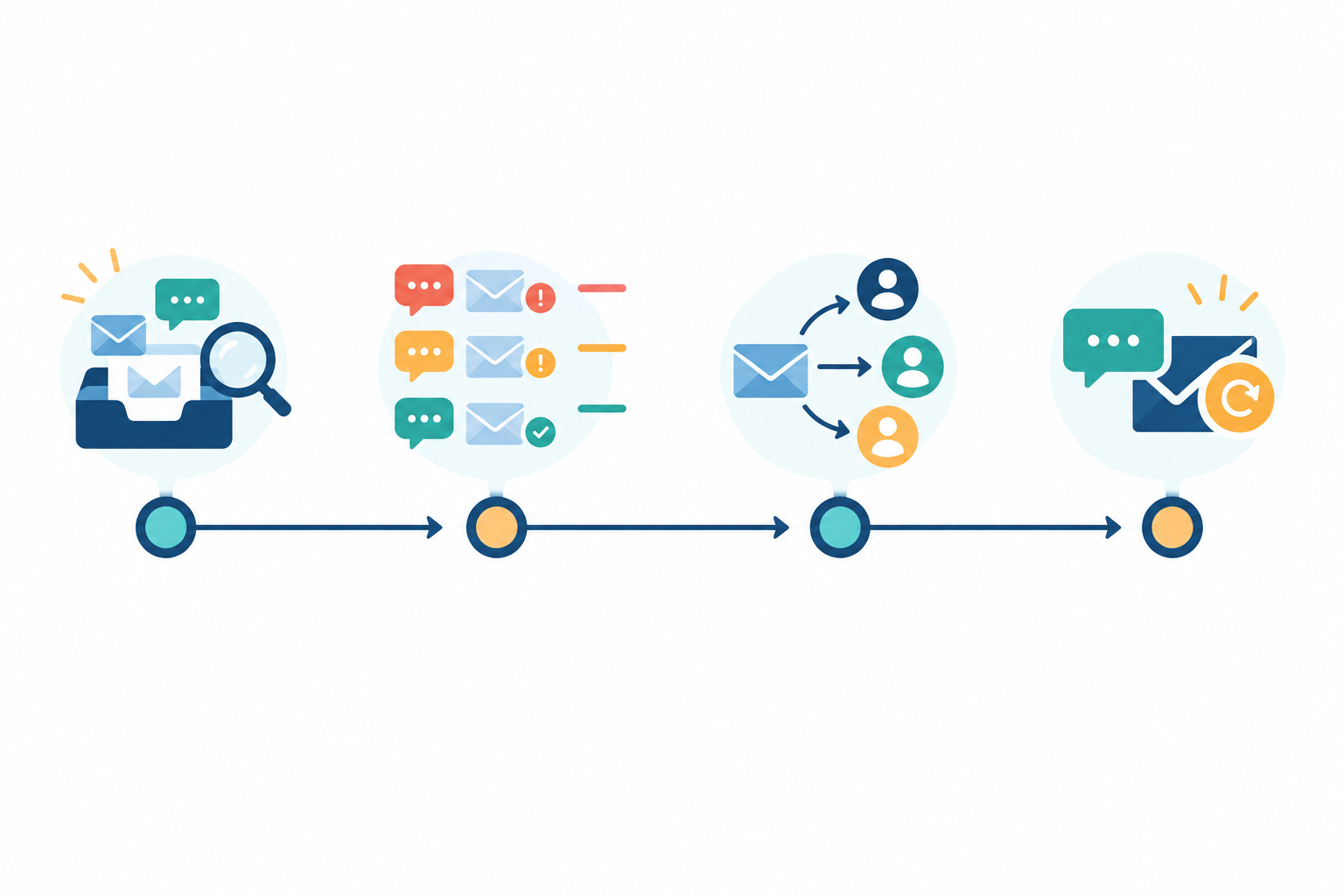
- Start of day (10 minutes). Open the Urgent and unassigned view. Sort overnight email, applying the two questions to each, then tag and assign. The day's triage owner does this.
- Mid-morning and mid-afternoon (5 minutes each). Scan Waiting on us and Oldest open. You're looking for anything that's drifted, or anything the customer has replied to that needs a response.
- Live chat coverage during your published chat hours. Decide who watches the widget and when, using named blocks (for example, Priya 10 to 12, Tom 12 to 2). If the person on chat gets pulled into a long email, they say so and someone else covers. If nobody can cover a stretch, switch on your away message rather than leave visitors waiting.
- End of day (10 minutes). Clear anything unassigned, add notes to anything being handed to tomorrow's owner, then snooze or close resolved threads.
Triaging support tickets from your phone
At the time of writing, Sonny offers native iPhone and Android apps, plus Mac and browser access, so you can check your urgent and unassigned filter, add a tag or leave a quick internal note when you're away from your desk. I think of it as a safety net. It's brilliant when you're on the train and want to be sure nothing urgent is sitting there, but I wouldn't build your whole routine around it. Careful triage is easier on a proper screen.
A 15-minute weekly customer support workflow check
Once a week, spend 15 minutes looking at your tags and recurring issues. If the same how-to question keeps appearing, that's a help article waiting to be written. If one tag is never used, retire it. It's a small habit that keeps the whole customer support workflow tidy.
How to Measure Whether Your Support Ticket Triage System Is Working
You don't need a full analytics team to know whether this is helping. A handful of measures will tell you most of what you need.
- First response time by urgency. Splitting it up matters, because a good overall average can hide slow urgent replies.
- Time to resolution. How long conversations take to close, again by type if you can.
- Unassigned conversations at end of day. This should be at or near zero.
- Reopened conversations. A high number can suggest answers are being closed too early or handed off badly.
If you want to look a bit deeper, track the median rather than just the average, and watch the age of your oldest tickets. A queue can shrink overall while a few old tickets sit untouched, so size and age together tell you more than either alone.
The reporting views in your help desk software should show response times and team performance, and Sonny includes reporting on both. Use whichever views let you filter by priority and channel.
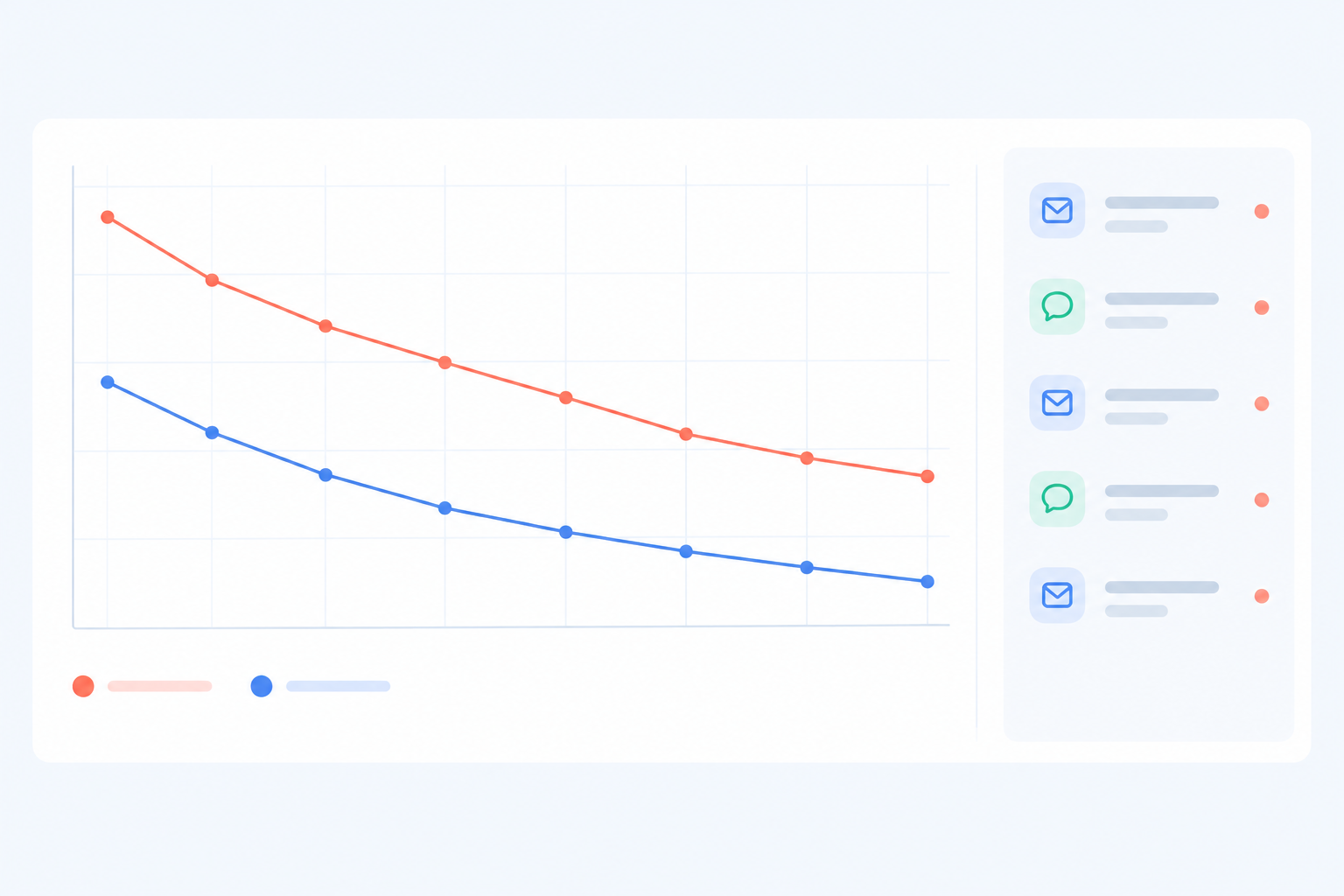
What good support ticket triage looks like
Be realistic. There's no magic benchmark for a team your size, so compare yourself with your own past few weeks. A steady downward trend in urgent first-response time matters far more than hitting a perfect number on any one day. Atlassian's service desk guidance also leans towards looking at speed, backlog health and customer satisfaction together rather than chasing one metric. If response times improve but old tickets pile up, something in your routing needs another look.
The human signals that your workflow is improving
The numbers are only half the story. You'll know it's working when:
- Fewer 'did anyone reply to this?' messages appear in your team chat
- Mornings feel calmer
- Fewer customers write back to chase a reply
When to adjust your customer support workflow
If everything is tagged urgent, your definition is too loose, so tighten it. If tags go unused, simplify. Your first version won't be perfect, and that's fine.
My advice: pick one improvement this week. Maybe it's just creating the Urgent and unassigned filter, or agreeing on a triage owner rota. If you'd like to try the whole thing in a real shared inbox, Sonny has offered a 7-day free trial with no credit card required, so you can check the current terms and have your tags and filters running before the end of the afternoon.
Frequently Asked Questions About Support Ticket Triage
What is support ticket triage, and why does it matter for a small team?
Triage is the quick sorting step where you decide how urgent a new conversation is, what type it is and who should handle it. A small team has no spare capacity, so without it urgent problems get buried and two people end up answering the same customer.
How do I decide which support tickets to answer first?
Start with anything where the customer is blocked or losing money, such as a broken checkout, a lockout or a double charge. Then move to normal-priority questions, and leave low-urgency feedback for later. Your urgency-and-type matrix makes this a 30-second decision rather than a debate.
Should live chat and email conversations be triaged the same way?
Use the same matrix and tags, but a different clock. Chat is checked continuously during your published chat hours, while email can be handled in scheduled batches through the day.
Which tags should I create to categorise support tickets?
Begin with eleven: three urgency tags, five type tags and three status tags (see the starter set above). A short list is far more likely to be used consistently, and you can add more later.
How do I assign tickets fairly when everyone shares one inbox?
A rotating daily triage owner works well for most teams of 2-10. That person sorts and assigns new conversations, while anyone can pick up an urgent unassigned one by assigning it to themselves.
How do I stop urgent tickets from getting buried?
Check an Urgent and unassigned filter at set times each day, and put any deadline in the first line of handoff notes. The filter should be near empty most of the time.
Can I triage support tickets from my phone?
Yes, if your help desk has a mobile app. You can check filters, add a tag or leave an internal note, which is handy as a safety net, though your main routine is best done at your desk.
Which metrics show whether my triage process is improving response times?
Track first response time by urgency, time to resolution, unassigned conversations at the end of the day, and reopened conversations. Watch the trend over several weeks rather than judging by a single day.