
How to Migrate From Zendesk to Flat-Rate Help Desk Software Without Losing a Single Conversation
A UK-focused guide to switching help desk software safely — covering data exports, parallel running, team training, and a clean cutover without duplicate tickets, lost messages, or GDPR headaches.
Switching from Zendesk to flat-rate help desk software such as Sonny can be completed within a week without losing customer conversations or creating duplicate replies — but only if you follow a careful sequence. Export your data properly, verify it, build your new help desk in parallel without duplicating live traffic, train your team, and complete a single clean cutover with a rollback plan ready. Skip any of those steps and you risk exactly the chaos you're trying to avoid.
I know changing help desk software can feel like performing surgery on a moving car. Your team is mid-conversation with customers right now, and the idea of touching anything feels risky. But with the right sequence and a little patience, switching to a more affordable help desk is far less daunting than it sounds. Grab a coffee, and let's walk through it together. ☕
Before You Start: Help Desk Migration Planning Checklist
Before you export a single ticket, spend twenty minutes on planning. It sounds unglamorous, but it's what separates a smooth migration from a stressful one.
- Name a migration owner. One person (probably you) who owns the timeline, checks off each step, and makes the final “go” call.
- Check your Zendesk plan and admin permissions. Export tools, API access, and incremental export availability vary depending on whether you're on Suite, Support-only, or a legacy plan — confirm what you actually have access to before promising your team a timeline.
- Set your success criteria upfront. For example: every ticket from the last 12 months imports correctly, attachments open without errors, and response times stay steady during the parallel period.
- Write a rollback plan. If something goes wrong mid-cutover, what's the fallback? Usually it's keeping Zendesk's forwarding rule ready to flip back and not cancelling your Zendesk subscription until you're fully confident.
- Do a quick data-protection check. If you're a UK or EU-based team, confirm where your new provider stores and processes customer data, review their data processing agreement, and check how they handle subject access or deletion requests. This matters more than people expect — a Zendesk migration moves personal data, and GDPR doesn't pause for a software switch.
With that groundwork in place, let's get into the actual steps for moving to new help desk software.
Why Teams Look for a Zendesk Alternative With Flat-Rate Pricing
Here's a scenario I hear constantly, and it's illustrative rather than a promise of exactly what you'll pay — your numbers will depend on your plan and contract. A six-person support team starts on Zendesk when they're small, paying somewhere around £120–£150 a month on a mid-tier plan. Fast forward eighteen months: they've hired a few more agents, added a couple of part-timers for peak season, and given a product manager occasional access to tickets. Suddenly that bill has crept past £400–£500 a month — and nobody quite remembers agreeing to that.
This is the per-agent pricing trap. Your costs scale with headcount, not with how much support you're actually handling. Add three people to help with a busy quarter, and your bill jumps immediately, whether or not those people are answering fifty tickets a day or five. Zendesk's tiered plans can be sneaky here too — features you assumed were standard sometimes live in higher tiers, so growing teams get squeezed from both directions: more seats, plus pressure to upgrade tiers just to keep functionality they already had. Check your own contract for exact tier costs, since published pricing changes and varies by region and currency.
This is exactly why flat-rate pricing has become so appealing. When a platform charges one predictable amount regardless of how many people are logged in, budgeting gets simple again. Sonny's model — $19.99 a month (roughly £16, converted at the time of writing, excluding VAT) for unlimited agents and unlimited conversations — means your product manager, seasonal hires, and entire support team can all have access without triggering another line item. One quick note for UK buyers: confirm whether any quoted price includes VAT, since most SaaS providers list prices before VAT is added at checkout.
How to Export Zendesk Tickets and Customer Data
Before you touch anything on the new platform, get your Zendesk data out cleanly — and know that exactly how you do this depends on your plan. This is the part people rush, and it's the part that causes the most headaches later.
A quick note on plans and permissions first: full export tools live in Admin Center for most Suite plans, but availability, formats, and API rate limits vary by tier and by whether you're an account owner or admin. If you're on a legacy or Support-only plan, some options may be limited, or you may need to contact Zendesk support directly — worth confirming before you set a migration date.
- Check Admin Center > Account > Export, if your plan includes it. This is generally where Zendesk keeps its export tools, and it's worth bookmarking for your final cutover export too — but confirm your admin role actually has access.
- Decide between a full export and an incremental one. For your initial pull, go big — tickets, users, organisations, and custom fields. A standard CSV or JSON export typically covers the basics, but larger attachment libraries, satisfaction ratings, and custom objects sometimes need to be pulled separately via Zendesk's REST API, which has its own rate limits and pagination. Don't assume one export button captures everything. The incremental export endpoint lets you later grab only records updated after a specific timestamp, which is ideal for a smaller “catch-up” export right before go-live.
- Export users and organisations separately from tickets, then reconcile them by stable ID or email address rather than display name. Skipping this is a classic way to end up with duplicate customer records in your new system.
- Treat attachments as their own project. Ticket exports typically include attachment metadata and download links, but those links can be authenticated or time-limited, so retrieve the actual files promptly, confirm the downloads worked, and map them back to the right ticket.
- Build a field-mapping sheet. For every custom field, tag, status, macro, trigger, and view in Zendesk, note what it maps to in your new tool. Anything without an obvious match should go into a “legacy data” field rather than being quietly dropped.
- Double-check before disconnecting anything. Compare ticket counts, spot-check a handful of records, and confirm attachments opened properly.
- Keep the original raw export files somewhere secure for a defined retention period. Ninety days is a reasonable starting point — you may need them for compliance or a customer dispute even after the migration is complete.
How long this takes depends on your ticket volume and your plan's API rate limits. Small teams with a few thousand tickets are often done within an hour or two, while larger histories with heavy attachment libraries can take a day or more. Either way, this isn't a step to rush.
Setting Up Your New Shared Inbox in Parallel
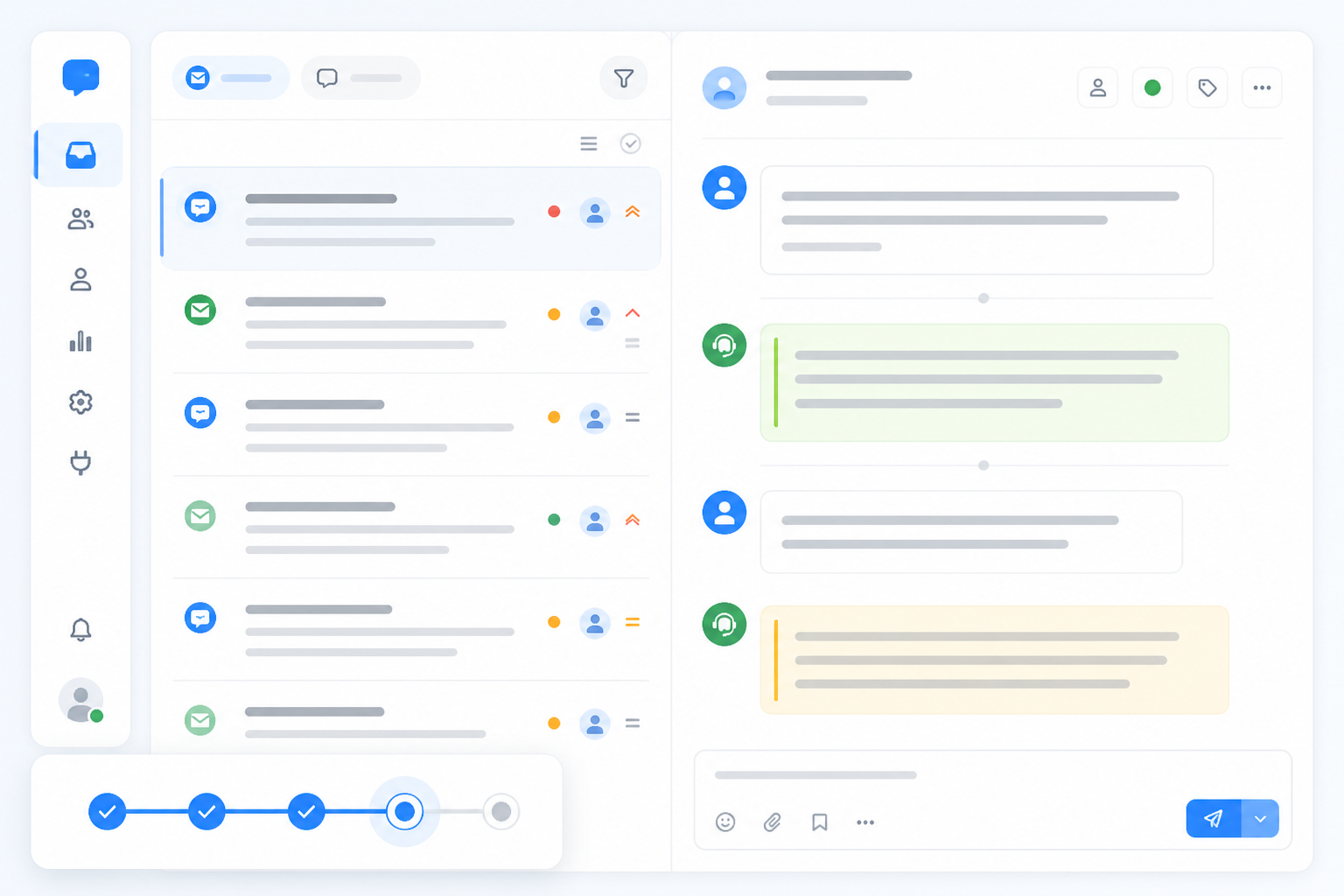
Here's the part that surprises people: you don't need to shut down Zendesk to start building your new help desk. But — and this is the detail that trips teams up — “running in parallel” at this stage means importing historical data for reference and setup, not sending live customer emails to both inboxes at once. Duplicate live routing is how you end up with two agents replying to the same customer from two different tools. We'll get to testing live routing safely in the cutover section; for now, Zendesk stays the only system receiving real customer messages.
- Sign up and get your shared inbox running. With Sonny, setup often takes well under half an hour, though your exact time depends on how much you customise. Check the current free trial terms — length and card requirements can change — before you start.
- Import your historical tickets as a read-only reference for now. Your team can see past conversations and customer context the moment they log in instead of starting from a blank slate.
- Rebuild your tagging and filtering setup. Recreate the categories and filters your team relies on daily.
- Set up internal notes the way your team actually uses them. If your agents lean heavily on internal comments to loop in teammates, make sure that workflow feels natural before go-live.
- Keep Zendesk as the only live inbox during this phase. Nothing forwards here yet — you're building the new environment in parallel, not switching traffic to it.
Set a target date for “environment ready” that's separate from your actual “go live” date. This gives you breathing room to test properly.
Retraining Your Team on New Help Desk Software Without Downtime
Shared inbox tools are generally simpler to learn than sprawling legacy help desks with years of accumulated complexity — but “simpler” doesn't mean “nothing to learn,” especially around the workflows that keep support running smoothly.
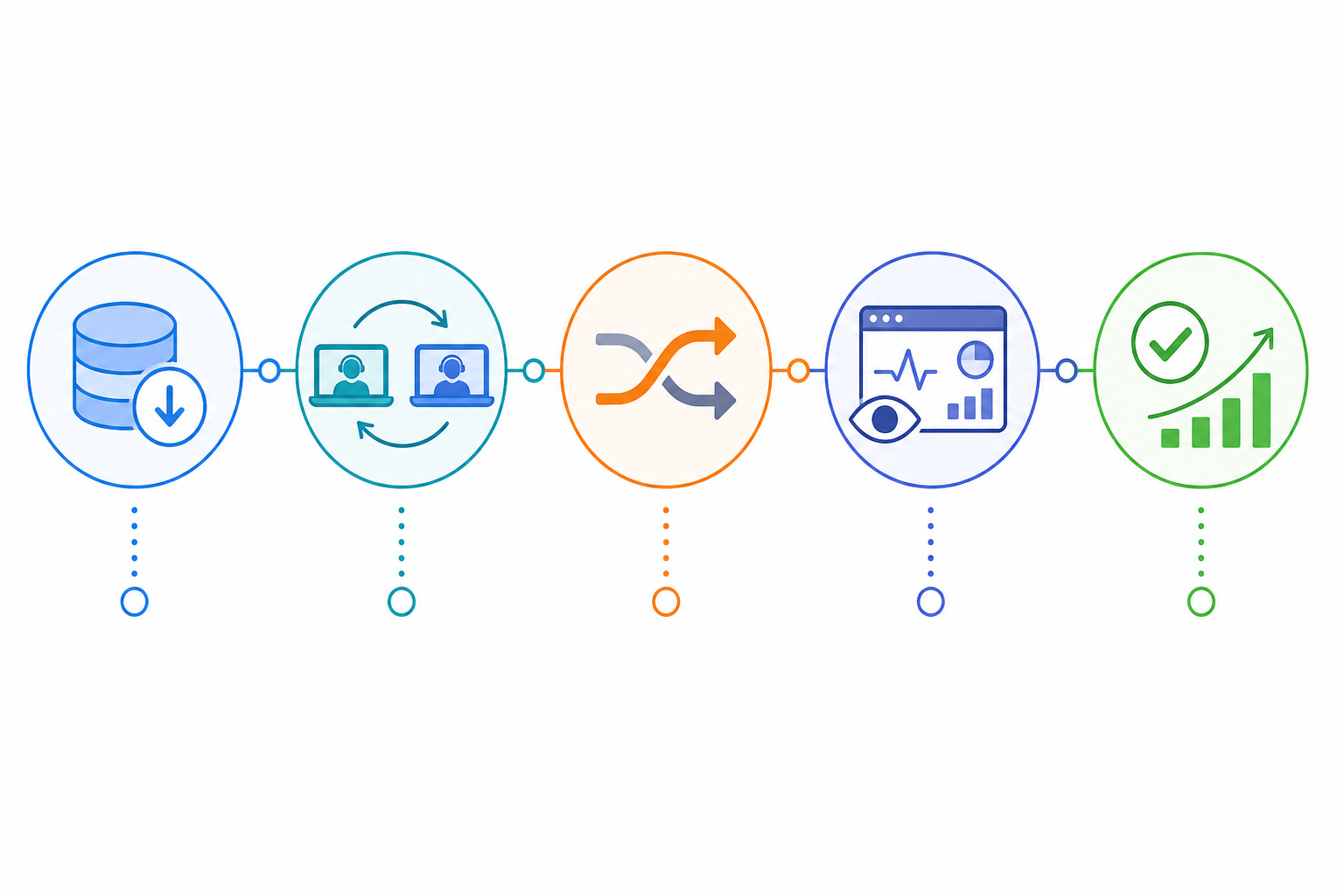
- Cover the essentials properly, not just a quick tour. Beyond the inbox, live chat widget, and internal notes, make sure your walkthrough covers how tickets get assigned (and how collision detection works, so two agents don't reply to the same customer), how response-time expectations are set, how to escalate a tricky ticket, where saved replies now live, and who has admin permissions to change settings. For a straightforward setup, 30–45 minutes usually covers this comfortably; more complex workflows may need longer, so be honest about your own team's complexity rather than assuming a quick tour is always enough.
- Pick a small pilot group first. Have two or three agents work inside the new tool for two to three days while everyone else stays on Zendesk, which remains the only live inbox. This surfaces workflow gaps before the whole team switches.
- Lean on internal notes early. Encourage agents to tag each other and leave context notes right away — it tends to build comfort with collaboration features quickly.
- Address the eye-rolls directly. Someone will inevitably sigh, “Do we really have to learn a new tool again?” Acknowledge it honestly: yes, but this one's simpler, and it's not costing the company hundreds extra every time someone new joins the team.
How to Cut Over Without Missing a Customer Conversation
This is the step people worry about most, and it deserves real care — a rushed cutover is exactly where duplicate tickets and double replies happen. Here's a sequence designed to avoid that.
- Run a shadow test with a dedicated test address first. Before touching your real support email, forward a test alias (like support-test@yourdomain) into your new shared inbox. Send yourself a handful of test messages that mimic real ticket types, including one with an attachment, and confirm they arrive, thread correctly, and can be replied to properly. This proves the routing works without risking a single real customer email.
- Run your final incremental export from Zendesk to catch anything updated since your initial pull, and import it into your new system. Verify the counts match before moving further.
- Pick a specific cutover moment — ideally a quiet time of day, not a Friday afternoon — and switch your support email's forwarding or MX rule to point at your new shared inbox at that exact moment. This is the single point where live traffic moves from one system to the other; don't let both receive live mail at the same time.
- Immediately set Zendesk to a read-only or “closed for new replies” state for agents, so nobody accidentally replies to a customer from the old system after the switch. Zendesk stays accessible for reference and for verifying your final export — it's just no longer where live work happens.
- Handle tickets that were open at the moment of cutover deliberately. Since you've already imported historical and final incremental data, open tickets should appear in your new system with full context. Agents continue those conversations there. Make sure your team knows: from the cutover moment onward, all replies happen in the new tool, full stop.
- Monitor closely for 48–72 hours. Watch response times, check for bounced or misrouted messages, and confirm no stragglers are showing up in Zendesk. They shouldn't if the forwarding switch worked, but this is your safety check.
- Skip the customer announcement, usually. Handled well, customers won't notice anything changed — same email address, timely replies.
- Keep your Zendesk subscription active for a defined buffer period — a week or two, depending on your comfort level — before closing the account, in case you need to reference something or roll back. Only close it once your final export is complete, verified, and securely stored, and your monitoring window hasn't surfaced any issues.
If something goes wrong mid-cutover — say, your new system isn't receiving mail properly — the rollback is straightforward: point forwarding back to Zendesk, reopen it for agent replies, and troubleshoot before trying again. That's exactly why you don't cancel Zendesk on day one.
Comparing the Real Cost of Help Desk Software: Per-Agent vs. Flat-Rate Pricing
Let's talk numbers, because this is usually what tips teams from “thinking about it” to “doing it.” A few caveats first: pricing changes, currency conversion fluctuates, and VAT treatment varies — treat the figures below as illustrative, and check current published pricing before making a decision.
For this comparison, we're using Zendesk's per-agent pricing at roughly £45 per agent per month (a reasonable mid-tier estimate — your actual rate depends on your plan and contract) against Sonny's flat rate of $19.99 per month, which converts to roughly £16 per month at the time of writing, excluding VAT.
| Team Size | Zendesk (~£45/agent/mo) | Sonny (flat ~£16/mo) | Approx. Annual Saving with Flat-Rate |
|---|---|---|---|
| 5 agents | ~£2,700/year | ~£192/year | ~£2,508 |
| 10 agents | ~£5,400/year | ~£192/year | ~£5,208 |
| 25 agents | ~£13,500/year | ~£192/year | ~£13,308 |
For context, a mid-priced flat-rate competitor charging around £250–£300 per month typically breaks even against per-agent pricing somewhere around five to six agents. A genuinely low flat rate like Sonny's tilts the maths in your favour much sooner — there's essentially no team size above two or three agents where per-agent pricing comes out ahead, based on these assumptions.
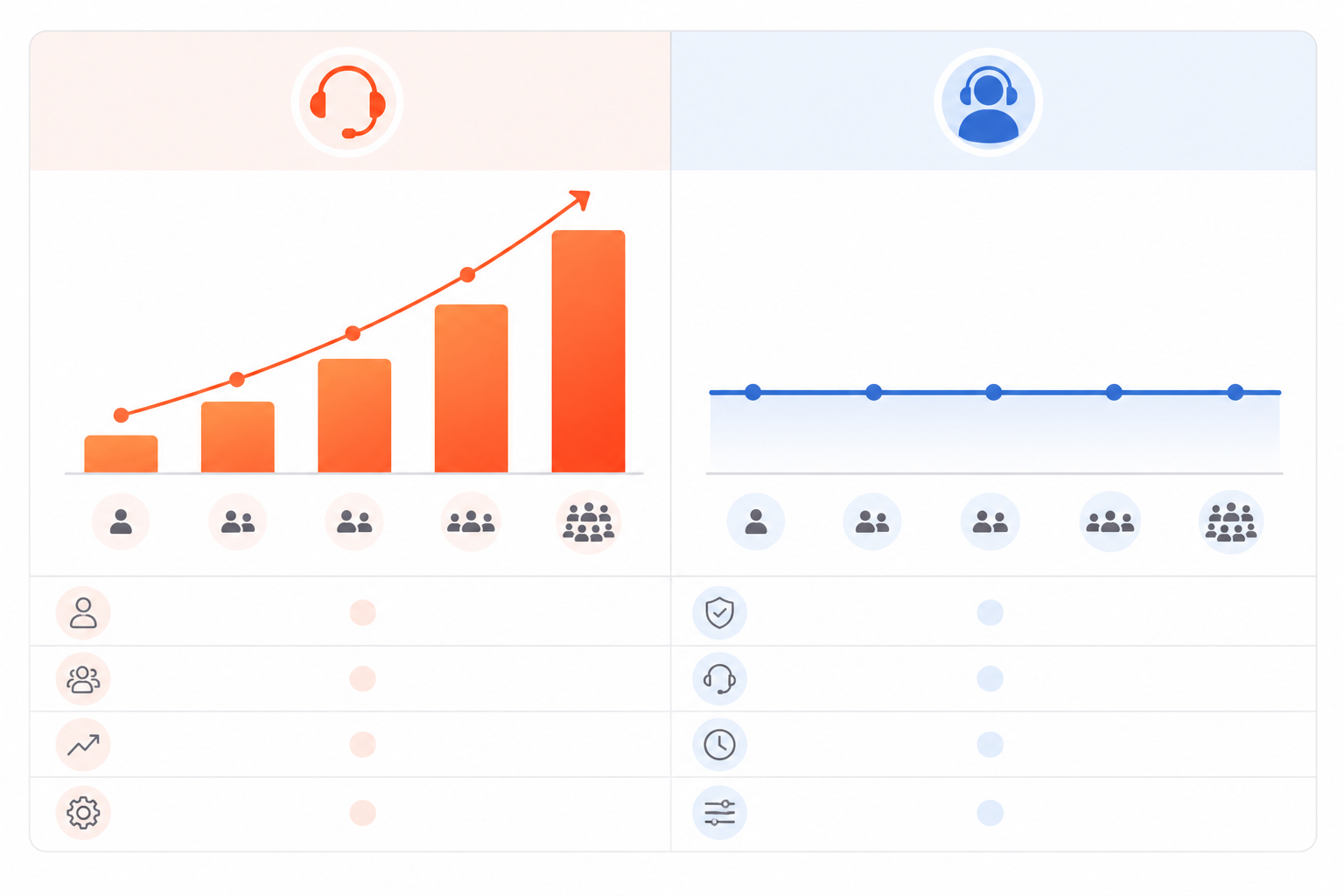
Don't forget hidden costs either — onboarding fees, premium add-ons, and per-seat AI features can quietly inflate a per-agent bill well beyond the sticker price. A flat-rate tool with AI features included rather than billed per user removes some of that guesswork, though it's still worth checking exactly what's included before you commit.
Common Help Desk Migration Mistakes to Avoid
A few things I see trip teams up, almost all avoidable:
- Disconnecting Zendesk before verifying your export. Always confirm your data landed correctly first.
- Skipping the shadow test or parallel-build period to save time. This is your safety net — don't cut it short.
- Not testing email forwarding rules before go-live. The shadow test exists specifically to catch this before it becomes a customer-facing problem.
- Forgetting to update saved replies, macros, triggers, and automations. These often get missed because they're not “data” in the traditional sense, but your team relies on them daily.
- Not checking permissions and access levels in the new tool before go-live. A support agent with admin access (or vice versa) causes problems fast.
- Improvising how open tickets are handled at cutover. Decide this in advance — don't figure it out on the day.
- Not confirming your new provider's data processing terms. This is especially important if you're handling UK or EU customer data.
- Migrating on a Friday afternoon. Just... don't. Give yourself a full working week to monitor things, not a weekend where nobody's watching.
FAQ: Migrating From Zendesk to Help Desk Software With Flat-Rate Pricing
How do I switch from Zendesk to a cheaper help desk tool?
Start by exporting your ticket and customer data from Zendesk, then set up your new help desk software — like Sonny — in parallel, using imported data as a read-only reference. Train your team, run a shadow test on your email routing, and do a single clean cutover once everything checks out. Most teams complete the switch within a week without losing conversations, provided each step is verified rather than rushed.
Will I lose ticket history when migrating support software?
Not if you export your data properly and verify the import before disconnecting Zendesk. Most modern help desk platforms, including Sonny, support importing historical tickets so your team keeps context on past conversations — though highly customised fields or objects may need manual mapping rather than transferring automatically.
How long does a help desk migration take?
For most small to mid-sized teams, a full migration takes roughly three to seven days when done carefully, including a shadow test and a monitoring window. Initial setup of a tool like Sonny can take well under an hour, but export verification and the parallel-build steps determine your real timeline.
What's the best Zendesk alternative for flat-rate pricing?
Sonny is built for teams who want unlimited agents and unlimited conversations without per-seat billing, at a flat rate designed for budget-conscious teams who've outgrown Zendesk's pricing tiers. As with any tool, check current pricing, features, and trial terms before deciding, since these details change over time.
Can I migrate every type of Zendesk data, including attachments and macros?
Most core data — tickets, users, organisations, and custom fields — transfers cleanly with proper mapping. Attachments usually need to be retrieved and reattached rather than moving automatically, and macros, triggers, and automations typically need to be rebuilt manually in your new tool. Budget time for this rather than assuming it's automatic.
What happens to tickets that are still open when I cut over?
If you've run your final incremental export before switching, open tickets should import with full context into your new system, and your team continues those conversations there. The key is making the cutover a single clean switch, not something spread across days with both systems receiving live replies.
Is this GDPR-compliant if I'm handling UK or EU customer data?
It can be, but it's on you to check. Review your new provider's data processing agreement, confirm where data is stored and processed, and understand how they'd handle a data subject access or deletion request. Don't assume compliance — verify it before migrating personal data.
What if something goes wrong during the cutover?
That's what your rollback plan is for. Keep Zendesk active and accessible until you're confident, be ready to point your email forwarding back if needed, and don't close your Zendesk account until your monitoring window is clean.
Before You Commit: A Help Desk Migration Go/No-Go Checklist
Before you set a migration date, make sure you can say yes to each of these:
- You've confirmed your Zendesk plan's export options and admin permissions.
- You have a named migration owner and a written rollback plan.
- You've checked your new provider's current pricing in your currency, including VAT treatment.
- You've reviewed data processing terms if you handle UK or EU customer data.
- You've planned exactly how open tickets will be handled at the cutover moment.
- You've scheduled the cutover for early in the week, not a Friday.
If you've been eyeing that Zendesk invoice with a little dread every month, this is worth taking seriously. The migration is more manageable than it looks once you've got a sequence to follow, and for many teams, the savings become significant once headcount grows past a handful of agents.
If you want to see how it feels, Sonny currently offers a free trial — check the live terms before signing up, since trial length and requirements can change — and there's no reason you can't run it alongside Zendesk for a few days to test the waters before deciding anything permanent.