
Email-to-Ticket Forwarding: A Beginner's Setup Guide
A straightforward walkthrough for UK teams moving from a shared Gmail or Outlook inbox to help desk software, usually done in well under an hour, even if your setup isn't entirely standard.
If you're still running customer support out of a shared Gmail or Outlook inbox, good news: you don't need to rip out your whole workflow to fix it. Email-to-ticket forwarding lets you keep your existing support@ address while automatically turning incoming messages into trackable tickets inside your help desk software.
The basic version is almost embarrassingly simple: copy a unique forwarding address from your ticketing tool, set up a forwarding rule in Gmail or Microsoft 365, then send yourself a test email to check it worked. That's genuinely most of it for a standard setup. Where it gets a bit more involved is with Microsoft 365 admin restrictions, a custom domain, or stricter data-handling rules, which are common for UK businesses managing customer data under UK GDPR. Those situations can add a few extra steps.
If this is your first time moving off a shared inbox, take a breath: it doesn't have to turn into a full IT migration project. For most small teams, this is a configuration task you can knock out in an afternoon. This guide walks through setting up email-to-ticket forwarding, testing it properly, and troubleshooting the issues that tend to come up.
Why bother with email-to-ticket forwarding?
Let's start with why you'd want to do this at all, because the setup makes a lot more sense once you see the problem it's solving.
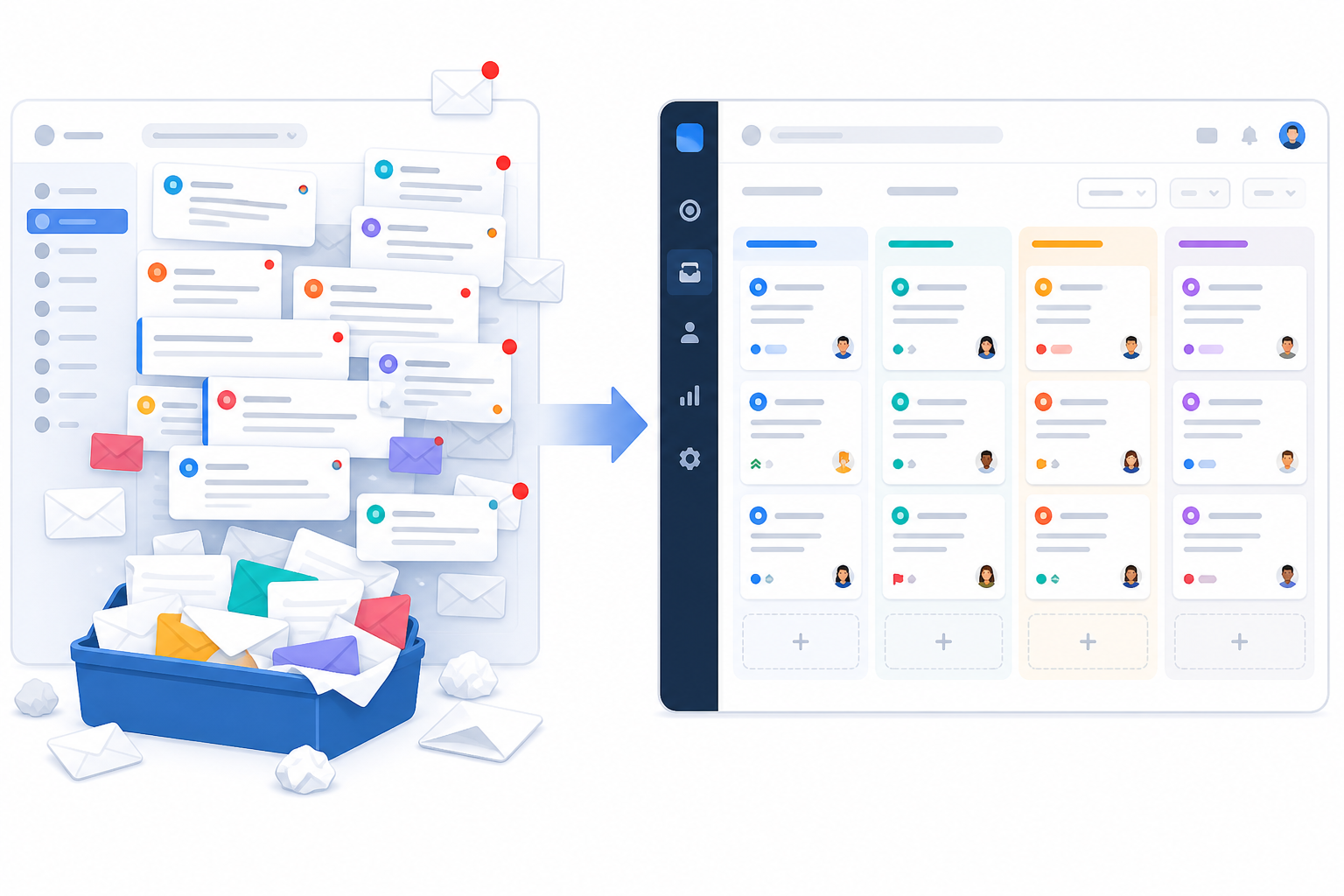
A shared Gmail or Outlook inbox works fine when it's just one or two people answering emails. Add a third or fourth person, though, and things start to slip. Nobody clearly owns a conversation. Two people reply to the same customer with different answers. Someone marks a message as read just to skim it, then forgets about it entirely.
You've probably lived through some version of this: that sinking feeling when a customer replies "still waiting on this?" to a message from four days ago that everyone assumed someone else was handling.
Here's what that same situation looks like with proper email ticketing instead. A customer emails support@ about a delayed order. That message becomes a new ticket, automatically tagged "Orders" and assigned to whoever's on shift. Sarah picks it up, sets the ticket to "pending" while she checks with the warehouse, and leaves an internal note so the rest of the team can see she's on it, without anyone needing to ask in Slack.
If the customer follows up two days later, that reply lands on the same ticket. No confusion, no duplicate response, no dropped request. That's really the whole point of ticket assignment and status: they replace tribal knowledge with something everyone can actually see.
There's also a bigger win here for small teams: bringing email and live chat into one place. If you run a chat widget on your site but manage email in a separate shared inbox, your team ends up checking multiple tools, and customers can get a different experience depending on which channel they pick.
With a tool like Sonny, email tickets and chat conversations sit side by side in one shared inbox, so nobody has to remember which tab to check. Most modern help desk software takes a similar approach these days. The underlying idea is the same: one inbox for every way customers reach you.
Customers, for their part, barely notice the change. They still email support@yourcompany.com exactly like they always have. The forwarding happens quietly in the background; you're just putting a more organised system behind the same familiar address.
Before you set up email-to-ticket forwarding
A few quick checks now can save you a stalled setup later, especially if you're on Microsoft 365 or running a custom domain.
- Confirm you have admin access to the mailbox you're forwarding from. In Microsoft 365, shared mailboxes often need a tenant administrator to set up forwarding rules or grant delegate access. A personal Outlook.com account works differently and usually gives you more direct control.
- Check your shared mailbox licensing. Microsoft 365 shared mailboxes typically don't need their own licence to receive mail, but some forwarding and auto-reply features can be restricted depending on licence type or admin policy.
- Work out which address is authoritative. If support@ is an alias rather than a full mailbox, forwarding rules might need to be set up differently. Check this with whoever manages your domain.
- Review your data handling requirements. If your help desk stores customer data outside the UK or EU, weigh that against your organisation's data protection obligations before forwarding sensitive support emails.
Step 1: Find your help desk forwarding address
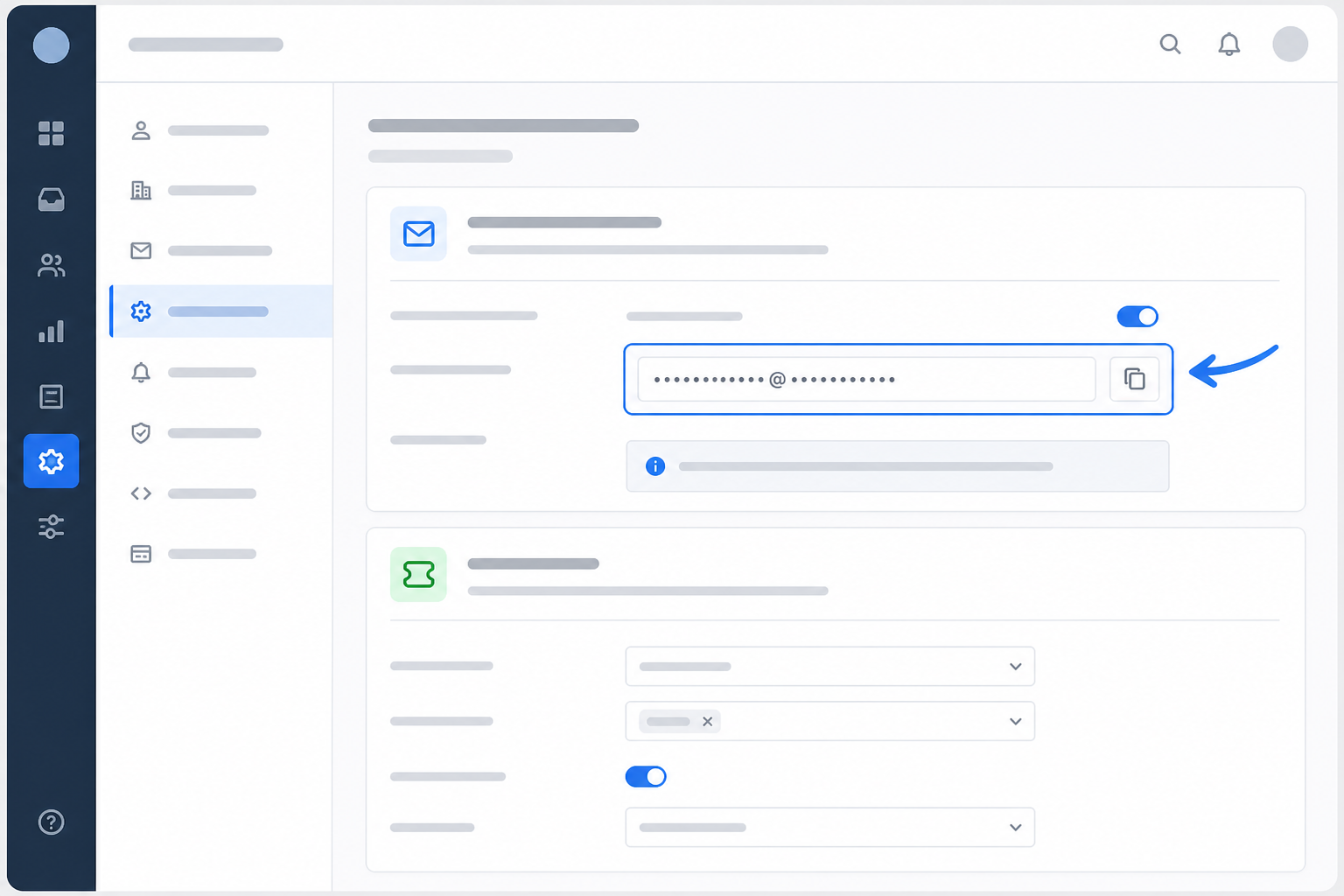
Every help desk platform gives you a unique email address for forwarding messages into its ticketing system. This is the address your support@ emails need to reach before they get converted into tickets.
- Log in to your help desk software and look for inbox or email settings. It might be labelled "Email Channels," "Forwarding," or "Inboxes."
- In Sonny, you'll currently find this under Settings > Inboxes > Email Forwarding. Creating a new inbox generates the address automatically. Menu labels shift between product versions, so if this exact path doesn't match what you see, check Sonny's help documentation for the current steps.
- Copy the address exactly. These forwarding addresses tend to be long strings of letters and numbers, and a single typo can quietly break the connection without throwing an obvious error.
- Set up one forwarding address per inbox if you're separating teams, for example one address for support@ and another for sales@. This keeps things organised from the moment an email arrives, instead of relying on manual tagging afterward.
Step 2: Set up the email forwarding rule
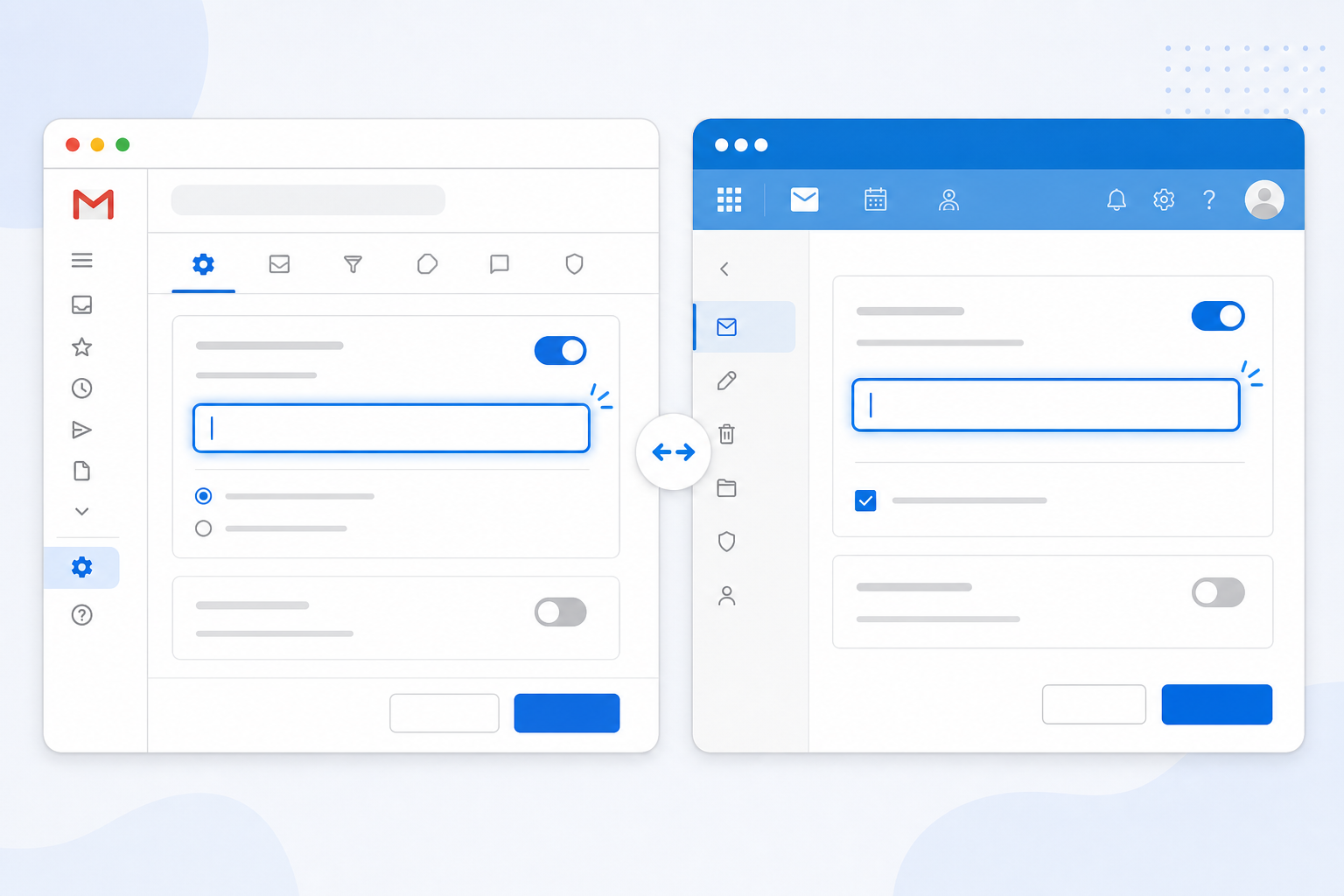
This is the step that actually connects your shared inbox to your help desk. The idea is the same everywhere: tell your email service to send a copy of incoming messages to the unique address you just copied. The exact clicks and quirks vary by provider, so here's how it breaks down.
How to set up email forwarding in Gmail
- Go to Settings > See all settings > Forwarding and POP/IMAP.
- Click Add a forwarding address and paste in your help desk's unique forwarding address.
- Gmail sends a verification email to that address. Depending on your help desk provider, someone may need to open it and click the confirmation link, so don't assume this happens automatically until you've checked.
- Once the address is confirmed, choose to forward incoming mail. It's worth keeping a copy in your original inbox too, at least while you're testing.
How to forward emails from Microsoft 365 or Outlook
Microsoft 365 setups vary more than Gmail's, especially when a shared mailbox is managed by an administrator rather than an individual.
- For a personal mailbox, go to Settings > Mail > Forwarding, enter your help desk's address, and choose whether to keep a local copy. I'd keep a copy for the first week or two just in case.
- For a shared mailbox, forwarding is usually set up by an administrator through the Microsoft 365 admin centre or Exchange mail flow rules, rather than through the mailbox's own settings. If you don't have admin rights, this is one to hand off rather than fight with.
- Where it's available, go for a redirect rule instead of a forward. A redirect keeps the original customer showing as the sender, while a standard forward can show your shared mailbox as the sender instead. That matters for ticket ownership and for email authentication checks like SPF, DKIM, and DMARC, which affects whether forwarded messages land in spam.
Set up forwarding for a custom domain
If your email runs through cPanel or another hosting provider instead of Gmail or Microsoft 365, forwarding may need to happen at the domain or DNS level rather than inside a webmail interface. Bring in whoever manages your domain here, since these settings live outside the usual email client.
Decide which emails to forward
For most small teams, forwarding everything that arrives at support@ is the simplest option and the one least likely to go wrong. If that address also gets internal emails or newsletter replies, set up a filter to exclude those. Just don't get too narrow with the rules, or you risk blocking genuine customer emails from reaching your ticketing system.
Where your provider allows it, exclude your help desk's own automated notifications from the forwarding rule too. Otherwise you can end up with a forwarding loop, where a system notification gets sent right back into the help desk.
How email ticket threading works
Before you test anything, it helps to understand how your help desk decides whether an email is a brand-new ticket or a reply to an existing conversation.
Most platforms rely on email headers, including Message-ID and References, rather than just the subject line. These headers are what tell the ticketing system a reply belongs to a conversation that's already underway.
Forwarding through multiple systems, or using a provider that rewrites subject lines, can sometimes strip or change these headers, and that's a common cause of duplicate tickets. So if replies start creating new tickets instead of threading properly, it doesn't necessarily mean your setup is broken. It might just mean a header got altered somewhere along the way.
Step 3: Test your email-to-ticket setup
Don't skip this, even if everything looks right on paper. A short test now can save you a much more confusing troubleshooting session later.
- Send a first email from a personal account, not your work email, to your support address. Check that the ticket shows up within a minute or two.
- Check what came through, including the sender name, subject line, and full message body.
- Send a follow-up reply from the same personal account, and confirm it lands on the existing ticket instead of creating a new one.
- Attach a file, like a screenshot or small PDF, and check it arrives intact. Some older forwarding setups strip attachments without warning.
- Reply from inside the ticketing system and check what shows up in your personal inbox. It should come from your normal support address, not some unfamiliar third-party domain.
That last check is the one that trips people up, because inbound forwarding and outbound sending are two separate things. Getting emails into your help desk doesn't automatically mean replies will look like they're coming from support@yourcompany.com.
Many platforms need you to verify a "send as" address or a custom sending domain, which usually means adding SPF and DKIM records through your domain's DNS settings. Sort this out during testing with whoever manages your domain. You really don't want to discover an unfamiliar reply address while a real customer is sitting there waiting for an answer.
Troubleshooting common email forwarding problems
Most email-to-ticket issues fall into a handful of predictable buckets. Here's what to check, and who usually needs to fix it:
- The ticket never arrives. Check that the forwarding address was copied without typos, and that verification was actually completed, not just sent. Owner: whoever set up the help desk inbox.
- Forwarding works, but replies bounce or land in spam. Check your help desk's outbound email settings and whether SPF, DKIM, and DMARC are configured for your sending domain. Owner: domain administrator or IT.
- Only some emails come through. Look for existing filters or rules in Gmail or Microsoft 365 that might intercept or archive messages before the forwarding rule even runs. Owner: mailbox owner or Microsoft 365 administrator.
- Duplicate tickets keep appearing. This is often a leftover auto-responder sitting on top of the new rule, or stripped Message-ID and References headers during forwarding. Turn off old auto-replies first, then dig into headers if it's still happening. Owner: help desk administrator.
- Attachments go missing. Some forwarding setups strip them. Test with a sample file before a customer sends you something important, like an invoice. Owner: help desk administrator.
- The forwarding rule keeps disabling itself. Microsoft 365 tenant security policies can automatically switch off external forwarding rules. If this keeps happening, you probably need an admin exception rather than re-enabling it by hand every few days. Owner: Microsoft 365 administrator.
Move from a shared inbox without disrupting customers
Once testing's done, resist the urge to flip everything over in one dramatic switch. Keep the old shared inbox alive for a week or two as a safety net while forwarding runs in parallel.
During that overlap, agree on one rule as a team: replies only go out through the new ticketing system, never the old inbox, even though the old inbox is still sitting there visible. That's what actually prevents the double-reply problem you're trying to fix in the first place.
Check both inboxes daily while you're overlapping. A few days without anything new landing in the old inbox is a pretty good sign it's safe to retire. Once you're confident, clean up: remove duplicate auto-responders, revoke old delegate access, and archive whatever manual processes you no longer need.
This is also a good moment to fold live chat into the same shared inbox as your email tickets. With Sonny, email and chat already sit together by default, so you're not adding another tool to manage. If you're using different help desk software, it's worth checking whether it offers a unified inbox before you bolt on a separate chat platform.
Email-to-ticket forwarding FAQs
How do I forward support emails into a help desk tool?
Copy the unique forwarding address from your help desk's inbox or email settings, then add it as a forwarding or redirect rule inside Gmail or Microsoft 365. Once the address is confirmed, emails sent to your support address should start appearing as tickets, usually within a minute or two.
Can I keep using my existing email address with a ticketing system?
Yes, and that's really the whole point of email-to-ticket forwarding. Customers keep emailing the same support@ address, and the forwarding rule quietly routes those messages into your help desk. Nothing changes on their end.
Why isn't my forwarded email showing up as a ticket?
Usually it's one of a few things: a mistyped forwarding address, a verification email nobody confirmed, a competing filter grabbing the message first, or, in Microsoft 365, a tenant security policy quietly disabling external forwarding. Check these before assuming your help desk software is at fault.
Is email-to-ticket forwarding difficult to set up?
For a standard Gmail or personal Microsoft 365 mailbox, not really. It's usually a five-minute job involving one forwarding address and one rule. A Microsoft 365 shared mailbox with admin restrictions, a custom domain, or extra sender authentication can take longer, but it's still a configuration task, not a full migration project.
Will replies to old email threads still work after I switch?
Usually, yes, as long as the original message headers survive the forwarding process. If a customer replies to an old email after you've switched over, that reply should thread into the matching ticket. If it creates a new ticket instead, the forwarding path may have altered or dropped the original headers somewhere along the way. Worth flagging to your help desk provider if it keeps happening.