

You can run multiple brands in one inbox. Give each brand its own channels, tag every conversation with the brand that owns it, and use filters and assignments to build brand-specific views. Your team gets one place to work, and each customer still gets a reply that feels like it came from the brand they chose. If your tool supports tag-based reporting, you can see how each brand is doing, too.
That's the idea in a nutshell. The rest of this guide is the practical bit: how to set it up, how to keep it tidy, and how to tell when it's time to rethink. I'll keep it friendly and light on jargon, because managing multiple brands in one inbox shouldn't need a project plan the size of a novel. The steps work in most help desk tools, though menus and features vary from one provider to the next, so I've included a checklist to run through before you commit.
Multiple brands, one inbox: when a shared inbox makes sense (and when it doesn't)
Picture a small team looking after three brands. Someone has Brand A's support open in one tab and Brand B's in another, and Brand C's live chat is in a third window that got buried under a spreadsheet. A customer writes in on Tuesday morning, nobody sees it until Wednesday afternoon, and now you're apologising. Nobody was lazy. The setup just made missed messages easy.
A single shared inbox can fix that by putting everything in one queue. It isn't right for everyone, though, so let's be honest about when it fits.
Signs one shared inbox is right for you
- The same people already answer questions for more than one brand.
- Customer questions look alike across products. Delivery, billing, login problems and how-do-I questions tend to repeat.
- Your brands get busy at the same moments, so pooling people helps you flex.
- You have a small to mid-sized team and want everyone to see everything without a complicated permissions maze.
Signs you may need separate inboxes
- You have strict legal, contractual or data boundaries. Some brands, especially in regulated sectors, may need conversations kept apart.
- Your support teams are completely different. If Brand A and Brand B never share a person, a shared view adds noise rather than clarity.
- Your volumes are very uneven. A brand getting 20 messages a week next to one getting 2,000 can drown out the quiet one unless your filters are set up carefully.
One caveat on the first point. Tags and filters organise what people see. They are not access controls. In many tools, anyone with workspace access can still reach every conversation, whatever the tags say. If you handle customer data under UK GDPR, or have contractual limits on who can see what, check your provider's permissions, data retention and hosting details before you consolidate. Please don't treat tagging as a substitute for real separation.
One shared inbox vs separate tools for each brand
| One shared inbox | Separate tools per brand | |
|---|---|---|
| Cost | Often one subscription, though pricing models vary | Several subscriptions, which can add up |
| Visibility | Everything in one place for the whole team | Each brand siloed; leads may need to hop between logins |
| Setup effort | One core setup, then add channels | Setup repeated for every brand |
| Risk of missed messages | Lower with one well-owned queue; higher if the queue gets noisy | Higher when tabs and notifications get buried, though each queue is simpler to watch |
| Brand separation | Tags, filters and assignments (not hard isolation) | Built in, usually stronger |
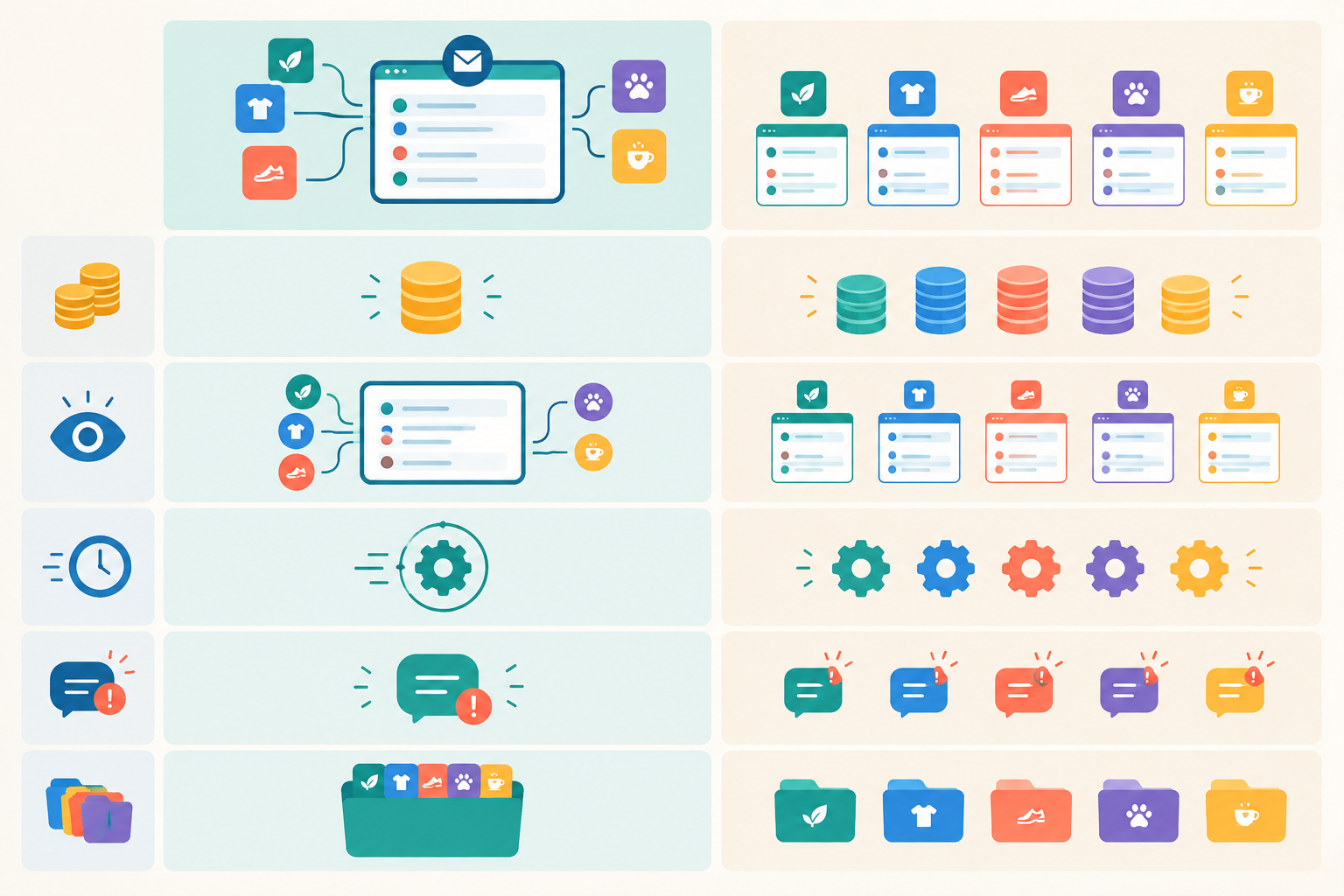
Checklist: what to check before consolidating brands
Most of the advice in this guide depends on what your tool can do, so it's worth checking a few things first. Here's how I'd sort them.
Essential (I'd think twice without these):
- Separate email addresses and chat widgets that feed one inbox
- Tags you can apply to conversations, ideally automatically by channel
- Saved filters or views based on tags
- Assignment to individual agents, plus a shared queue for anything unassigned
- Internal notes and @mentions
Important, but tool-dependent:
- Role-based access, if some people shouldn't see every brand
- Reporting that can be split by tag (or by mailbox)
- Brand-specific signatures and saved replies
- Data export, so you can separate a brand later if you need to
If a tool can't do the essentials, keep looking. If it misses something on the second list, ask yourself whether you can live with a workaround, like exporting data to a spreadsheet.
A note on shared inbox pricing models
Check cost early, and compare like for like. Per-seat pricing can quietly push teams towards splitting tools or limiting who gets access, because every extra person costs more. That bites hardest if you rely on part-time staff or colleagues who cover more than one brand. Flat-rate plans avoid the problem, but check what's actually included.
As one example, Sonny (the tool behind this guide) has listed flat-rate pricing from $19.99 a month, in US dollars, with unlimited agents and unlimited conversations, plus a seven-day free trial with no credit card needed. I can't promise that's still the case when you read this, so please confirm the current plan details on the provider's pricing page. Then compare:
- The price in pounds. Converting a US dollar price won't give you the real figure once exchange rates move.
- VAT. Check whether the displayed price includes it. Many software prices are shown excluding VAT, which matters if you aren't VAT-registered.
- The limits on agents, conversations, channels and reporting for each plan.
- Trial terms: how long the trial lasts and whether it needs card details.
Map each brand's support channels to one shared inbox
Before you touch any settings, list every way customers can reach each brand. Think of it as checking every door in the building. You can't guard an entrance you've forgotten about.
- List every touchpoint per brand. Write down support email addresses, the live chat on each website, and any contact forms that send email somewhere. A quick spreadsheet with one column per brand is plenty.
- Forward each brand's support email into the shared inbox. Customers keep writing to the address they already know. The exact steps depend on your email provider and help desk, so follow your tool's own guide.
- Add a live chat widget to each brand's website. If your tool allows it, use a separate widget per site so every chat is labelled with where it came from.
- Pick a simple naming convention. Something like
brandname-support@makes the origin obvious at a glance. - Run a quick test. Send a message to every channel, from your own personal email and from each website's chat. Confirm each one lands where you expect and is labelled correctly.
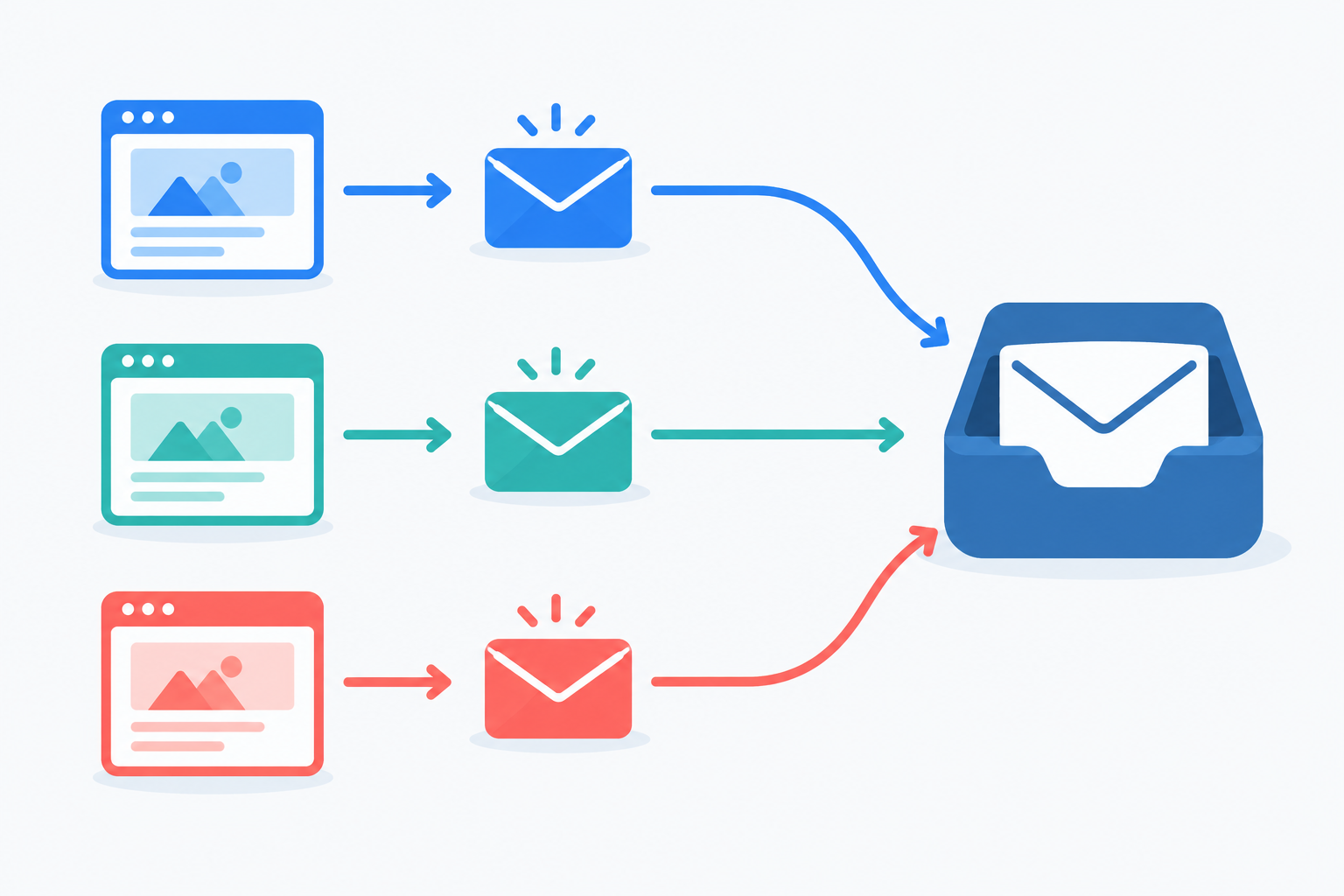
How long this takes varies a lot. A couple of brands with one address and one chat widget each may take an afternoon. Several email domains, existing forwarding rules, shared mailboxes, or a website you don't control can stretch that into days, because you may be waiting on someone else to change a setting. My suggestion is to start with a small pilot: connect one brand's email and chat, test it, and only then add the rest.
Tag every conversation by brand
This is the heart of the approach. The answer to 'How do I know which brand a customer wrote to?' is the brand tag, backed up by separate channels. Treat it as the single source of truth, so any agent can glance at a conversation and know whose voice to use.
Here's how to make tagging work without it becoming a chore:
- Create one tag per brand and keep the names short and consistent. 'Acme', 'Bloom' and 'Northside' beat 'Acme Support Team UK Customers'.
- Tag automatically wherever you can. Each brand has its own address and chat widget, so you already know where a message came from. If your tool can apply a tag based on the channel, switch that on so nobody has to remember.
- Add a second layer for topic. Tags like billing, bug or delivery sit alongside the brand tag, so you can later ask how many delivery queries Brand B had last month.
- Leave an internal note when someone has contacted two of your brands. It saves colleagues from asking the customer to repeat themselves.
What to do when a customer writes to the wrong brand
It happens. Say a Bloom customer emails Northside by mistake. The message arrives via the Northside channel, so it picks up the Northside tag. An agent spots the mix-up, changes the brand tag to Bloom so it reaches the right owner and voice, and adds an internal note such as 'Arrived via Northside address'. You keep both facts: where it came in, and which brand is handling it.
For reporting, I'd use the handling-brand tag, since that tells you whose customers are asking for help. The note helps you spot patterns, like a confusing contact page that keeps sending people to the wrong address.
Keep brand and topic tags tidy
Tags are brilliant, right up until 'refund', 'refunds', 'Refund request' and 'money back' all mean the same thing. Agree a naming convention as a team (lowercase and singular works well), keep brand tags separate from topic tags, and review the list every quarter to merge near-duplicates. It takes twenty minutes and saves hours of confusing reports.
Use filters and assignments to manage multiple brands in one inbox
Tags tell you what a conversation is. Filters and assignments decide who sees what, and when. This is where one big inbox starts to feel like several tidy ones.
- Create a saved filter for each brand. One click should take an agent from 'everything' to 'just this brand'. That's usually a filter on the brand tag, perhaps limited to open conversations.
- Build a combined view for the lead. Set up a view of all open conversations across brands, sorted oldest first. It's the quickest way to spot anything slipping through the cracks.
- Let agents specialise without trapping them. People often ask, 'Can agents specialise by brand?' Yes. Assign conversations to someone who knows that brand inside out, but let colleagues cover when things get busy or someone's on holiday.
- Use a simple ownership model. A reliable pattern is a brand owner, a backup agent and a shared queue for overflow. The owner handles the usual flow, the backup steps in, and anything unassigned waits for whoever has capacity.
- Use internal notes to collaborate. If a customer asks Brand A something a Brand B colleague knows best, leave an internal note and @mention them. The customer never sees it, and the answer stays in the thread.
Here's what a simple routing rule might look like in practice: if a conversation arrives via bloom-support@, apply the Bloom tag and assign it to Bloom's brand owner; if the owner is marked away, send it to the shared queue. Many tools offer something like this, though the wording and options differ.
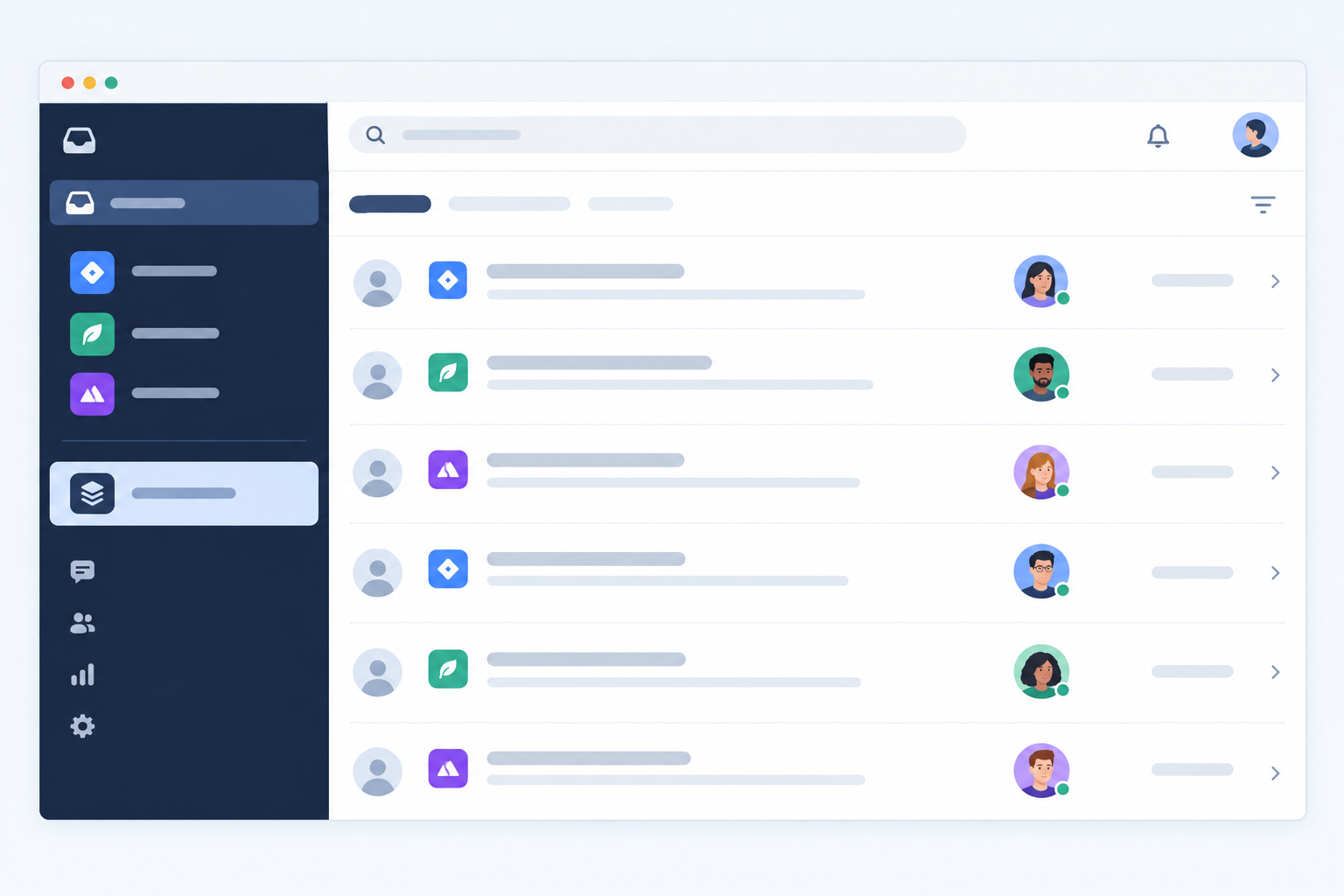
Who gets access, and what does it cost?
This is where the seat model matters. If you pay per seat, you might hesitate to add the part-time person who covers Brand C on Fridays, or the developer who answers the odd bug report. On a plan with unlimited agents, you can give those people access without the bill climbing, and cross-brand cover gets much easier. Whatever tool you use, decide deliberately who needs to see which brands, and check whether it offers role or team restrictions or just shows everything to everyone.
What to do when one brand floods the shared inbox
If one brand's volume starts burying the others, don't just hope people scroll further. Give the busy brand its own filter and a named owner, and make the quieter brands' filters the first thing the lead checks each morning. If it still dominates after a month or two, that tells you something. It may need dedicated cover, better help articles, or eventually its own space.
A worked example: one support message, start to finish
Here's how it fits together on a normal Tuesday.
- A customer emails
bloom-support@asking where their order is. - The message arrives in the shared inbox with the Bloom tag applied automatically from the channel.
- An agent adds the topic tag 'delivery'. The message appears in the Bloom saved filter, assigned to Bloom's brand owner (or the backup, if the owner is away).
- The owner checks the brand tag, picks the 'Bloom – delayed delivery' saved reply, and adjusts it with the customer's details.
- At the end of the month, the lead filters by Bloom and 'delivery' to see how many delivery queries came in and how quickly they were answered.
Nothing clever is happening here. It's just a consistent chain: channel, tag, assignment, reply, report.
Keep each brand's customer service voice distinct
This is the risk that worries most people, and I think rightly so. A customer who bought from a playful, chatty brand gets a reply that reads like a formal legal letter. Or worse, it's signed off with the wrong company name. It's confusing, and it chips away at trust.
A few small habits keep each brand sounding like itself:
- Write a one-page voice guide per brand covering tone, greetings, sign-offs, and a short list of words to use and avoid. One page is the point. Anything longer won't get read.
- Use saved replies per brand, and name them clearly. 'Bloom – delayed delivery' beats 'Delivery template 2', so nobody grabs the wrong one in a rush.
- Match the agent name and signature to the brand. If the customer wrote to Brand A, the reply should feel like Brand A from greeting to sign-off.
- Glance at the brand tag before every reply. Two seconds is all it takes.
- If your tool suggests replies, feed it each brand's own documentation where possible, and review suggestions before sending so products and tones don't blend together.
A note for UK audiences
If your customers are in the UK, a few details are worth putting in each voice guide. Use British spelling ('colour', 'cheque') and day-month-year dates (4 March, not 3/4). Quote prices in pounds and say whether they include VAT. Use the UK delivery and returns language your customers will recognise. If one brand mainly serves a US audience, you might deliberately do the opposite for that brand. Just write the choice down so everyone's on the same page.
Report across brands without losing the detail
Once your conversations carry brand tags, reporting gets far more useful. Instead of a single blended average that hides what's going on, you may be able to filter response times and team performance by brand and compare them side by side.
Will reports show each brand separately? That depends on your software. Some tools break reports down by tag, while others only offer brand-level reporting if each brand is a separate mailbox or workspace. If yours can't split by tag, you may need to export data and filter it yourself. Either way, it only works if tags are applied consistently.
These are the numbers I'd keep an eye on:
- First response time: how quickly each brand's customers hear back from a human.
- Resolution time: how long it takes to actually fix things.
- Volume by brand: who's generating the most conversations.
- Busiest hours: when each brand peaks, so you can plan cover sensibly.
A word of caution when comparing brands. Compare the same time periods, and remember that a brand with 30 conversations a month can swing wildly because of one tricky week, while a busy brand's average is steadier. Think about who was covering, too. A slower response time might reflect thin cover on Friday afternoons rather than anything about the brand itself.
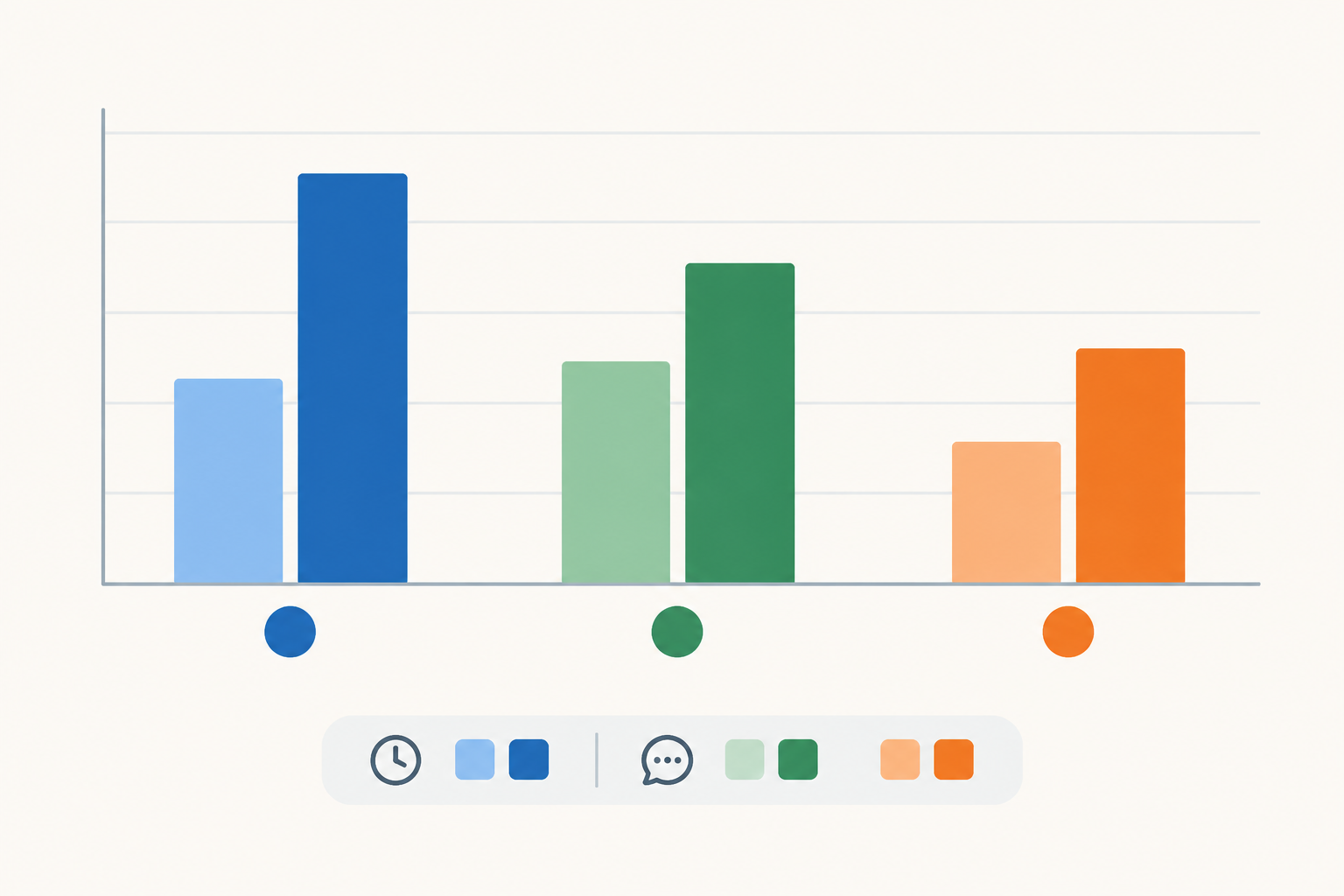
I'd suggest a simple monthly ritual. Set aside 30 minutes, look at each brand's numbers in turn, and make one decision per brand. That might be moving someone's hours, adding a help article, or tweaking a template. If the same delivery question turns up forty times a month, write the answer once and save everyone the effort.
What if your brands grow apart?
You might set everything up beautifully, and then in a year Brand B has its own team, its own processes and its own compliance needs. Does the shared inbox become a trap?
Not at all. It's a starting point, not a life sentence. These are the signals that it might be time to split:
- Each brand has a dedicated support team and the teams never overlap.
- Workflows have diverged so far that shared views create confusion.
- Compliance or data-handling requirements differ in ways tags and filters can't satisfy.
Because every conversation already carries a brand tag, you'll know what belongs where when that day comes, as long as your tool lets you export or move data. Until then, many teams keep a single inbox for longer than they expect, using stricter filters and assignments. A diary reminder to review the set-up every six months is plenty.
A simple first-week plan for setting up a shared inbox
Here's a plan that fits into a normal working week. It assumes you start with a pilot of two brands, since that's the easiest way to learn what works.
- Day 1: connect your pilot channels. Set up email forwarding and a live chat widget for your first two brands. If your email setup is complicated, this might spill into Day 2, and that's fine.
- Day 2: create your tags. One per brand, plus a handful of topic tags.
- Day 3: build filters and assignments. Make a saved filter for each brand, a combined view for the lead, and agree an owner for each brand.
- Day 4: write voice guides and saved replies. One page per brand, plus templates for your most common questions.
- Day 5: test and invite the team. Run test conversations through every channel, fix anything odd, check permissions, then invite everyone in. Add your remaining brands once the first two feel smooth.
You don't need to get everything perfect on day one. If you'd like to try this with real channels before committing, look for a free trial in whichever tool you're considering, and check on the provider's own site how long it lasts and whether it needs card details.
Frequently asked questions about managing multiple brands in one inbox
How do I know which brand a customer wrote to?
Give each brand its own email address and chat widget, and tag by channel automatically if your tool allows it. The tagging section above covers what to do when a message arrives at the wrong address.
Can agents specialise by brand?
Yes. Assign each brand an owner and a backup, and keep a shared queue for overflow so anyone can step in.
Will reports show each brand separately?
Only if your software can report by tag or by separate mailbox, and your team tags consistently. Check this before you choose a tool.
What if my brands grow apart?
You can split later. Check that your tool can export data, and revisit the decision when teams, workflows or compliance needs truly diverge.
Does a shared inbox cost more as my team grows?
It depends on the pricing model. Per-seat plans climb as you add people, while flat-rate plans may not. Compare current prices in pounds, check whether VAT is included, and look at the limits on agents and conversations.