

Support Escalation Process for Small Teams: A Practical UK Guide
A good support escalation process for a small team comes down to three things: clear triggers for when a ticket needs to move up, one named owner for every escalated ticket, and a handoff that keeps the full context in one place. Keep it to two tiers at most, run it inside a shared inbox using tags, assignments and internal notes, and review escalations weekly so the same problems stop coming back. The rest of this guide shows how to set that up without turning your team into a bureaucracy. ☕
What is a support escalation process, and why do small teams need one?
Picture this. It's 9pm, and your founder's phone buzzes with a Slack message: 'Can you look at this customer thing?' There's no link, no history and no idea how urgent it is. So the founder scrolls through three channels, tries to reach the agent who's already logged off, and ends up emailing the customer to ask what's going on. The customer sighs and explains it all again. Who could blame them?
This happens on small teams all the time, and it isn't anyone's fault. It's what you get when escalation lives in people's heads.
Customer support escalation just means moving a conversation to someone with more knowledge, authority or time when the first responder can't resolve it. That's all it is.
You may have read guides full of L1, L2 and L3 tiers, dedicated escalation managers and routing matrices. Those models assume a big team where 'tier 2' is a full-time job. On a team of 2 to 15, your tier 2 is probably a developer who also ships features, an ops lead juggling invoices, or a founder doing six things at once. They can help, but only if you protect their time and give them what they need quickly.
Without a lightweight process, the same things tend to go wrong:
- Tickets get dropped because everyone assumes someone else has them.
- Two people answer the same customer, and give different answers.
- Customers have to repeat themselves, which is the most irritating one and the easiest to avoid.
- Your developer becomes the go-to for everything and starts dreading the inbox.
The good news is that your process can fit on one page. We're building a short set of rules, not a 40-slide playbook.
When should a support ticket be escalated? Define clear triggers
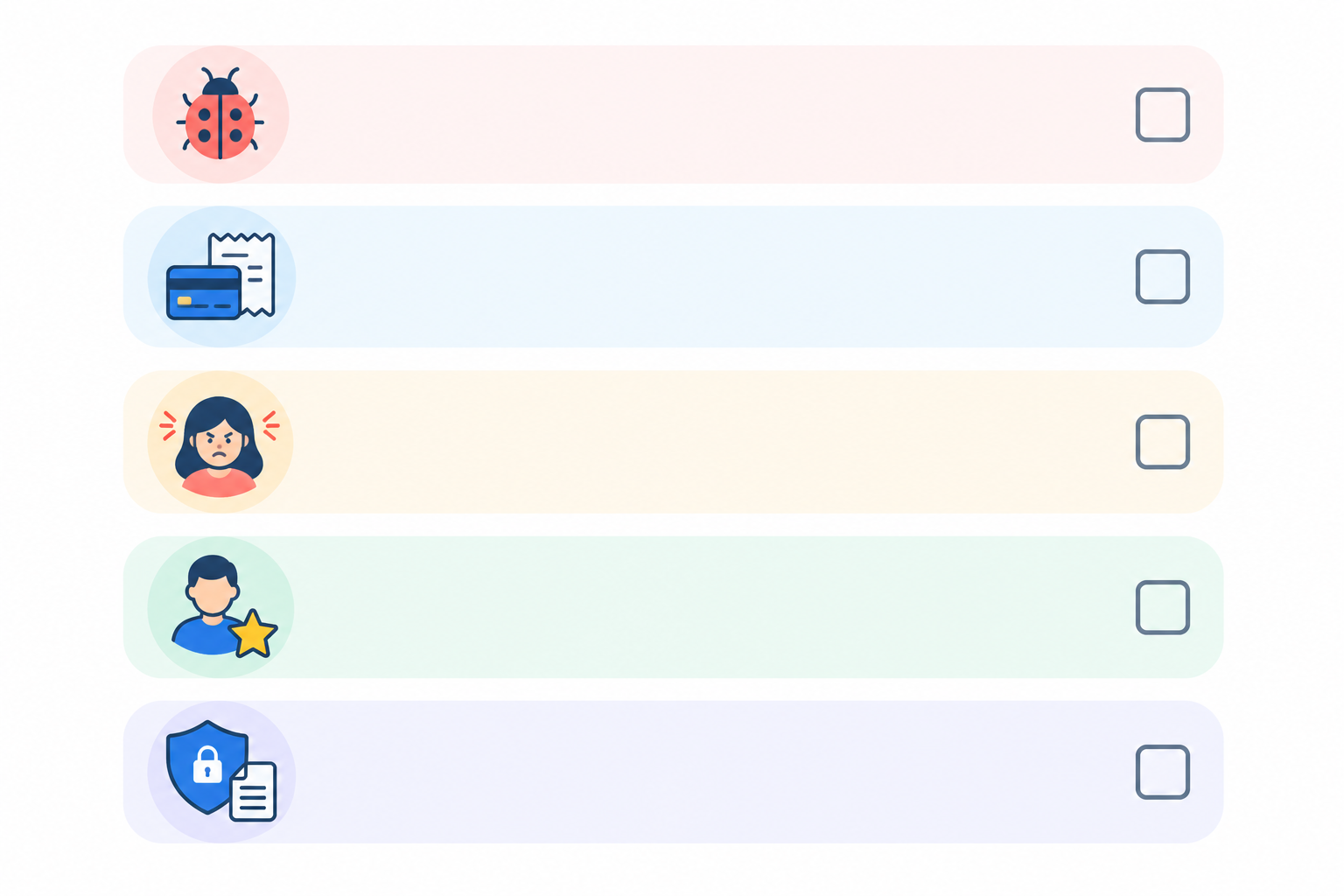
The first question people ask is a simple one: when should a support ticket be escalated? Escalate when the frontline can't resolve the issue with the knowledge or authority they already have. In practice, that usually means one of these triggers.
- Bugs and technical faults: anything your agents can't reproduce, or can't fix using your help docs.
- Billing disputes and payment problems: refunds above an agreed amount, double charges, failed payments and anything involving money leaving someone's account.
- Angry or at-risk customers: negative language, repeated contacts about the same issue, or any mention of cancelling.
- VIP or high-value accounts: decide what 'VIP' means for you. It might be a certain plan size, a strategic logo, or an early supporter who's been with you since day one. Write the definition down so it isn't a judgement call at 4:45pm on a Friday.
- Security, privacy or legal questions: data requests, suspected breaches, UK GDPR questions and contract queries should never be improvised by the frontline.
Some of these should move up immediately, whatever the reply count or the clock says. That means a suspected security or data breach, a legal threat, money taken in error, or an outage hitting several customers. Risk beats routine every time.
For everything else, add a simple backstop. Escalate if the customer has had three replies from your team and the problem still hasn't moved forward, or if a ticket has made no progress after one working day. Count agent replies, and judge progress by whether the customer is any closer to a fix, not by how many messages have gone back and forth. Treat the numbers as a starting point and tune them to your staffed hours. The backstop catches the quiet, slow-burning problems that don't trip any other trigger.
Now the practical bit. Write these triggers as a short checklist your agents can glance at mid-conversation. If they have to open a document and read three paragraphs while a customer is waiting in live chat, they won't. Pin the checklist where they work, or save it as an internal note template.
One more thing. Give your agents explicit permission to escalate. Many people, especially newer ones, worry that escalating looks like failure. It doesn't. Escalating at the right moment is a skill, and a team that does it well resolves things faster.
Set up customer support escalation tiers without bureaucracy
For most small teams, I'd recommend two tiers and no more:
- Tier 1 is your frontline support, handling live chat and email day to day.
- Tier 2 is a specialist owner, chosen by issue type.
The trick is that tier 2 isn't a team. It's a short list of names matched to problems. Here's what that might look like on a single page, with one shared standard for every row: acknowledge within 1 working hour, then give the customer an update by the end of the next working day, unless the row says otherwise.
| Issue type | Owner | Backup | Response target |
|---|---|---|---|
| Bug or technical fault | Developer on rotation | Second developer | Acknowledge within 1 working hour; update within 1 working day |
| Billing or refund over limit | Ops lead | Founder | Acknowledge within 1 working hour; update within 1 working day |
| Angry or at-risk VIP | Founder or support lead | Ops lead | Acknowledge within 1 working hour; update within 1 working day |
| Security, privacy or legal | Named security or data protection contact (or founder, with an external adviser) | Ops lead | Pick up immediately; acknowledge within 1 working hour; follow your written incident steps |
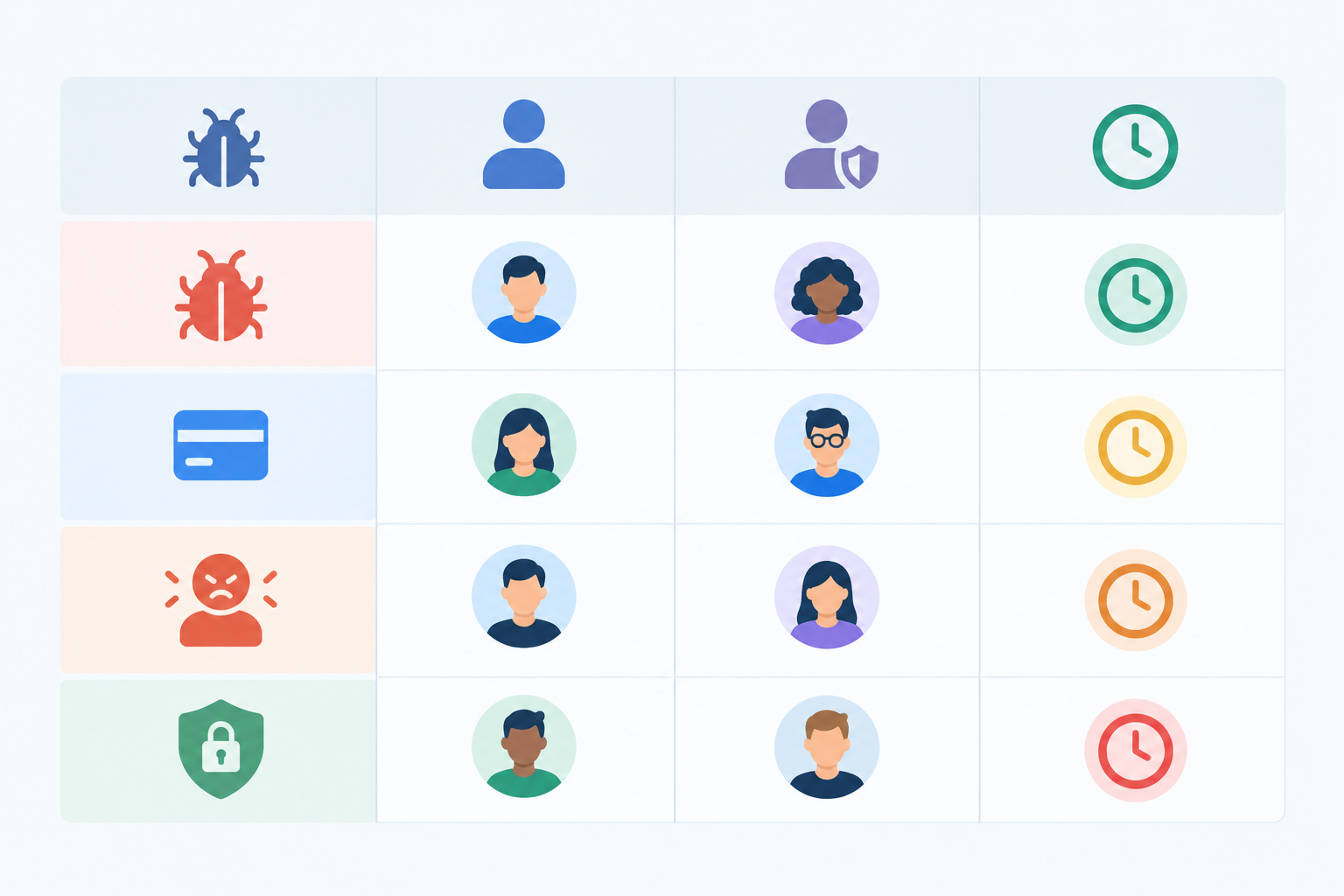
The security row deserves extra care. A founder or ops lead shouldn't be handling a suspected breach unaided. Agree in advance who makes the call, who you'd phone for specialist help, and what the first steps are. In the UK, a reportable personal data breach generally has to go to the ICO within 72 hours of you becoming aware of it, so a ticket that sits unnoticed overnight can matter. This isn't legal advice, so check the current ICO guidance and write your own short incident procedure.
And if a target is about to be missed, someone should know. Decide who gets nudged (usually the backup, then the support lead) when an acknowledgement is overdue.
Who should handle escalations when there's no dedicated tier 2?
This is the question I hear most from small teams, and the answer is a named rotation. A popular approach is a weekly 'support buddy' from the product or engineering team. For one week, that person is the first stop for technical escalations. When the week ends, someone else takes over.
It works because the load is shared and predictable. Your developer knows exactly when they're on and, just as importantly, when they're off. No more being ambushed.
Define what each escalation tier can resolve
Tier 1 shouldn't need permission for everything. Agree the limits in advance, for example:
- Refunds up to a set amount.
- Standard workarounds from your help docs.
- Small account credits for genuine inconvenience.
Anything beyond those limits goes to tier 2. Clear limits mean your frontline can be generous and quick on the small stuff, and your specialists only see what really needs them.
Finally, every owner needs a backup. Holidays, sick days and the occasional 'I'm in a dentist chair' moment happen, and a ticket shouldn't stall because one person is away. That's why the backup sits right there in the table.
How to manage shared inbox escalation with tags and assignments
This is where the process stops being a document and starts being a habit. Shared inbox escalation works best when the whole thing happens in one place, so nothing leaks into side conversations. Here's the setup I'd use.
Start with the basics:
- Create a small, consistent tag set. Something like
escalated,escalated-bug,escalated-billingandvip. Resist the urge to invent twenty more. If people have to think about which tag to use, they'll skip it. - Assign the ticket to the named owner. An escalated ticket should never sit unowned in a shared queue. The tag says what it is, and the assignment says who's on it.
- Save a view for 'escalated and still open'. This answers the common question of how to track which tickets are escalated and still open. One filtered view, always one click away. Scan it once a day, first thing. It takes two minutes and it's the cheapest insurance you'll ever buy.
Live chat and email come next:
- Keep the internal process identical across channels. Live chat and email conversations sit in the same inbox, so the tags, owners and notes work the same way wherever the customer started.
- Change only the customer-facing message. In live chat, say you're bringing in a specialist, set expectations right there in the chat, and offer to follow up by email if the fix will take a while. Keep the thread attached to the same conversation. In email, reply with a clear next step and a timeframe.
And keep it light:
- Automate sparingly, if at all. Auto-tagging a ticket that contains a word like 'refund' or 'security' can save a few clicks. But a rule you can explain in one sentence is a rule you'll actually maintain.
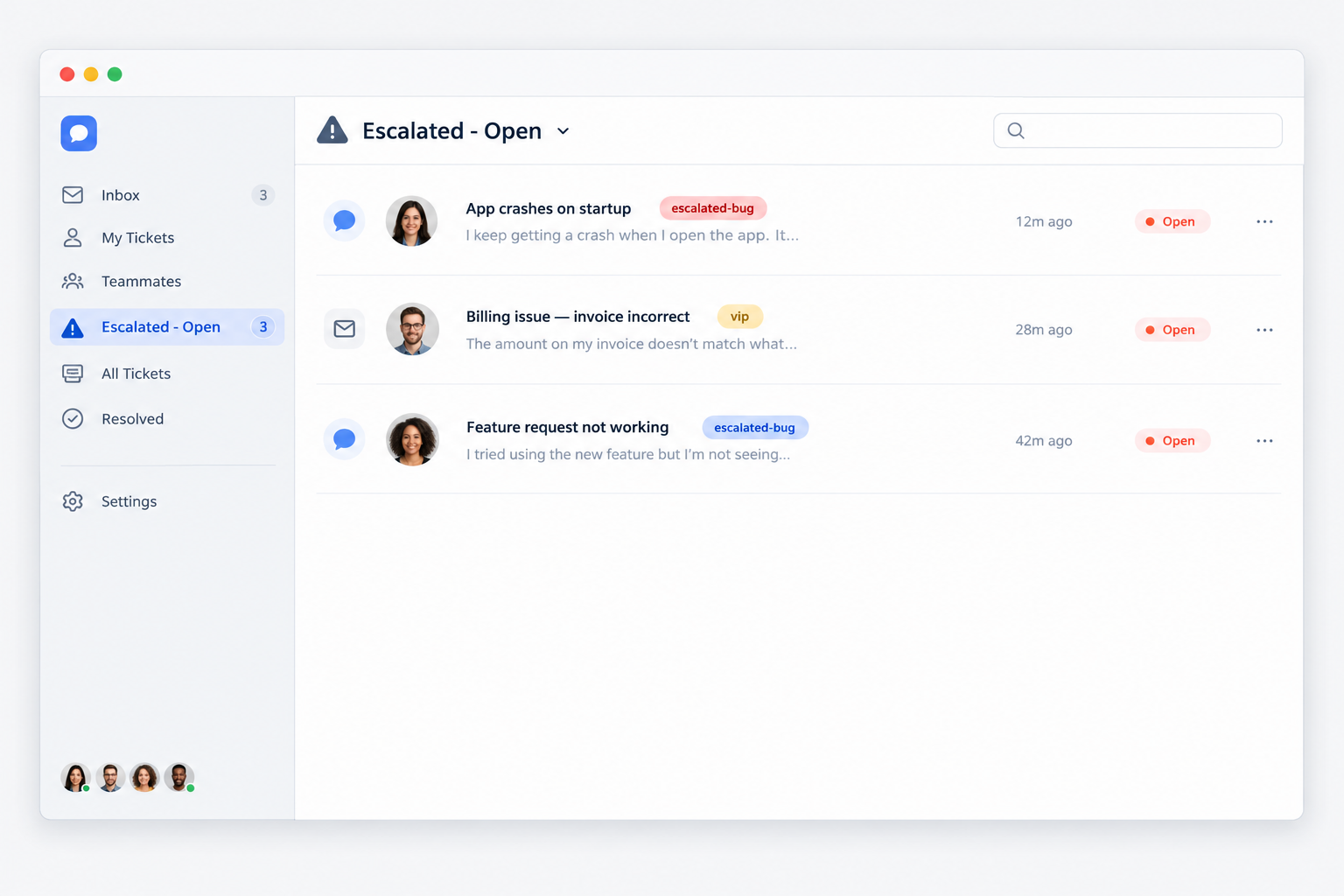
Most shared-inbox help desks support tags, filters and assignments. In Sonny, for example, they're built in, so you can create your tags and a saved filter in a few minutes, and live chat and email feed the same place.
How to hand off an escalated ticket without making customers repeat themselves
If there's one place escalations go wrong, it's the handoff. The customer explains their problem to the first agent, the ticket moves up, and then the specialist asks, 'Can you tell me what happened?' It's a small thing that feels enormous to the person on the other end. Most of us expect the second person we speak to to already know our story, and your handoff is how you meet that expectation.
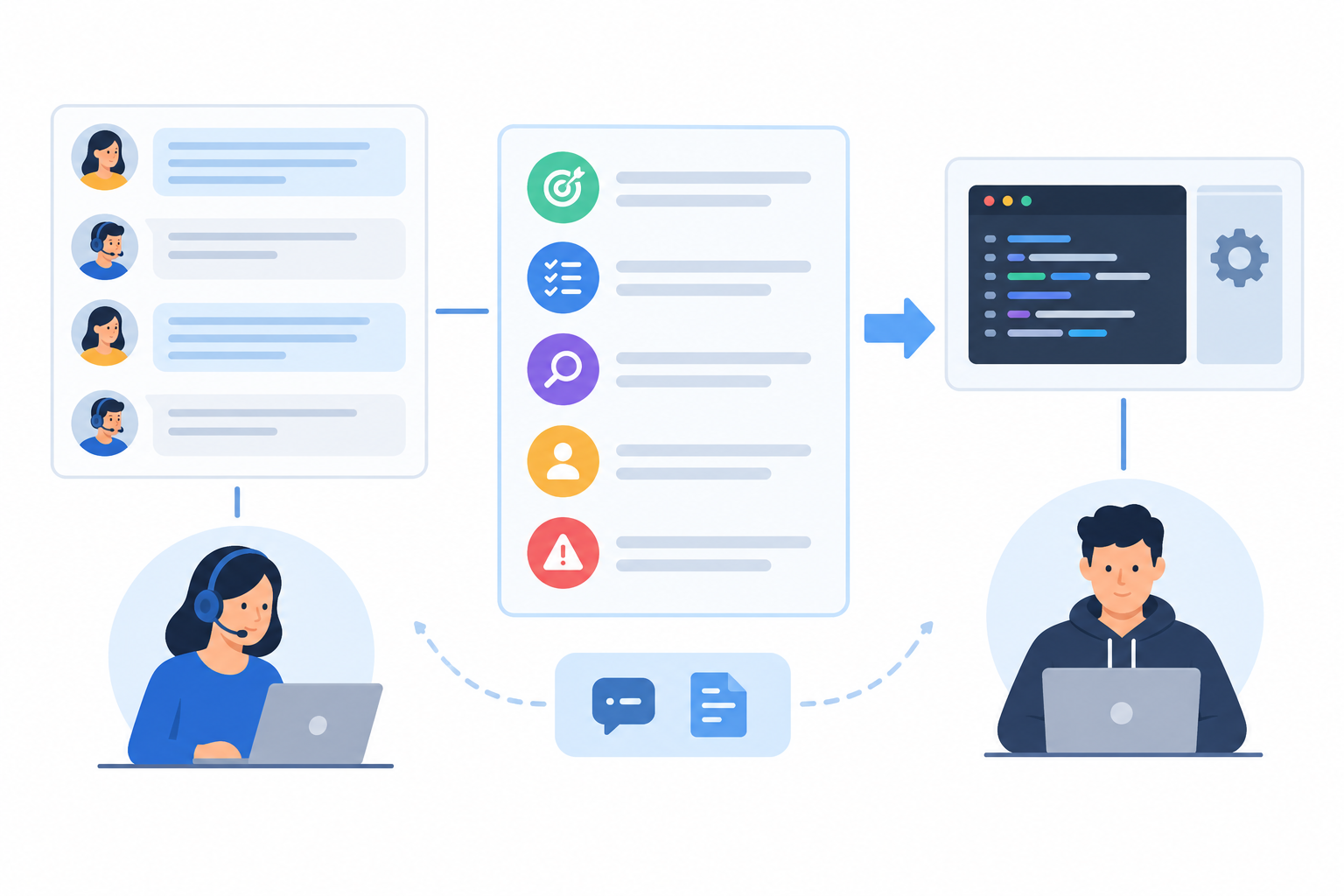
So how do you escalate a ticket without making the customer repeat themselves? You write a good internal note, and you keep it in the conversation thread. Here's how.
- Use a simple note template. Five lines is enough:
- What the customer wants: their goal, in their own words.
- What's been tried: steps taken, docs shared, workarounds offered.
- What you suspect: your best guess at the cause.
- Account details: plan, account ID, browser or device, anything relevant.
- Urgency: any deadline, and why it matters.
- Keep the note in the ticket, not in Slack or DMs. Context in a private message won't travel with the ticket, and the next person has to hunt for it.
- Tell the customer what's happening. Something like: 'I've passed this to our developer, Sam, who's looking at it now. I'll update you by tomorrow afternoon.' Who, what's next, and when.
- Don't go silent. Unless there's a good reason to switch, the original agent stays the customer's point of contact. The specialist works behind the scenes, and the customer hears from a familiar name.
Let's see the difference.
A poor handoff note:
'Customer can't export. Please check.'
A good handoff note:
Wants: Export their November report as CSV for a board meeting on Thursday. Tried: Cleared cache, tried Chrome and Safari, shared our export guide. Same error each time ('Export failed'). Suspect: Possibly related to the large date range (about 40k rows). Account: Pro plan, account ID 4821, signed up in March. Urgency: High. Needed by Wednesday evening.
The second one takes a minute or two longer to write and can save everyone a good chunk of back-and-forth. Your developer can start investigating immediately, and the customer never has to repeat a word.
Give developers and founders inbox access without extra seat costs
Here's a trap small teams fall into. Many help desks charge per seat, so teams naturally leave out the occasional helpers: the developer who only needs to look at a few bugs a week, the founder who handles the odd VIP, the ops lead who deals with refunds. Seats cost money, and those people only dip in now and then.
So what happens? Escalations drift out of the inbox and into Slack messages, forwarded emails and pasted screenshots. You end up with an invisible second support channel, the context fragments, and the customer record is incomplete.
There are a few ways round it:
- Use a limited collaborator role, if your tool has one. Zendesk has a 'light agent' role, and Jira Service Management has collaborators. Check current permissions and plan terms before you build a workflow around them.
- Share a link and a summary. If your tool has nothing like that, send the specialist a ticket link and a short summary, and keep the customer conversation and final resolution inside the help desk.
- Choose flat-rate pricing with unlimited agents. Then nobody has to decide who's 'worth' a seat. Sonny works this way. At the time of writing it's listed at $19.99 a month (USD) with unlimited agents and conversations, but pricing changes, so check the current page, and check how VAT is applied at checkout if you're a UK business.
A quick cost illustration
Say you have 10 support agents and 4 occasional helpers, so 14 people in total. If a typical per-seat tool charged, hypothetically, $25 per person per month, that's $350 a month. A flat-rate plan at $19.99 would be a fraction of that. Treat the per-seat figure as illustrative only. Real prices vary by plan and change often, so compare current pricing before you decide.

So how can you give engineers access to support conversations without buying extra seats? Either use a tool with a limited collaborator role, or choose customer support software with unlimited agents so the question never comes up. If you're weighing options, a free trial is a low-risk way to test whether your escalation flow feels smoother with everyone in one place.
How fast should escalated support tickets be answered?
Escalated tickets need their own targets, separate from your normal first-response time. They're the trickiest conversations, and they often involve someone who has other work on. Without a target, 'we'll look into it' can quietly become 'we forgot'.
So, how fast should escalated tickets be answered? There's no universal benchmark, and I'd be wary of anyone who claims there is. Here's a flexible starting point, and it's the same standard used in the table above:
- Acknowledge within 1 working hour. That means a real human message, not just an automated receipt, confirming someone owns it.
- Update within 1 working day, even if the answer is 'still investigating'.
- Go faster for urgent cases. Outages, suspected breaches and top-tier VIPs need a tighter target. Write down which conditions qualify so nobody argues about it later.
These are illustrative numbers. Calibrate them to your real staffed hours and the commitments you've made to customers. It's better to promise a target you'll hit than one that looks impressive on paper.
Promise updates, not fixes
Response time and resolution time are different things. You can't always control how long a fix takes, especially if it needs a code change. You can control when the customer hears from you. So promise updates rather than fixes: 'I'll write back by 3pm tomorrow with where we've got to.' Customers are far more forgiving of a slow fix than of silence.
Be clear about support hours and time zones
Spell out your business hours, your time zone and when the clock starts. Say your team works 9am to 5:30pm UK time, Monday to Friday. A customer who emails at 4:45pm on a Friday should be told that 'within one working hour' means a reply early on Monday morning, not 5:45pm that evening. If you have customers in Sydney or New York, that clarity matters even more. Be honest about what you can offer, and say so on your contact page and in your auto-acknowledgement.
Follow the no-surprise rule
If you're going to miss a deadline, tell the customer before it passes. A short note, 'Still working on this, and I'll have an update by tomorrow morning', takes thirty seconds and keeps trust intact.
Then use your reporting. Check response times on tickets tagged as escalated to see whether you're hitting your targets. If you keep missing them, the target or the owner's workload probably needs adjusting, not the customer's patience.
Review support escalations weekly to fix root causes
Everything above helps you handle escalations well. This last step helps you have fewer of them, and a weekly review is where that actually happens.
- Block out 20 to 30 minutes each week. Invite whoever owns support, plus one person from product or engineering. Same time every week, so it becomes routine.
- Pull up your escalated view. How many tickets were there? Which categories? How long did they stay open?
- Look for patterns, like repeated bugs, a confusing onboarding step, a missing help article or a recurring billing headache. The same issue appearing three times is a signal, not a coincidence.
- Turn each pattern into an action. Fix the bug, update the docs, add a saved reply, train the frontline, or tweak the trigger list if it's sending too much (or too little) upward.
- Feed findings into product decisions. This is how you use escalation data to improve the product. When a developer sees that 'export failed' caused eight tickets this month, it jumps the queue in a way a vague feeling never would.
- Track one or two simple numbers. Escalation rate (what share of tickets get escalated) and time to resolution for escalated tickets are plenty. If the first is trending down and the second isn't climbing, you're heading in the right direction.
One optional extra: if your tool offers an AI assistant trained on your help docs, it may help agents find answers and resolve more issues before they need escalating. Sonny has an optional one, for instance. Treat it as a helper, not a replacement for a good process.
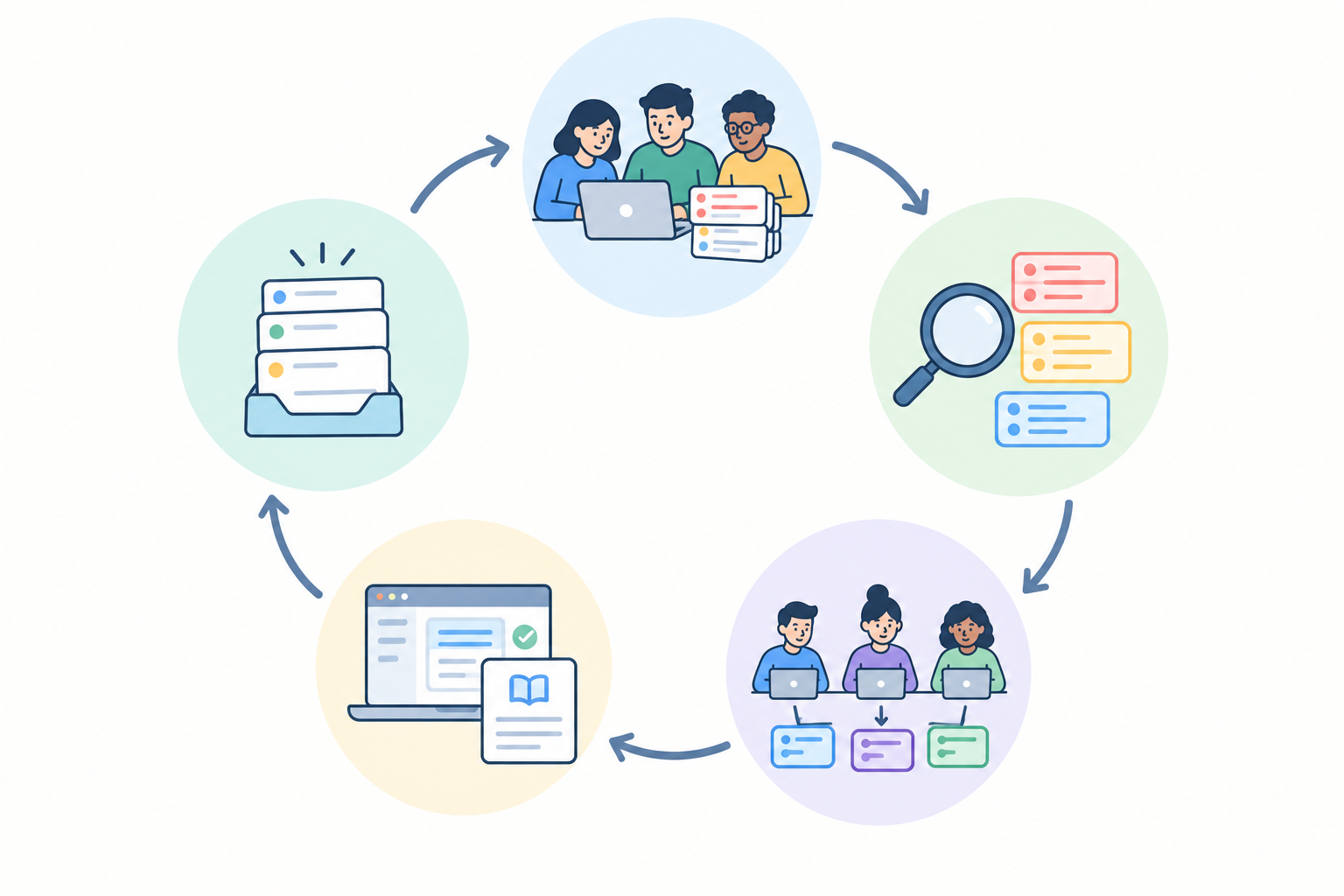
If this all feels like a lot, take a breath. Start small. Pick your triggers, name your owners, create three tags and a saved view. Try it for a fortnight, see what rubs, and tweak it. The best support escalation process is the one your team actually uses, and it'll grow with you. 💛
Frequently asked questions about customer support escalation
When should a support ticket be escalated?
Escalate when the frontline can't resolve the issue with existing knowledge or authority, and escalate immediately for security, privacy, financial-harm or outage issues. For everything else, use a backstop such as three agent replies with no progress, or no progress after one working day.
Who should handle escalations on a team with no dedicated tier 2?
Pick named owners by issue type and rotate a weekly 'support buddy' for technical issues. Always name a backup, and give security and legal matters a documented route.
How do I track which tickets are escalated and still open?
Use one consistent escalation tag, assign every escalated ticket to a named owner, and save a filter for escalated tickets that are still open. Check it daily.
How do I escalate issues from live chat versus email?
The internal steps are identical. Only the customer message differs: in chat, say you're bringing in a specialist and offer an email follow-up if the fix will take time. In email, give a clear next step and a timeframe.
How can engineers see support conversations without extra seat costs?
Use a help desk with a limited collaborator role, or one with flat-rate pricing and unlimited agents. Failing that, share ticket links and summaries while keeping the resolution in the help desk.