

Email-to-Ticket Forwarding: A Simple Setup Guide
Email-to-ticket forwarding means your existing support address (something like support@yourbrand.co.uk) passes incoming messages to a shared inbox, where each one becomes a trackable ticket your whole team can see, assign and reply to. Customers keep emailing the same address. Once your outgoing address is set up and tested, they usually see replies from that address too. With a tool like Sonny, connecting basic forwarding and sending a first test can take around five minutes at best. Provider verification and sending-domain checks (SPF and DKIM) can take longer, so I've kept those as a separate, clearly labelled step.
The rest of this guide covers how forwarding works, how to set it up, and how to test it so you feel confident hitting the switch.
What email-to-ticket means (and why it beats a crowded mailbox)
Picture this. A customer writes in about a missing order. Three of your teammates spot it in the shared Gmail login. Each assumes nobody else has seen it, so each writes back. The customer gets three slightly different answers within ten minutes and wonders whether anyone is really in charge.
It isn't anyone's fault. A shared mailbox simply doesn't tell you who has what.
Email-to-ticket systems fix that. In plain English: each incoming email becomes one ticket, with a status, an owner and a full history. Instead of a pile of messages, you get a queue of conversations that someone has either picked up or hasn't.
Email ticketing vs a shared login or CC-everyone
Both of those workarounds are common, and both work right up until they don't. Here's what changes with proper email ticketing:
- You can see at a glance what's new, what's in progress and what's resolved, rather than scrolling through read and unread flags.
- Every ticket has an owner, so there's no more "I thought you had that one."
- Once someone claims a ticket, everyone else can see it's taken, so nobody sends a double reply.
- The whole conversation, plus any internal notes, lives in one place, even if the person who started it goes on holiday.
This matters most for small teams. If you're two to fifteen people, you don't have spare hours to untangle who answered what.
Where live chat fits into email ticketing
When chats and emails land in the same shared inbox, a customer's history sits in one place. Someone who chatted with you on Tuesday and emailed on Thursday is one person with one story, not two strangers in two tools.
That's the thinking behind Sonny: help desk software that puts a live chat widget, email ticketing and internal notes in a single shared inbox, so you're not juggling tabs all day.
How email-to-ticket forwarding works: the simple picture
Forwarding is far less technical than it sounds. Here's the journey in four steps:
- A customer emails your support address, just as they always have.
- Your email provider forwards a copy to the shared inbox.
- The shared inbox turns it into a ticket, usually keeping the sender, subject, message and any supported attachments.
- Your team replies from the ticket, and the customer receives it as a normal email.
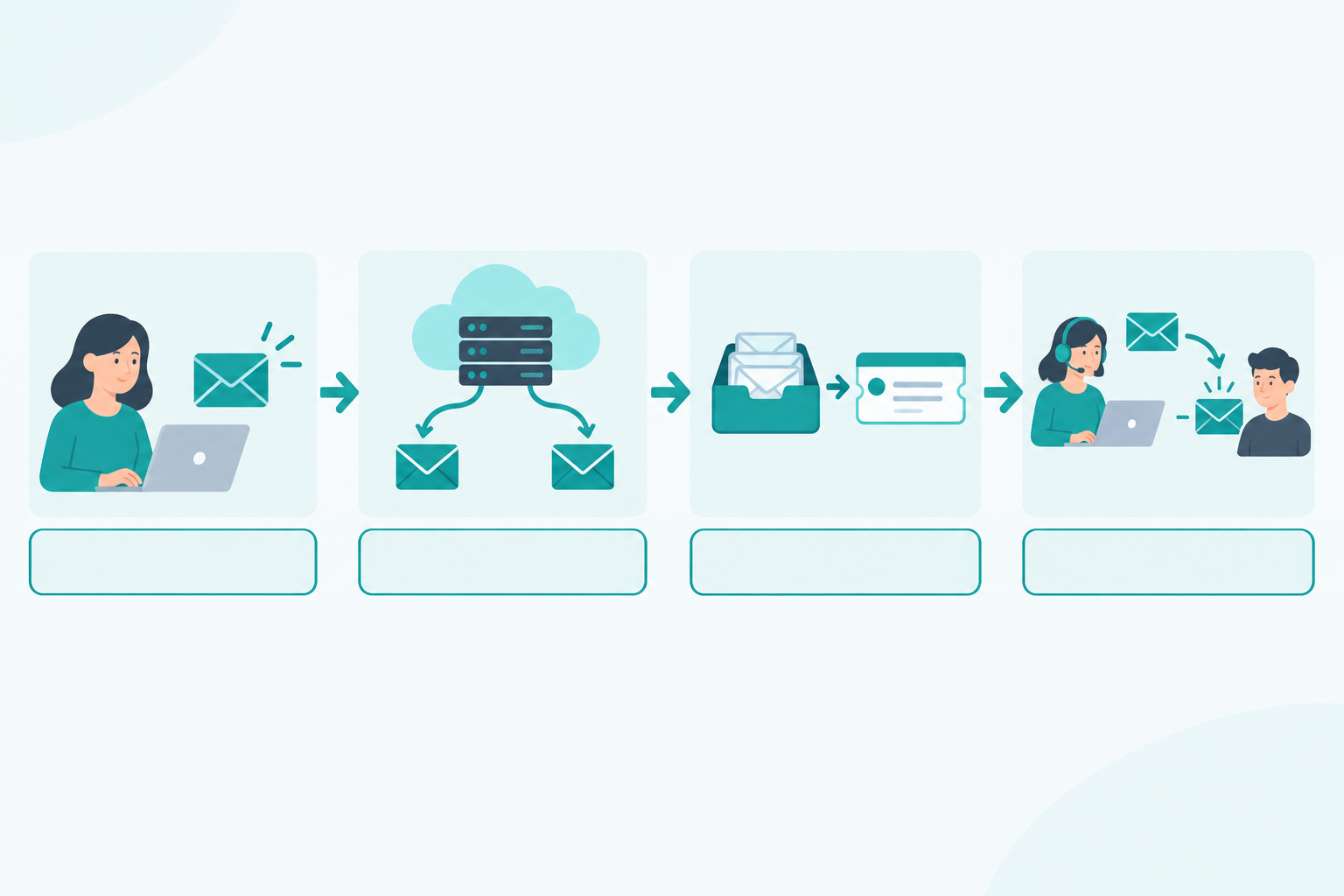
From the customer's side, they wrote to an address and got an email back. The ticket, the status and the tracking all happen on your side of the fence.
Forwarding from your address vs a dedicated inbound address
There are two flavours worth knowing about.
The first is forwarding from an existing address. You keep using support@yourbrand.co.uk publicly, and set a rule in your email provider to pass messages to a special address supplied by your help desk. This is usually the quickest route for small teams.
The second is a dedicated inbound address from the platform. The platform gives you an address of its own. It works, but most teams would rather customers saw their own domain, which is why forwarding is so popular.
What's happening behind the scenes
A forwarding rule is just an instruction: "when something arrives here, send a copy over there." You may hear people mention MX records, which are a DNS-level way of routing all your mail to a different provider. That's an optional, more advanced route, and many small teams never need to touch DNS to get started.
And a reassurance, because I know this worries people: many forwarding setups leave the original message in your mailbox, but it depends on the rule and your provider. Some settings forward a copy and keep the original, while others forward and then delete or archive it. Check the option on your rule, and send a test message before you cut over, so you know what happens to yours.
Before you set up email-to-ticket forwarding: a quick prep list
Ten minutes of preparation saves an awkward hour of head-scratching later. Before you set anything up:
- Decide which addresses will feed in. Typical candidates are support@, help@, hello@ and maybe billing@. Start with one if you're nervous.
- Confirm you have admin access to your email provider, whether that's Google Workspace, Microsoft 365 or your domain host. Forwarding rules often need admin rights.
- Choose a test sender. A personal address outside your company domain works nicely, because it behaves like a real customer.
- Agree who's on first-line triage and who handles escalations. Even a simple "Priya triages mornings, Tom afternoons" is enough.
- Note any auto-replies or signatures you use now, so your replies stay consistent after the switch.
- Use a shared support address, not a personal mailbox. If a staff member leaves, you don't want your support flow leaving with them.
Sonny offers a 7-day free trial with no credit card required, so you can try all of this before committing to anything.
How to set up email-to-ticket forwarding step by step
Exact screens vary between products, but the pattern is nearly universal: connect the address in your help desk, set up forwarding at your email provider, verify, then test. Steps 1 to 4 and 7 are the basic setup. Steps 5 and 6 are strongly recommended, but they can take longer because they depend on your DNS and your team.
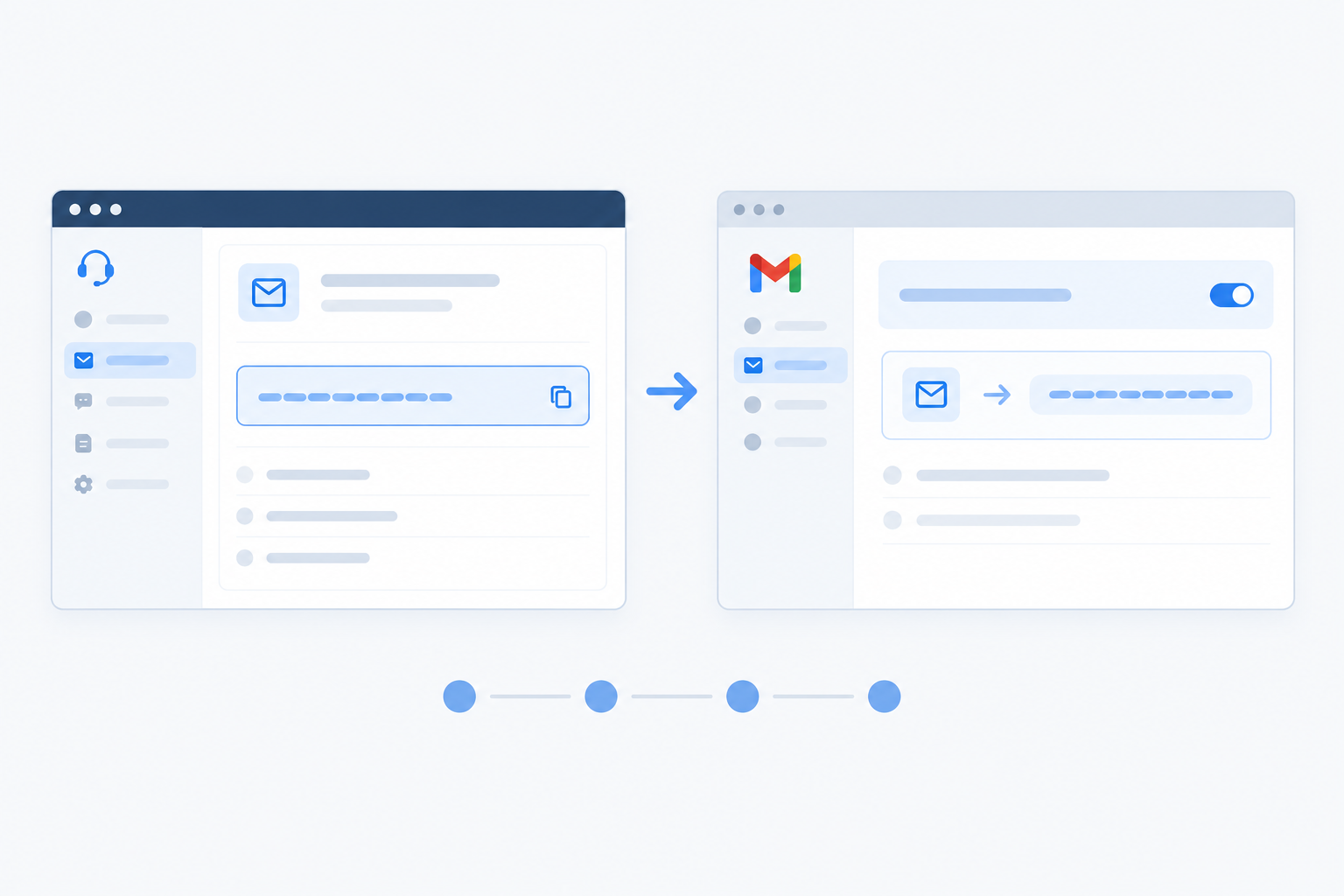
Step 1: Create your account and open email settings
Sign up and head to the email settings. There's no onboarding call to book, so you can get going straight away.
Step 2: Copy your unique inbound forwarding address
You'll see an address that's unique to your inbox. Copy it. This is where your email provider will send messages.
Step 3: Add a forwarding rule at your email provider
In Gmail, Outlook or your domain host, create a rule that forwards mail from your support address to that inbound address. Forward only the mailbox you mean to. Take a quick look at any existing rules too, so you don't accidentally create a loop where messages bounce between two addresses.
Step 4: Confirm the verification email
Some providers, Google Workspace in particular, send a verification message before they'll start forwarding. If so, it should appear as a ticket in your new inbox. Open it, follow the confirmation link or code, and you're set.
Step 5: Set up your outgoing address
This is what lets replies come from your own domain rather than a third party. You'll typically add your sending address and, for the best delivery, set up SPF and DKIM, which are DNS records that tell receiving mail servers your replies are legitimate. It's usually a copy-and-paste job, but DNS changes can take a while to take effect, and whoever manages your domain may need to help. Sonny's help guide walks you through it.
Step 6: Add your teammates
With flat-rate pricing and unlimited agents, there's no per-seat decision to agonise over. Add the whole team, including the person who only helps out on Fridays.
Step 7: Send a test email
From your personal address, email your support address and watch it arrive as a ticket. That's the moment it all becomes real. 🎉
Email forwarding setup: provider quirks to know
Google Workspace may ask for that verification step. Microsoft 365 handles forwarding through mailbox settings or mail flow rules, depending on how your admin has things configured. Providers change their screens now and then, so check their current documentation if something doesn't look quite as described here.
Once basic forwarding works, you can add the fancier bits like tags, routing and automation. Starting simple makes problems much easier to spot.
Test email ticketing: threading, replies and attachments
People expect fast replies. Zendesk's CX Trends research has reported that around seven in ten customers expect immediate service when they contact a company (check the latest report for current figures). That's exactly why you want to know your setup works before real customers rely on it.
Threading is the part that trips teams up most. A forwarded message can be handled differently from a reply to an existing ticket, so test it deliberately rather than hoping for the best.
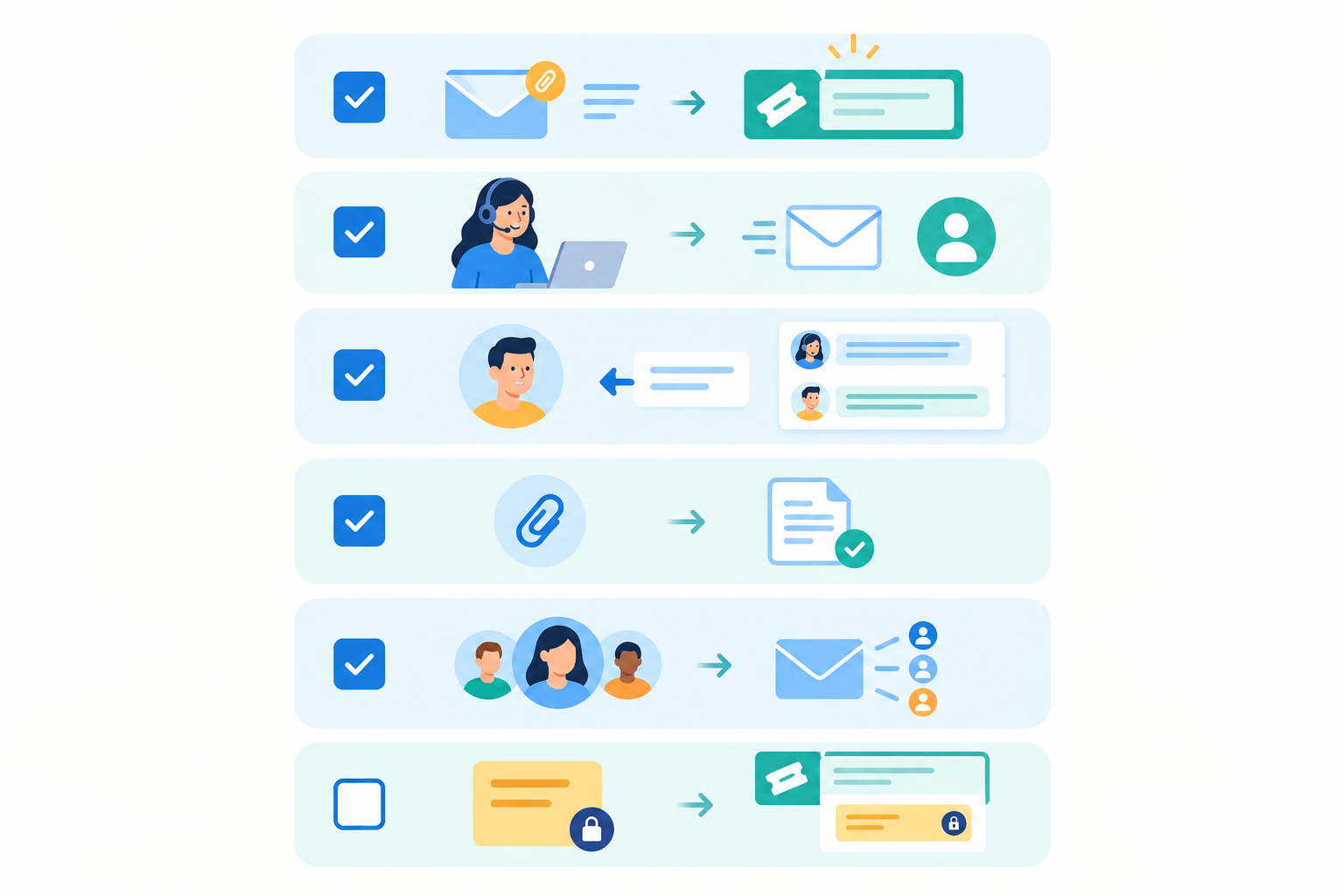
Work through these six checks in order:
- Send a test email from an outside address and confirm it creates exactly one ticket. Not two, not zero.
- Reply from the shared inbox and check the message reaches the sender from the right name and address.
- Reply back as the customer and confirm the response lands in the same ticket instead of starting a new one.
- Try a reply with an attachment and an inline image. Check both arrive and display properly.
- Test a CC'd email and a long thread with quoted text, ideally sent from a different client such as Gmail, Outlook or your phone. Long chains of quoted replies can look messy, so it's good to know early.
- Use an internal note to hand the test ticket to a colleague, and confirm the customer can't see it.
Treat the six checkboxes in the infographic as your pass mark. Every box ticked? You're in great shape. If one fails, fix it now, while the only person affected is you.
Email-to-ticket troubleshooting
| If you see this | Try this |
|---|---|
| No ticket appears | Check the forwarding rule is active, the verification step is complete and the message isn't in spam. |
| Two tickets for one email | Look for duplicate rules or two addresses forwarding the same message. |
| Customer replies start new tickets | Check you're replying from the ticket, not from your mailbox, and that the subject line wasn't altered. |
| Replies land in spam | Review your SPF and DKIM setup and give DNS changes time to take effect. |
| Tickets keep multiplying | Look for an auto-reply loop between two addresses. |
Will customers see a different email address?
This is the big question, and the honest answer is: often not, but it depends on your configuration. Customers keep writing to the same address. They'll only see that same address replying once your outgoing domain is set up and your test replies confirm it. The aim is a familiar, dependable experience for them, with nothing hidden.
Here's how to make that happen:
- Send replies from your own domain. With SPF and DKIM set up, replies look like they come from you and are more likely to reach the inbox rather than spam.
- Set a consistent sender name and signature across the team. Decide whether replies come from "Emma at Yourbrand" or just "Yourbrand Support," and stick with it.
- Check your auto-replies. If you currently send an acknowledgement, make sure it still reads the way you want.
- Don't make a fuss. You don't need an announcement. If you do want to mention it, a simple line about faster replies is plenty.
What happens to existing email threads?
Old conversations stay in your mailbox. If a customer replies to one of them once forwarding is on, that reply will usually arrive as a new ticket, and whoever picks it up won't see the earlier back-and-forth. My tip: paste the key history into an internal note so your colleague has context straight away.
A gentle cutover for email ticketing
If you'd like to be extra careful, keep a short overlap period, perhaps a week, where someone glances at the old mailbox for stragglers. It's a small habit, and it means nothing slips through while everyone gets used to the new rhythm.
Multiple support addresses, ticket assignment and handoffs
Yes, you can forward several addresses into one inbox, and many small teams do exactly that with support@, help@ and hello@. Combining them makes sense when the same people answer all of them. For billing@ or sales@, you can forward those in too and use tags to keep them easy to filter, rather than building separate inboxes.
How do email tickets get assigned?
Most small teams start simple. A teammate claims a ticket when they're ready to work on it, or whoever's triaging hands tickets to the right person. Once you've got a feel for your patterns, you can add simple rules that route by tag or keyword.
Tags and filters help you see what's urgent, what's waiting and, crucially, what's unowned.
Team collaboration with internal notes
Internal notes let context travel with the ticket. Say sales receives a pricing question from an existing customer. Rather than forwarding a message into a black hole, they assign the ticket to support and add a note: "Long-standing customer, quoted the annual plan last month." Support picks it up with the full picture, and the customer never has to repeat themselves.
A simple handoff etiquette
Three habits go a long way:
- One owner per ticket. Shared ownership usually means no ownership.
- Leave a note before reassigning. Explain where things stand.
- Close the loop with the customer. Let them know who's helping now, or that it's resolved.
Sonny also offers an optional AI copilot trained on your own docs that can suggest replies. I'd treat it like a colleague drafting a first pass, not a replacement for your judgement.
Handle spam and noise in your email ticketing inbox
Here's a thing nobody mentions until it happens: if you forward everything, you'll forward the junk too. Kaspersky's 2023 spam report put spam at roughly 45.6% of global email traffic. That's not the share reaching support inboxes specifically, but it shows why a bit of filtering is wise. Otherwise spam becomes tickets, and tickets feed your reports.
- Filter at the source. Keep your email provider's spam filtering switched on before forwarding.
- Block repeat offenders in the shared inbox so they stop creating work.
- Watch for loops. Auto-replies, out-of-office messages and no-reply notifications can bounce back and forth and create piles of tickets. Make sure ticket notifications aren't routed back into the same address.
- Separate customers from system mail. Use tags and filters to tell real enquiries apart from newsletters and automated notifications.
- Don't just delete. If your setup has a quarantine or suspended queue, use it, so you can catch genuine messages that were filtered by mistake.
- Build a five-minute weekly habit. Review junk tickets, then tweak your rules.
Why bother? Clean data means honest numbers. When you look at response times in your reporting, you want them to reflect real customers, not newsletters nobody was ever going to answer.
Email-to-ticket go-live checklist
You've set up, tested and tidied. Before you call it done, run through this one last time.
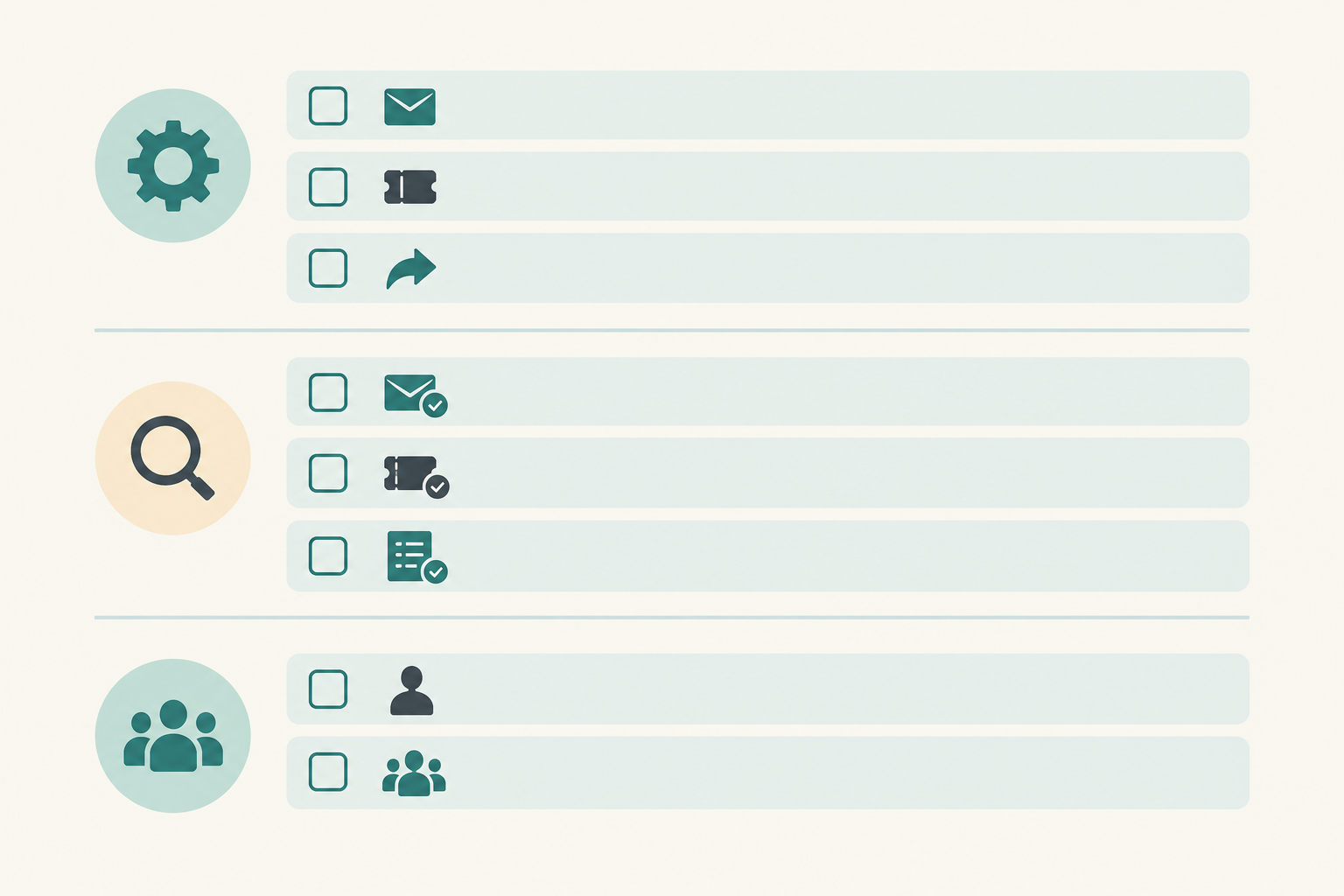
Setup
- Forwarding rule is active and verified
- Outgoing replies are sending from your own domain
- Spam filters and tags are in place
Testing
- Test emails threaded correctly in both directions
- Live chat widget installed, so chat and email share one customer history
Team
- Teammates added, with notifications set up on desktop and mobile
- Assignment approach agreed
- A calendar reminder to check reporting after the first week and see how your response times look
That last one is easy to skip, but it's where the payoff shows. A week in, you'll know how quickly you're replying and where tickets are sitting.
Why flat-rate pricing matters when you unify support
When every new teammate adds a seat cost, small teams tend to leave people out of the inbox. The person in sales, the founder who handles the odd tricky case, the part-timer covering weekends: all quietly left off to save money. That defeats the whole point of a shared inbox.
Per-seat pricing can still be sensible for a larger team where only a few people need access. Several popular help desks, including Zendesk and Freshdesk, publish agent-based plans, and some charge extra for certain AI features. Whatever you consider, compare the total monthly bill at your real team size, not just the headline price, and check current pricing on each vendor's own site.
Sonny takes a different approach: flat-rate pricing at $19.99/month with unlimited agents and unlimited conversations. Bear in mind that this is listed in US dollars, so check the checkout for currency conversion and any VAT that applies to your business. Sonny also lists a 99.9% uptime SLA. Check the current terms on its pricing page before relying on it.
Whichever tool you choose, make sure the plan includes what you need: multiple support addresses, assignment and reporting.
If you'd like to see how it feels, you can try Sonny free for 7 days, no credit card required. Forward one address, send a test email, and watch it turn into a ticket.
Frequently asked questions about email-to-ticket forwarding
Will customers see a different email address?
Not if you set it up properly. Customers keep emailing your usual support address. Once your sending domain is configured and your test replies check out, you can reply from that same address, so it looks like business as usual.
What happens to existing email threads?
Old conversations stay in your mailbox, and a customer's reply to one will usually arrive as a new ticket. See "What happens to existing email threads?" above for the tip on carrying context across.
Can multiple email addresses forward into one inbox?
Yes. Many small teams forward support@, help@ and hello@ into the same inbox. For billing or sales addresses, tags keep those conversations easy to filter.
How do tickets get assigned?
Most small teams start with simple pickup, where a teammate claims a ticket, or manual assignment by whoever is triaging. Tags and filters show what's unowned, and internal notes make handoffs smooth.
Do I need to change my DNS or MX records?
Usually not for basic forwarding, which doesn't touch your MX records. Some teams choose DNS changes later for more control. Setting up SPF and DKIM for your sending domain is a separate, recommended step that helps replies reach the inbox.
How do I stop spam creating tickets?
Keep your email provider's spam filtering switched on before forwarding, block repeat senders in the shared inbox, and review junk tickets weekly. That keeps your reporting honest and your team focused.