
How to Train an AI Copilot in Customer Support Software Without Losing Your Brand Voice
Getting an AI copilot to sound like your business isn't magic. It's mostly good input management, a bit of patience, and understanding what your customer support software is actually doing behind the scenes. Start by connecting your cleanest help centre articles and most common resolved tickets to your support platform. Then spend a week or two correcting its early drafts before letting anything auto-send.
Many small teams see faster drafting within the first month, though results depend on your ticket volume, the quality of your source material, and how closely someone reviews those early AI-generated replies.
Before we go further, one important clarification: in most customer support software, uploading documents and tickets doesn't retrain the underlying AI model itself. It usually means the system is indexing your content so it can retrieve relevant information and draft a reply. Think of it like giving a new hire a reliable reference binder rather than rewiring their brain. Some platforms let you save corrections as reusable feedback or rules; others only fix the reply in front of you.
Knowing which approach your tool uses changes how you manage the process, so check your platform's documentation before assuming every correction permanently trains the AI copilot.
I know what you're thinking, because I've heard it from plenty of founders: "AI is going to make my support sound like a corporate press release." I get the scepticism. Most of us have received a chatbot reply that felt like talking to a wall. In my experience, that robotic feeling is usually less about the AI's limitations and more about what it was fed. Messy, outdated, or generic source material tends to produce messy, outdated, or generic replies.
Feed it your best work instead, and it starts sounding a lot closer to your best work, just faster to produce.
This matters for any team evaluating customer support software or help desk software with AI drafting built in, not just one specific tool. The setup process looks broadly similar across platforms: connect your knowledge base, sync selected ticket history, review the output, set guardrails, and measure what changes. Let's walk through how to do that well.
What documents should you feed your AI copilot first?
Here's a mistake I see constantly: founders get excited, connect their entire internal wiki, dump in years of Slack exports, and then wonder why the copilot sounds confused. Don't do that. Think of this like onboarding a new hire. You wouldn't hand them the entire company archive and say "good luck." You'd give them the information they'll actually use day to day.
Start with these documents, in this order:
- Your top 10 to 15 help centre articles, specifically the ones answering questions you get every week. Skip the impressive-sounding deep dives nobody reads and focus on the practical stuff, like how to reset a password or change a billing cycle.
- Your pricing page, refund policy, and onboarding guide, marked as current and authoritative. These documents matter legally and financially, so you don't want the AI paraphrasing a refund window or pricing tier from an outdated version. Put an effective date on each document and remove or clearly archive anything superseded. Conflicting policies confuse an AI copilot just as much as they'd confuse a new employee.
- A handful of your best customer email replies. Pick the ones customers actually thanked you for, the messages that felt human, solved the problem, and reflected your actual personality. This is where the AI learns your tone, not just your facts.
- Skip outdated documents and half-finished wikis, at least at first. Messy input creates messy output. You can add more source material once you trust the basics.
Think of this stage as a funnel: lots of potential source material narrowing down to a focused, high-quality set that represents how you actually talk to customers.

How to prepare and protect support ticket data
This step gets skipped constantly, and it's the one I'd least want you to skip if you're operating in the UK or serving UK customers. Resolved tickets are useful examples for an AI copilot, but they're also full of information that shouldn't go into an AI system without a second look.
Before syncing historical tickets, work through this checklist:
- Redact personal data you don't need. Full names, addresses, payment details, and authentication tokens often sit in old ticket threads. Strip them out, or use your platform's redaction tools if it has them.
- Check your vendor's data-processing terms. Ask directly: does the platform use customer data to train models shared with other companies, or does the data stay isolated to your account? Under UK GDPR, you need a clear answer before importing customer conversations, and you should write that answer down somewhere your team can find it.
- Confirm retention and access controls. Who can see the data once it's in the system? How long is it kept? Can you delete it if a customer makes a subject access or erasure request?
- Curate, don't dump. Not every resolved ticket is a good example. Some contain customer-specific exceptions, workarounds that shouldn't become standard advice, or replies sent before a policy changed. Have someone skim the batch before syncing, even if it's just a quick pass.
- Get internal sign-off for sensitive categories. If your support tickets touch on health, financial hardship, or safeguarding, loop in whoever handles data protection at your company before adding them to an AI tool.
For most small teams, this doesn't need to turn into a two-week compliance project. An afternoon of careful filtering usually does it, but it's an afternoon worth spending before, not after, you sync three months of ticket history.
How to connect your help centre and past tickets in customer support software
Once you've built your priority list and cleaned up your data, setup is usually quick in modern customer support software. You typically won't need a lengthy onboarding call or an implementation consultant, unlike some of the older, more rigid help desk software out there.
The general sequence looks like this:
- Export or link your existing help centre content to your platform's knowledge base. If your help centre already uses a standard format, this is usually a copy-and-paste job or a direct sync, not a manual retyping exercise.
- Sync a curated batch of resolved tickets from the last three to six months, using the redaction and review process above. Prioritise tickets tagged as resolved with positive customer feedback, but still spot-check a sample rather than trusting the tag blindly.
- Let the system index your content. Most modern platforms handle this in the background, though indexing time varies by platform and content volume. Check your tool's documentation rather than assuming it happens instantly.
- Run test questions privately before a customer ever sees an AI-generated draft. Ask the five questions you get most often and read the answers like a sceptical customer would. Does it sound like you? Are the facts right? This ten-minute check can save you an embarrassing surprise later.
![Diagram: A clean step-by-step diagram showing help center content and support tickets syncing into a shared inbox for How to Train an AI Copilot on Your Own Company Docs(https://www.usesonny.com/blog/shared-inbox-vs-multiple-support-tools-why-consolidation-wins) platform's AI training module]
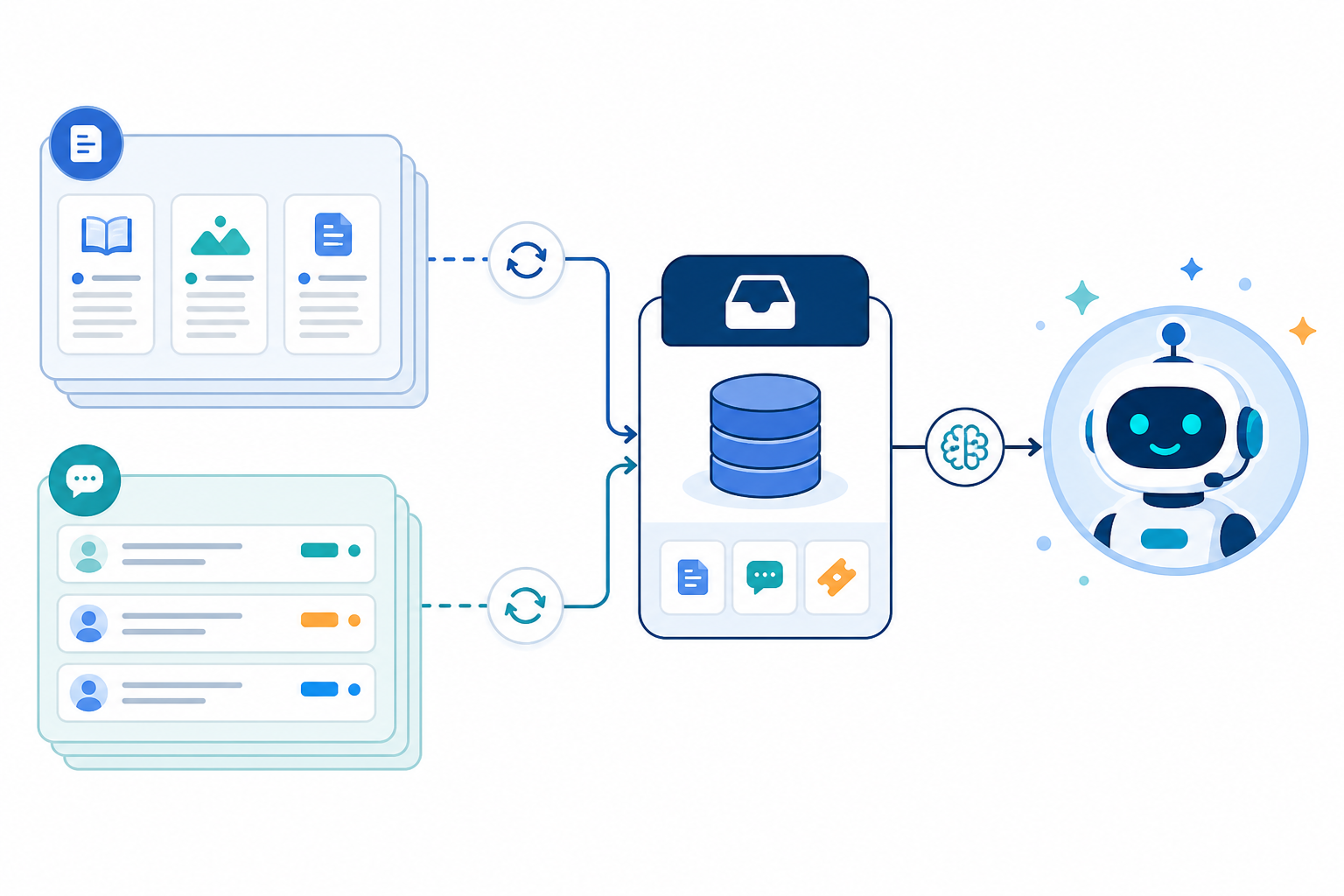
This is one reason teams evaluating customer support software often prefer platforms where live chat, email ticketing, and AI drafting share the same inbox. When everything sits in one system, you don't need to export data between three separate tools and hope nothing gets lost or mishandled along the way.
How to review and correct early AI suggestions
This is the part founders often want to skip, and it's also the part that matters most. Skip the close review of that first batch of drafts, and you're taking a real risk with both your brand voice and your accuracy.
Treat the first week or two like onboarding a new support agent. You wouldn't let a brand-new employee send unreviewed replies to customers on day one. Same logic applies here.
Before you start, confirm whether your platform saves corrections as feedback that improves future drafts, or just fixes the message you're looking at. If corrections stick, thorough early review pays off over time. If they don't, you'll need ongoing spot-checks instead of one intense fortnight followed by nothing.
Focus on these areas during the review period:
- Fix tone issues first. Look for replies that are too formal, too casual, or use the wrong product name. These errors tend to compound, since the AI often repeats patterns from its own earlier drafts.
- Flag factual errors immediately, and check whether the AI pulled from an outdated document you forgot to remove. That's usually the culprit.
- Keep a running list of recurring mistakes. You'll typically find a handful of repeated patterns rather than dozens of unrelated errors, and fixing those patterns solves most of the problem at once.
- Set a sample size for your pilot rather than treating it as a universal rule. Reviewing 50 to 100 drafts is a reasonable starting point for many small teams, which might take one to two weeks depending on your ticket volume. Treat that as a checkpoint for reassessing progress, not proof the AI is permanently ready after some magic number.
Don't let one person become the sole reviewer. If your head of support corrects every draft alone, the output ends up reflecting their preferences rather than your team's shared voice. Rotate reviewers, or have at least two people weigh in during the first couple of weeks.
When should AI auto-send customer support replies?
Once the drafts start looking solid, it's tempting to let everything auto-send. Resist that for anything with real consequences attached.
Use this framework regardless of which customer support software you use:
- Never auto-send replies about refunds, cancellations, or account deletions. Route these to a human, no exceptions.
- Route authentication issues, security concerns, complaints, and anything with potential legal or regulatory weight to a human by default. Getting these wrong carries real risk.
- Create a route for vulnerable customers. Mentions of financial hardship, bereavement, or anything requiring extra care should trigger human review.
- Use keyword-based tagging and filtering to flag terms like "legal," "refund," "cancel," "complaint," and "lawsuit" for manual review. Check whether your platform supports this natively or needs manual rules.
- Start in draft-and-approve mode. Let the AI draft every reply, but require a human to approve it before sending. Once you trust low-risk categories, like invoice requests or basic how-to questions, you can consider auto-sending just those.
- Use a simple judgement call: if answering requires understanding something specific about that customer's situation, send it to a human first. AI tends to be better at recognising known patterns than reading nuanced circumstances.
- Keep an audit trail. Record which replies were auto-sent and which were human-approved. It helps with troubleshooting and accountability later.
- Review your guardrails monthly. New edge cases pop up as your product changes and your customer base grows, so automation rules need upkeep.
This staged approach protects your brand voice and your customers while still letting automation take on the genuinely repetitive work.
How to measure time saved after AI copilot training
Founders often judge results by whether support "feels faster," but a little structure makes it much easier to tell whether the copilot is actually helping or just creating that impression.
Start with a baseline. Before you finish setup, track your normal numbers for two to four weeks: average first-response time, resolution time, tickets handled per hour per agent, escalation rate, and reopen rate. Most customer support software includes this reporting already, so you likely have the data sitting there.
After the copilot has been running for a few weeks, compare the same period length:
| Metric | Before AI Assistance | After AI Assistance |
|---|---|---|
| Average first-response time | Baseline two-to-four-week average | Compare the same period length |
| Tickets handled per hour | Baseline per agent | Post-rollout per agent |
| Resolution time | Track separately from response time | May be unchanged initially, that's normal |
| Editing time per draft | Not applicable | Track review and correction time |
| Reopen rate | Baseline | Watch for increases, which may signal accuracy issues |
| CSAT on AI-assisted replies | Not applicable | Track separately from the overall average |
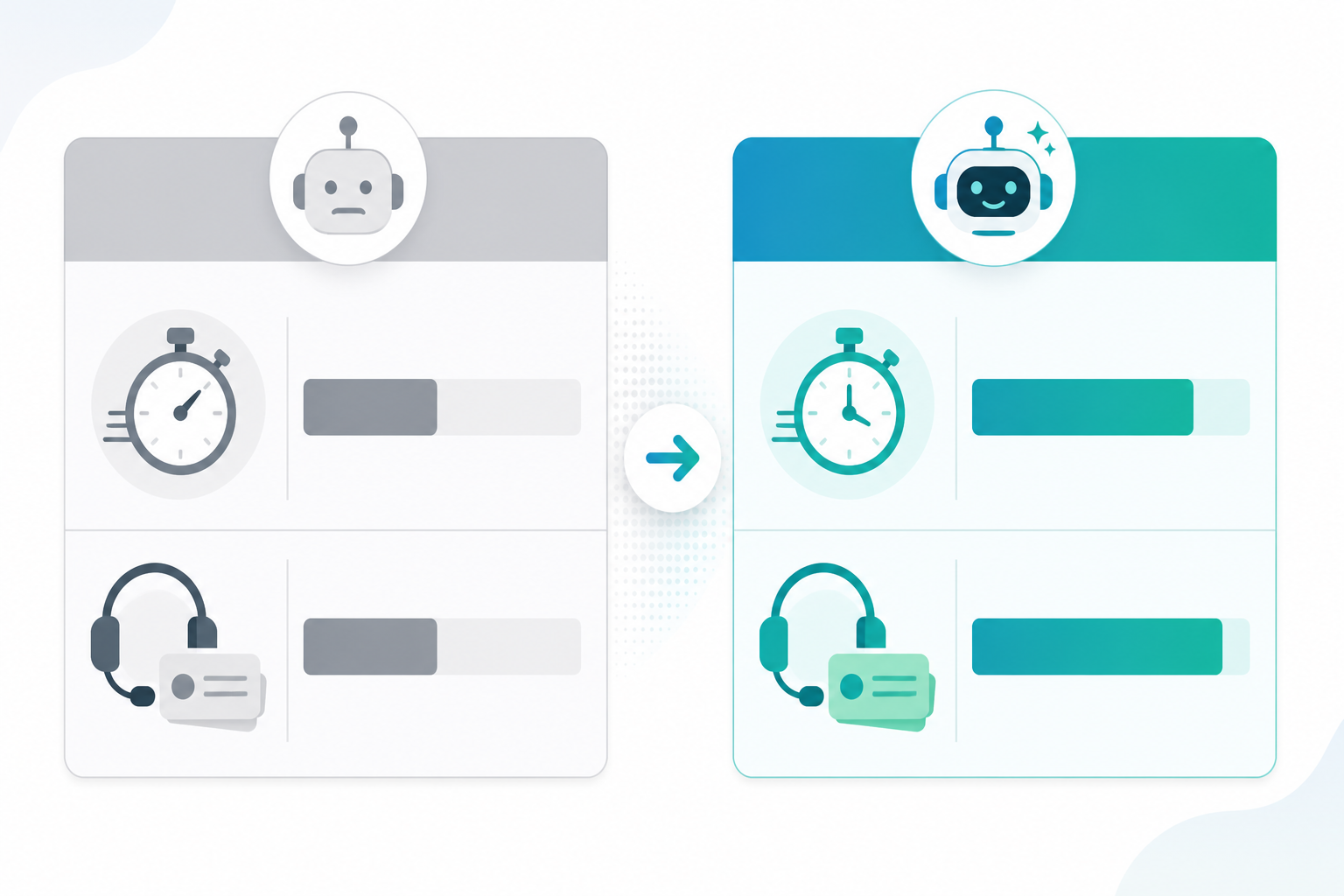
A 2023 NBER working paper by Erik Brynjolfsson, Danielle Li, and Lindsey Raymond, "Generative AI at Work," studied more than 5,000 customer support agents at a software company and found productivity gains of roughly 14% on average. The effect was much bigger for newer or less experienced agents, around 34%, and barely noticeable for the most experienced ones.
That study looked at one specific AI tool in one specific contact centre, so treat it as useful context rather than a direct forecast for your business. Your results will depend on your product's complexity, your team's experience, and how clean your source material is.
Response time and resolution time are different metrics, worth saying twice. AI assistance can help agents reply faster without making complex issues resolve any faster. Track them separately so you don't end up crediting the copilot for improvements it didn't actually make.
Finally, watch customer satisfaction on AI-assisted replies specifically, rather than folding it into your overall average. Keep an eye on reopen rate too. A ticket that reopens after an AI-assisted close might mean the first response didn't actually solve the problem.
Many small teams report real time savings within about a month of consistent use, but that depends on feeding the copilot enough well-curated, corrected examples to work from.
Common AI copilot training mistakes founders make
Here are the traps I see most often, along with a symptom to watch for and a fix:
- Uploading everything at once instead of starting small. Symptom: the copilot gives inconsistent or contradictory answers. Fix: cut the source material down to a core set and rebuild gradually.
- Assuming AI reads emotional tone like a human would. Symptom: a frustrated customer gets a cheerful but generic reply. Fix: build routing rules for emotionally charged language and send those conversations to a human by default.
- Forgetting to update source documents when your product or pricing changes. Symptom: the AI confidently states incorrect pricing or feature information. Fix: assign someone to update source documents the day a policy or pricing change goes live.
- Turning on auto-send too soon because a few drafts looked good. Symptom: an inaccurate reply reaches a customer with no human review. Fix: require a real volume of reviewed drafts, not just a good first impression, before enabling auto-send for any category.
- Leaving review to one person. Symptom: the copilot starts sounding like one individual's writing rather than your team's shared voice. Fix: rotate reviewers or have two people involved during the initial review period.
Frequently asked questions about training an AI copilot
How do I train an AI copilot on my company's documentation?
Most customer support software doesn't retrain the underlying AI model from your documents. Instead, it indexes your content so the AI can pull relevant information and draft replies in your brand voice. Start by connecting your cleanest, most-used help centre articles and a curated, redacted batch of resolved support tickets to your platform's knowledge base. Review draft replies closely for the first week or two, correcting tone and factual errors before turning on auto-send.
What documents should I upload to train a support AI?
Prioritise your top help centre articles, current pricing and refund policies, onboarding guides, and a selection of your best customer email replies. Date your current policies clearly and remove old versions. Avoid uploading outdated wikis or half-finished internal documents at first. Focused, reliable source material beats dumping everything in at once.
How accurate are AI-drafted support replies?
Accuracy depends heavily on the quality of your source material and how much correction the system gets. Many teams see a noticeable improvement after reviewing an initial batch of 50 to 100 drafts, often within one to two weeks of normal support volume. Results vary depending on ticket complexity, platform functionality, and how clean the documents were to start with.
Can an AI copilot learn from past customer tickets?
Yes, though "learn" means different things across platforms. Some systems save corrections as ongoing feedback, while others only fix the reply in front of you. Feeding the copilot resolved, curated, redacted tickets with positive customer feedback can improve both accuracy and tone. Strip out personal data and check your vendor's data-processing terms first, especially if UK GDPR applies to your business.
Is it safe to upload customer support tickets containing personal information?
Not without prep work. Redact names, payment details, and authentication information before syncing historical tickets. Confirm your platform's data retention, access control, and model-training policies. If tickets involve health information, financial hardship, or other sensitive categories, get approval from whoever handles data protection at your company first.
When is it safe to turn on auto-send?
Use a category-specific go/no-go test. Consider auto-send only after reviewing at least 50 to 100 real drafts in that category with a low rate of factual corrections, and only if the topic never requires customer-specific judgement and doesn't touch refunds, cancellations, security, or legal sensitivity. If you're not sure, keep the category in draft-and-approve mode.
AI copilot setup checklist for customer support teams
If you take nothing else from this guide, use this compact checklist:
- Curate your top help centre articles, current policies, and best email replies. Skip messy source material for now.
- Redact and review ticket history before syncing it, and check your vendor's data-processing terms.
- Review the first 50 to 100 drafts closely, with more than one person contributing.
- Set guardrails: no auto-send for refunds, cancellations, security issues, or customer-specific situations.
- Track first-response time, resolution time, reopen rate, and CSAT separately. Give the copilot a genuine month before you judge the results.
Do that, and the fear of "robotic AI" usually fades pretty quickly. What's left is a shared inbox that sounds like your business, just faster, with the guardrails in place to keep it that way.