

If you want to set up a shared support inbox, here's the short version. Decide which channels belong in it, forward your support email address, add a live chat widget, invite your team and agree a few simple rules about who owns each conversation. The basic email connection can take just a few minutes. Allow longer for sender authentication, website changes, testing and agreeing your team rules. Those rules are what stop double replies and dropped messages.
I'll walk you through each step below, plus a copyable set of team rules. Grab a cuppa ☕ and let's get your team inbox sorted.
Why choose a shared support inbox over a basic Gmail group?
Picture this. A customer emails support@ on Monday morning. Three of you see it land. Sam thinks, 'I'll reply after this call.' Priya fires off a quick answer. Dan assumes Priya has it and moves on. Ten minutes later the customer has two slightly different replies, and nobody is quite sure which one is right 😅
I've seen this happen in teams of two and teams of ten. It isn't carelessness. A group alias delivers a copy of every email to everyone, but it can't tell you whether anyone has replied.
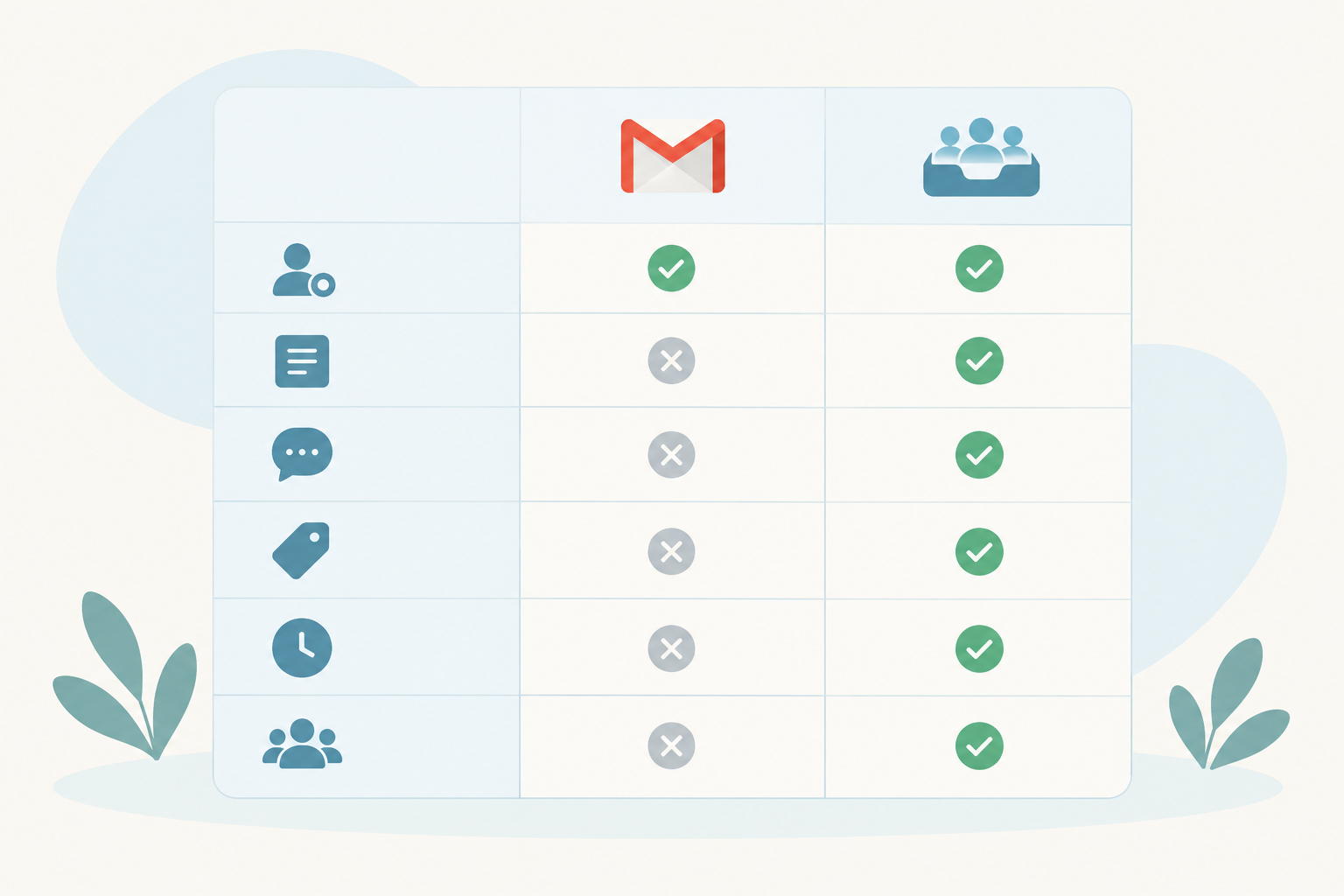
That's the 'collision' problem. A basic Gmail group or CC'd mailbox is good at delivering messages. It isn't built to show who is handling what. (Some Google Workspace setups, such as collaborative inboxes, add assignment or status features. Here I'm comparing a dedicated shared support inbox with the simple group alias most small teams start with.)
| Basic Gmail group / CC'd mailbox | Shared support inbox | |
|---|---|---|
| See who is handling a conversation | ❌ Usually everyone just assumes | ✅ Each conversation has an owner |
| Assign conversations | ❌ Not built in | ✅ Yes |
| Internal notes | ⚠️ Usually side emails or chat | ✅ Private notes inside the conversation |
| Tags and filters | ⚠️ Labels, often personal to each person | ✅ Shared tags and filters |
| Response-time reporting | ❌ Not built in | ✅ Usually included |
| Live chat in the same place | ❌ Separate tool | ✅ Often included (check your tool) |
Signs your team has outgrown a Gmail group
Let me be clear: a Gmail group is a perfectly sensible place to start. It's free, it's familiar, and for a handful of emails a week it works. It just has limits. You've probably hit them if:
- Replies are getting slower and you can't quite say why
- Customers are writing back with 'just chasing this'
- You have no idea what your average response time is
- A teammate goes on holiday and nobody knows what's pending
- Live chat lives in one tool and email in another, so you piece together a customer's history by hand
If two or three of those sound familiar, it's time to move to a proper team inbox.
Step 1: Decide which channels to include in your shared support inbox
Before you touch any settings, spend ten minutes deciding what's actually going in. For most small teams, email and live chat are the natural pair. They're where customers already reach you, and where messages most often slip through the cracks.
You might be tempted to pile everything in on day one: contact forms, order queries, sales enquiries, the lot. I'd resist that. Fewer channels at launch makes the first week far less overwhelming, and you can add more once the habits have settled.
Ask yourselves two quick questions:
- Where do customers already reach us? That's what you'll connect first.
- Where do we lose track of messages? That's where a shared inbox will help most.
Bringing live chat and email into one place has a bonus. Your team can often see a customer's chat and email history together, so nobody has to ask them to repeat themselves. How well this works depends on your tool and how it matches customers, usually by email address. So test it: chat from an address, then email from the same one, and check both land in one history.
Step 2: Connect your support email to the team inbox
This is the bit people expect to be fiddly. It usually isn't, though it can take longer if you need admin access to your email provider or domain settings.
- Choose a generic address. Use something like support@yourdomain.co.uk, not a personal address. A dedicated address also means you can change inbox software later without customers noticing, because the address they write to stays the same.
- Forward that address to your inbox. In your email provider's settings, forward support@ to the forwarding address your tool gives you. Incoming mail then becomes a ticket. If your provider asks you to verify the forwarding address first, do that before changing anything else.
- Send a test email. From a personal account (not the support address itself), email support@ and check it turns up as a new conversation.
- Reply and check the sender. Reply from the inbox and confirm the message goes out from your support address, not an individual's. Send it to yourself and look at the 'From' line.
- Set up a friendly team signature. Something like 'Emma, Support Team' feels warmer than a generic sign-off, and it works whoever replies.
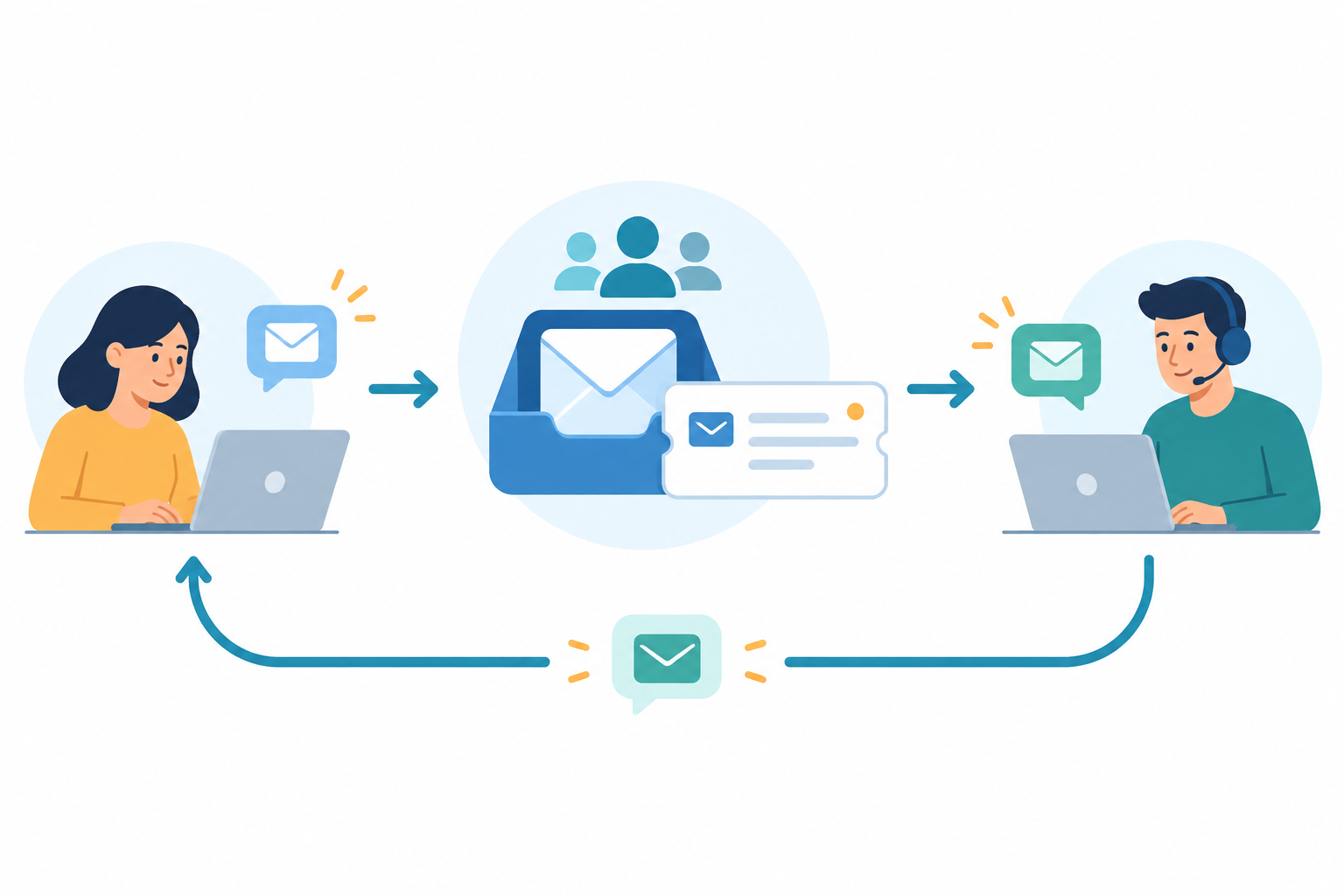
Can customers keep emailing the same address? Yes. Nothing changes on their side. They write to the address they already know, and it lands in your team inbox.
Set up sender authentication and troubleshoot email issues
If your replies go out using your own domain, your email provider may ask you to add a few DNS records (you'll see the acronyms SPF, DKIM and DMARC) so that receiving mail servers know your messages are genuine. Think of it as proving to inboxes that the post really came from you. Follow your provider's guidance, then send test emails to a few different providers, such as Gmail and Outlook, to make sure they don't land in spam.
If a test doesn't arrive, check the usual suspects. Has the forwarding address been verified? Is the forward switched on? Has a DNS change had time to take effect? (It can take a few hours.) Check spam folders too.
One more thing while we're here: please don't share one person's email password around the team. Give everyone their own login instead, so you can remove access when someone leaves and it's clear who did what.
Step 3: Add a live chat widget to your website
Now for the fun part: giving customers a way to say hello without leaving your site.
- Customise the live chat widget. Pick your brand colour, write a greeting, and set a clear expectation of reply times. 'We usually reply within a few minutes during UK working hours' beats leaving people guessing.
- Add it to your site. Paste the snippet into your site's code, or use a plugin if you're on Shopify, WordPress or similar. If someone else manages your website, loop them in early.
- Decide what happens out of hours. Think about UK time zones, bank holidays and weekends. A simple 'We're offline, but leave your email and we'll get back to you first thing' keeps the conversation going, and it lands in the same inbox as everything else.
- Test it from a different device. Open your site on your phone, send yourself a chat, and check it appears in the inbox alongside your emails.

My one tip: keep the first greeting human and short. 'Hi there 👋 Got a question? We're happy to help' works far better than three paragraphs of small print. Nobody wants to read an essay before they type 'where's my order?'
If you collect names or emails in chat, add a short line linking to your privacy policy so customers know how their details are used.
Step 4: Invite teammates and define team inbox roles
Invite everyone who touches customer conversations, not just the support lead. In a small SaaS company that often means founders, developers and ops people as well. When a customer asks a technical question at 4pm, it helps if the developer who knows the answer can jump straight into the conversation, rather than someone relaying it over Slack.
Pricing models matter here. Many help desk tools charge per seat, so small teams end up rationing logins and deciding who 'deserves' one. Look for a plan where occasional collaborators don't push the bill up, and check the vendor's pricing page for current terms.
Keep roles simple:
- Admins manage settings, billing and who has access
- Agents reply, add notes and collaborate
That's plenty for a team of two to ten. Encourage everyone to install the mobile or desktop app if your tool offers one, so an urgent chat doesn't wait until somebody is back at their laptop.
Finally, set up a handful of tags early: billing, bug, feature request, refund. You don't need twenty. A few clear tags mean your reporting is useful from day one.
Keep customer data in safe hands
Customer conversations contain personal data, and if you're a UK business, UK GDPR applies. You don't need a legal degree to get the basics right:
- Give people only the access they need. Not everyone needs admin rights or access to billing details.
- Remove access the same day someone leaves or changes role.
- Turn on two-step verification for every login, if your tool supports it.
- Don't ask customers to send passwords or full card numbers in chat or email.
- Agree how long you keep old conversations, and delete what you no longer need.
The Information Commissioner's Office (ICO) has plain-English guidance for small organisations if you want to read further.
Step 5: Set shared inbox ownership rules to prevent double replies
If you only do one step properly, make it this one. Most teams skip it. The software gives you the structure, but these rules are what stop double replies and dropped messages.
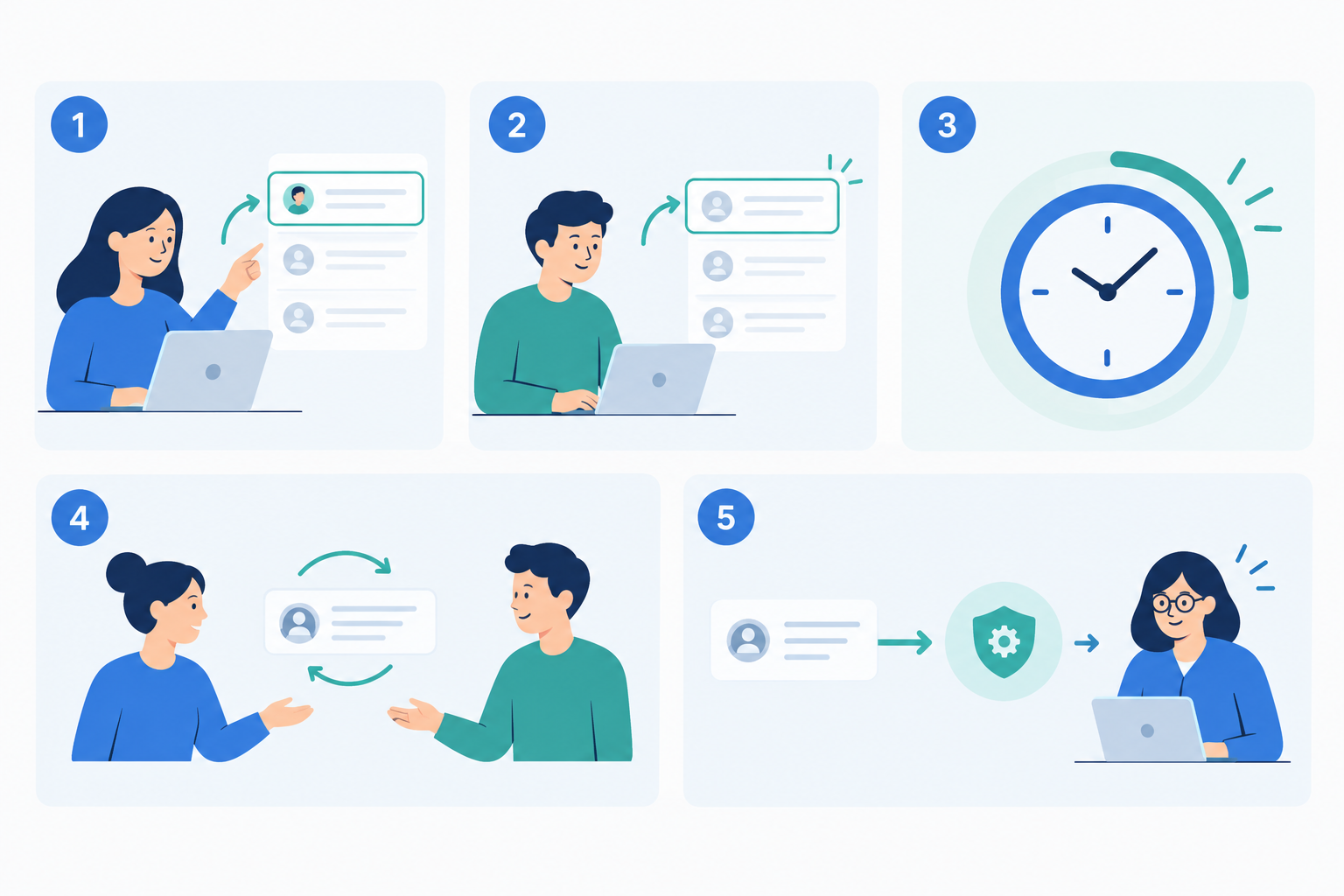
So, how do you avoid double replies? Agree on a few simple habits:
- Assign before you reply. If a conversation has an owner, it's theirs until it's reassigned.
- If it's unassigned, claim it. Assign it to yourself before you start typing, not after.
- Set response expectations together. For example, first reply to email within a few working hours, and fast replies on chat during staffed hours.
- Agree who covers evenings, weekends and holidays. And decide how handovers work, so nothing sits waiting while someone's on a beach.
- Define when to escalate, and to whom. Refund over a certain amount? Suspected bug? Everyone should know who to hand it to.
Here's a template you can paste into a shared doc and tweak:
OUR SUPPORT INBOX RULES
1. Assign before you reply. Owned conversations stay with their owner.
2. Unassigned? Assign it to yourself first, then reply.
3. First email reply within [X] working hours. Chat replies within [X] minutes while staffed.
4. Cover: [name] on evenings, [name] on weekends. Hand over open conversations with a note.
5. Escalate [type of issue] to [name]. Escalate [type of issue] to [name].
6. Tag every conversation before you resolve it.
Filters and views make these rules easy to follow. Set up simple views such as My conversations, Unassigned and Waiting on customer (or whatever your tool's equivalents are), and ownership is visible at a glance. Start each day on Unassigned, and you'll rarely miss anything.
Use internal notes to collaborate in your shared inbox
Internal notes are one of the best things about a team inbox, and they answer a question I get a lot: who sees them? Only your team. Notes are visible to agents inside the conversation and never go to the customer. Still, glance at whether you're in reply mode or note mode before you hit send. It takes a second and saves a lot of embarrassment.
Here's how teams use them in real life:
- Leaving context for a colleague: 'Customer is on the annual plan and has had two failed payments.'
- Flagging an approval: 'Refund of £40 approved by Dan, go ahead.'
- Recording what's been tried: 'Cleared cache and re-sent invite, still not working. Over to dev.'
A light convention helps. Start each note with the next action ('Next: check with Dan') or mention the teammate you need. It keeps handovers clear.
Why not just use Slack or WhatsApp? Because side conversations scatter the context. When the note lives inside the customer conversation, whoever picks it up next sees the full picture, with nothing buried in a chat thread from last Tuesday. It also keeps personal details in one controlled place rather than scattered across messaging apps.
Step 6: Review your shared support inbox after the first week
A shared support inbox is a habit as much as a tool, so give yourselves a chance to see how it's going.
- Block out 30 minutes at the end of week one for a quick team check-in.
- Look at the numbers: response times, volume by channel, and which tags came up most.
- Spot patterns. If 'how do I reset my password?' keeps appearing, that's a candidate for a help centre article or a saved reply.
- Ask what felt clunky. Unclear ownership? Too many tags? Missing templates?
- Adjust one or two rules, rather than rewriting everything.

Say a three-person team reviews week one and sees that chats sent after 5pm waited the longest, mostly about delivery times. They make two small changes: Priya takes the 5 to 6pm chat slot, and they write a saved reply with their delivery windows. The next week, evening waits drop and the same question stops eating everyone's afternoon. Let the numbers tell you which single rule to tweak.
Don't expect perfection in week one. Small tweaks add up, and a month from now you'll barely remember the days of three people replying to the same email.
How to choose a shared inbox tool for a small team
If you're still comparing options, here's the checklist I'd use. None of it needs a big budget, just a clear idea of what your team actually needs.
- Pricing model: flat-rate or per seat? Do occasional collaborators need a paid seat? Check how costs change as your team grows, and which features are locked to higher plans.
- Speed of setup: can you get going yourselves, or do you need onboarding calls?
- Live chat and email in one inbox: look for them built together, rather than bolted on through integrations, and test that one customer's chat and email appear together.
- Visible ownership: every conversation should have an assignee, a status and an easy way to see who's handling it.
- Internal notes and history: searchable customer context helps teammates pick things up without asking the customer to repeat themselves.
- Reliability: look for a published uptime commitment or status page.
- Mobile apps and ease of use: not everyone on your team is a support specialist.
- Security and data protection: individual logins, role-based permissions, two-step verification, and clear information on where data is stored and how it's handled under UK GDPR.
- Free trial terms: ideally long enough to work through every step in this guide, with no credit card required.
One example: Sonny
Since I work with the Sonny team, I'll be upfront and use it as my example. Sonny is a customer support tool built for small teams that combines email and live chat in one inbox. At the time of writing, it offers flat-rate pricing with unlimited agents and unlimited conversations and a free trial, but plans, prices (quoted in USD, so the sterling amount will vary) and trial terms can change. Please check the current details on the Sonny pricing page before you decide. Whichever tool you pick, run it against the checklist above during your trial.
Shared support inbox FAQ
How is a shared support inbox different from a Gmail group?
A basic Gmail group copies every email to everyone but doesn't show who's handling it. A shared support inbox adds owners, statuses, private notes, shared tags and reporting, and often live chat too.
Can customers still email the same support address?
Yes. You forward your existing address into the inbox, so customers carry on as normal and replies go out from that same address.
Who can see internal notes in a team inbox?
Only your team. Notes are never sent to the customer, but do check you're in note mode, not reply mode, before you send.
How do we avoid double replies in a shared inbox?
Assign the conversation to yourself before you reply, and use views like Unassigned and My conversations so everyone can see what's taken.
How long does it take to set up a shared support inbox?
Connecting email forwarding and adding a chat widget can take a few minutes if you have the right access. Budget extra time for sender authentication, testing and agreeing your team rules. Most small teams can be fully up and running within a day.
What if my test reply goes to spam?
Check that your SPF, DKIM and DMARC records are set up as your email provider recommends, and confirm replies go out from your support address. Then send fresh tests to a few providers. DNS changes can take a few hours to take effect.