
Email Ticketing Explained: How Email-to-Ticket Support Works for Small Teams
Meta description: Learn how email ticketing turns customer emails into trackable support tickets, with clear assignment, tagging and status updates. A practical UK guide for small support teams choosing help desk software.
If you've ever had two teammates reply to the same confused customer within five minutes of each other, you already know why your shared inbox is struggling. Email ticketing fixes that specific headache. It turns incoming customer emails into trackable, assignable "tickets" instead of messages sitting in a crowded shared mailbox. Each ticket gets a status, an owner and a full history, so it's much harder for something to fall through the cracks or for two people to reply to the same customer.
Here's the good news for small teams: setting this up usually doesn't need a developer, a procurement meeting or a three-week onboarding plan. Most help desk software can connect to your existing support email address fairly quickly, often in minutes rather than hours. Setup time does vary between providers, though, so it's worth checking this directly rather than taking any single vendor's word for it.
Let's walk through what email ticketing actually is, how email-to-ticket conversion works behind the scenes, where it has limits and how to tell whether it's the right fix for the chaos your team is currently calling "a system."
What is email ticketing?
Here's the thing about a shared inbox: it wasn't really built with team support workflows in mind. Gmail and Outlook are genuinely good tools, and to be fair, they've added features over the years - labels, rules, shared mailbox delegation, basic assignment conventions - that help teams cope. But these features were bolted onto products designed around one person managing one inbox. The moment you add three, five or ten people to a support@ address, you start losing two things: clear ownership and shared visibility.
Nobody knows who's handling the email from the customer asking about a billing error. Somebody replies but doesn't mark it anywhere, so a colleague replies too. A message gets buried under forty others and nobody notices until the customer emails again, understandably annoyed. Sound familiar?
Email ticketing solves this by adding a dedicated structure on top of raw email, built specifically for support work rather than general email management. In plain English, here's what happens: every incoming email becomes an email support ticket. That ticket gets a unique ID, a status such as open, pending or closed, and ideally an assigned owner. Instead of a flat list of messages, you get something closer to a shared to-do list, where each item shows roughly where it stands and who's responsible for it.
This goes further than Gmail labels or Outlook rules. Those tools can tag a message as "urgent," and with enough manual discipline, a team can even cobble together a rough assignment system using shared mailbox folders. But they won't give you built-in collision warnings, structured status tracking or reporting on how long tickets sit unanswered. Purpose-built customer support software handles these tasks natively, which means less manual upkeep and more built-in accountability.
For small teams, this matters more than it might for a large enterprise with dedicated support operations staff. You don't have the headcount to absorb miscommunication. One dropped ticket from a frustrated customer can mean a lost account, a bad review or an agent spending an extra twenty minutes untangling what already happened. Structure isn't a luxury here - it's part of what lets a small team operate with confidence.
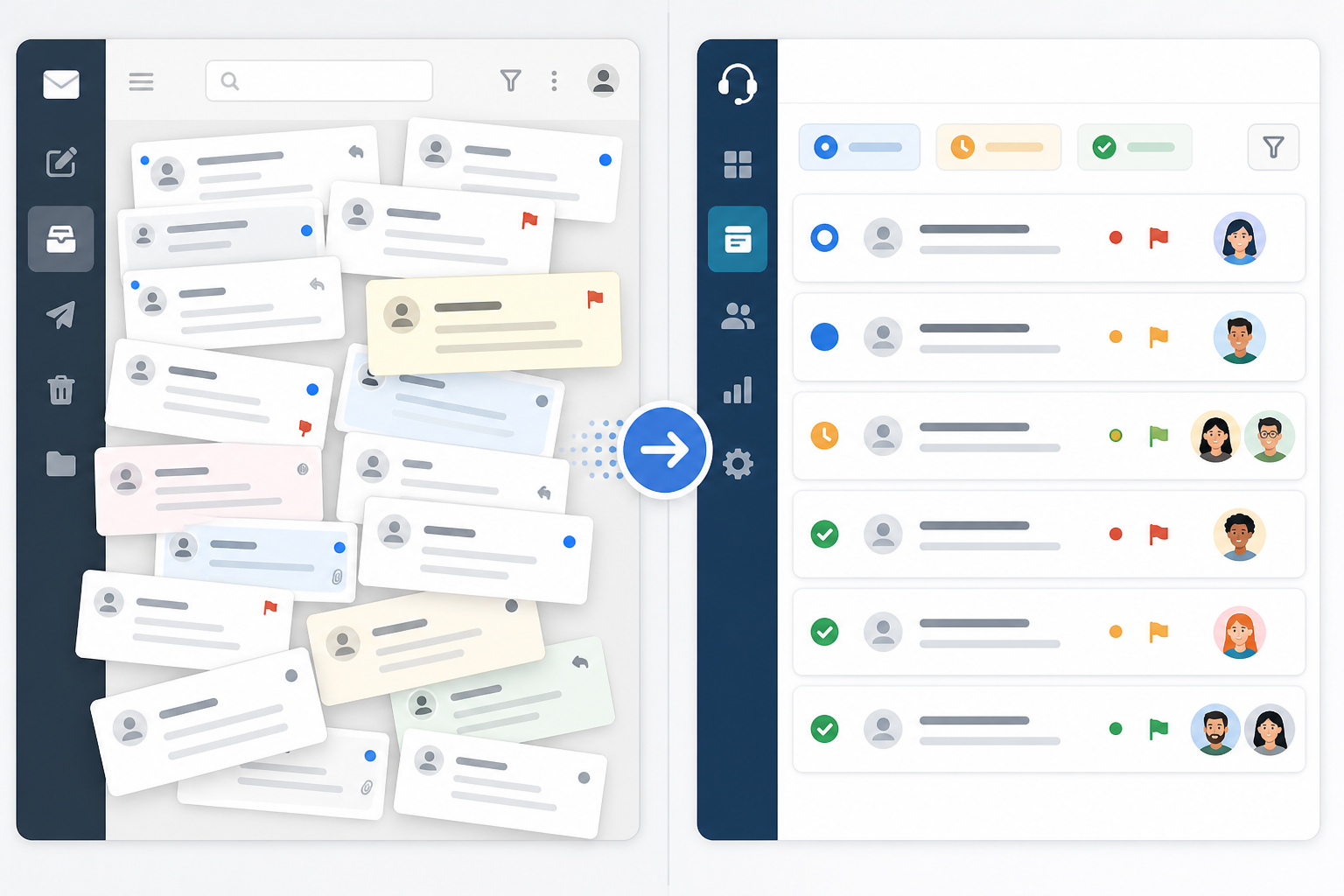
How does email-to-ticket conversion work?
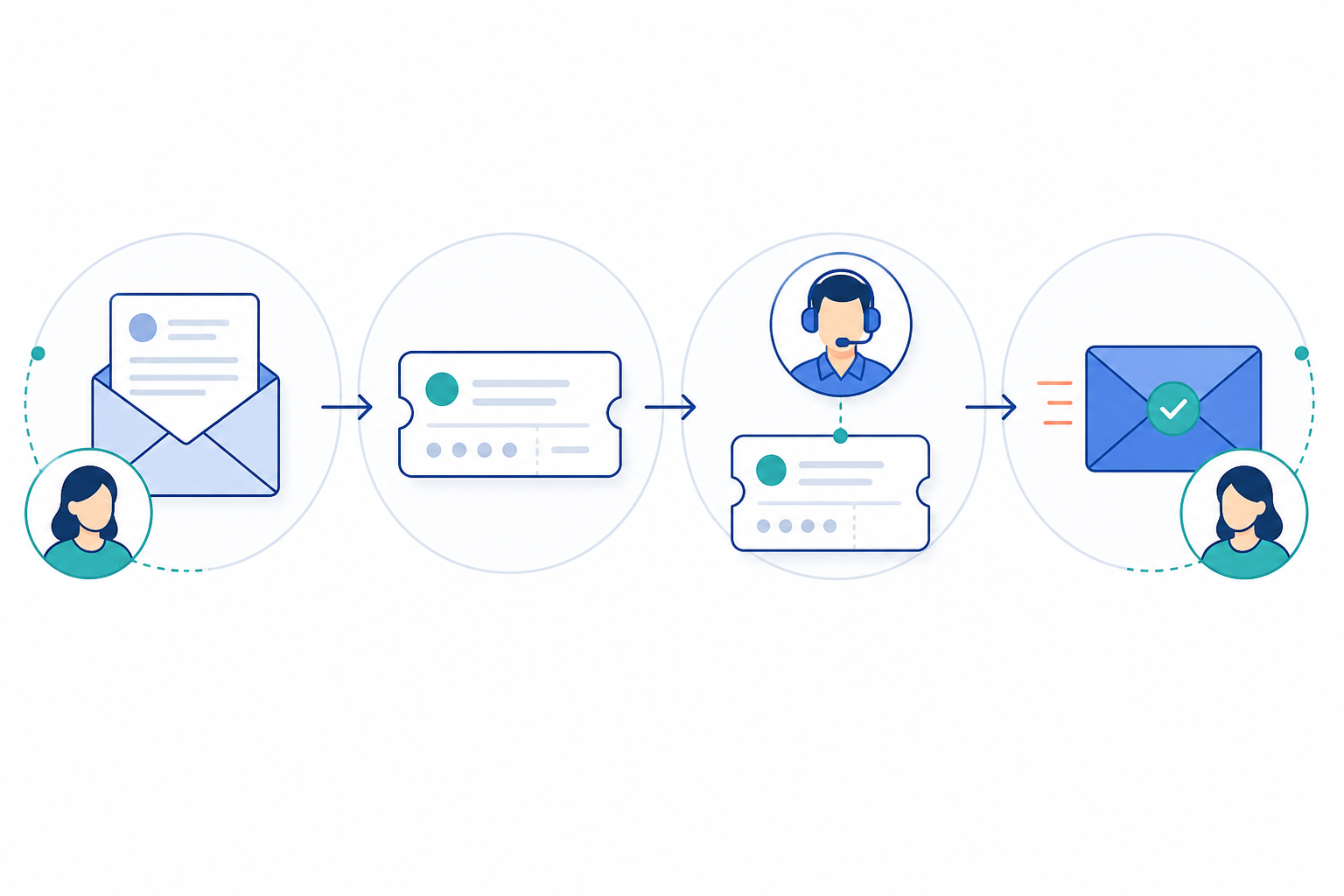
I get asked this a lot: "Okay, but how does an email actually turn into a ticket?" It sounds like it should be complicated, but it's actually one of the more straightforward parts of setting up help desk software. Here's the step-by-step process, along with a few practical snags worth knowing about upfront.
Connect your existing support email address. This is usually something like support@yourcompany.com. You either forward emails to your help desk software or connect the mailbox directly via an API or email integration, depending on the platform. With most modern tools, this takes a handful of clicks, although some platforms still require a short verification step or DNS change. Budget a little more than "instant" just in case.
Incoming emails are automatically converted into tickets. When a customer email arrives, the system creates a ticket record with a timestamp, the sender's details and the full message content, including attachments in most cases. Occasionally, formatting or large attachments can cause hiccups, so it's worth testing with a real email before relying on the system fully.
Email threading keeps the conversation together. A unique ticket ID, combined with email threading data, helps match follow-up messages to the original ticket. The ID itself doesn't physically stop a duplicate reply, but it gives the system and your team a consistent reference point. If the customer replies again or a teammate follows up, the message is usually matched to the same ticket using the ID in the subject line or email headers.
Threading generally works well, but it can break if a customer changes the subject line completely, starts a new email instead of hitting reply, or a response gets caught by spam filtering. Most help desk platforms have a way to manually merge tickets when this happens.
Replies are sent as normal emails. Whatever your team types inside the help desk software goes out to the customer as a standard email from your support address. The customer usually has no idea a ticketing system is involved. From their side, it looks like a reply from a real person at a normal email address.
And here's the reassurance most teams need before trying email ticketing: you don't need to tell customers to email somewhere new. There's no "please update your records" email blast and no confusion about which address to use. Customers keep using the same address while a more structured system handles messages behind the scenes.
Email ticketing setup checklist
Once you've connected your support inbox:
- Set up at least one routing rule, even something simple such as sending "billing" keyword matches to one teammate.
- Agree on your team's status conventions, including what counts as "pending" versus "open."
- Decide who checks unassigned tickets each day.
- Test the full process yourself: send a test email, reply and confirm that it threads correctly.
How email ticketing prevents duplicate replies and lost threads
Let's talk about the classic shared inbox disaster, because there's a good chance you've lived through a version of it. A customer emails about a refund. Two agents happen to be online at the same time. Both see the email, both think "I'll take this one," and both reply within minutes of each other, sometimes with conflicting information. The customer is now more confused than before they emailed, and your team looks disorganised even though everyone was genuinely trying to help.
It's worth being precise here: email ticketing doesn't make duplicate replies physically impossible. What it does is significantly reduce the risk through a combination of visibility, assignment and team habits.
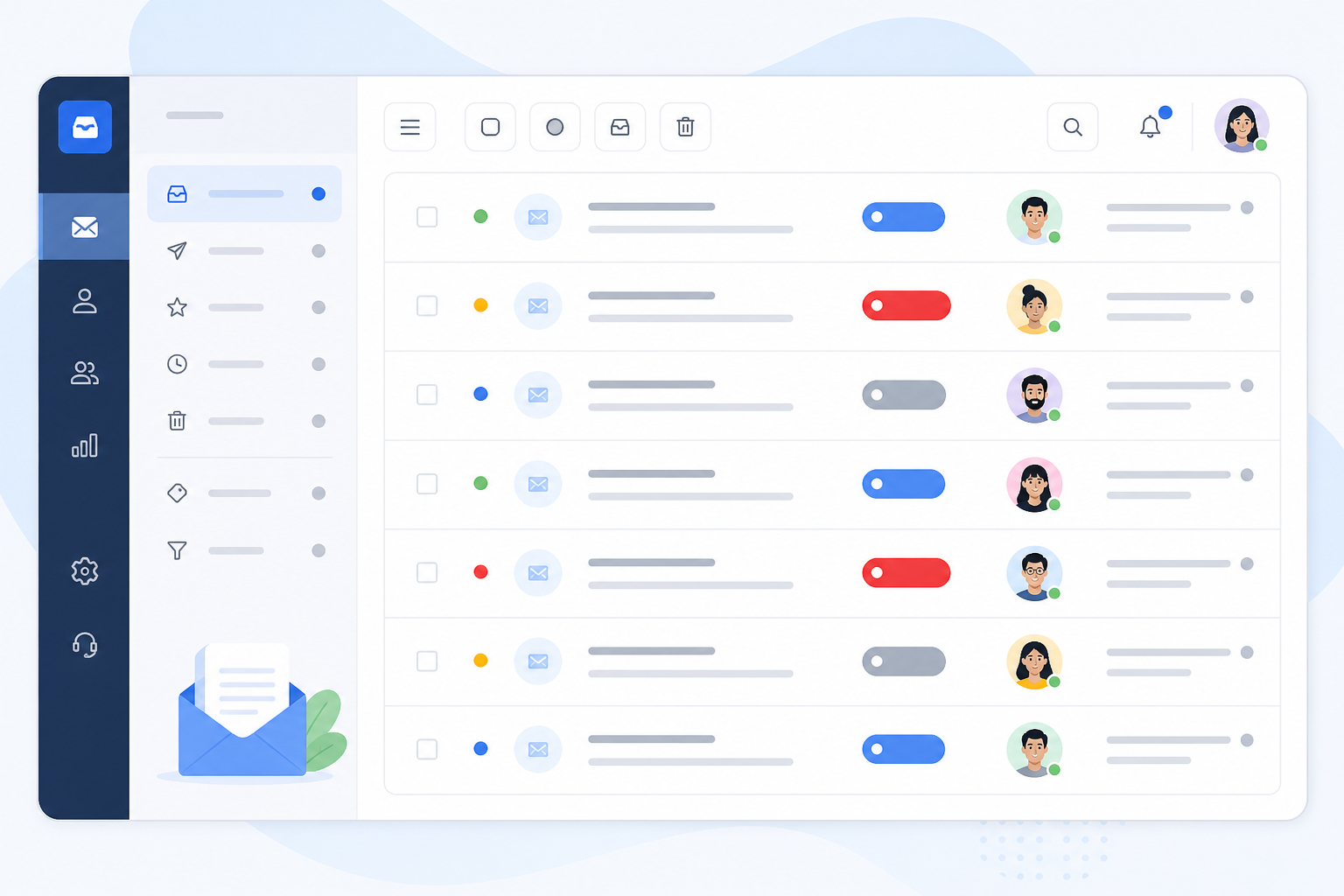
Ticket statuses help a lot here. Once a ticket moves to "open" and gets assigned to someone, other agents can see at a glance that it's being handled - though this only works if people actually remember to update the status, so it's as much a habit as a feature. Some platforms go further with collision detection, showing a "teammate is viewing this ticket" indicator, a bit like seeing someone typing in a group chat. It's a nudge, not a lock, so it still depends on someone noticing and pausing before hitting send. And if you need a second opinion on a tricky refund request, internal notes let you loop in a colleague privately, without the customer ever knowing there was a behind-the-scenes conversation.
Picture a small e-commerce team of four people handling a refund request during a busy sale weekend. Without ticketing, this is prime territory for a double reply. With email ticketing in place and a habit of assigning tickets before replying, one agent takes ownership, leaves an internal note asking a colleague to confirm the order details, and sends the customer one clear response. The tools reduce the risk considerably, but it's the team's habits that close the gap the rest of the way.
How to tag and assign email tickets
Once you've got the basic ticketing structure sorted, tags and assignment rules are where things start feeling genuinely organised, not just less chaotic than before.
Tags matter because small teams deal with a wide mix of questions: billing issues, bug reports, general product questions. Without a way to categorise them, everything blends together. A quick tag such as "billing" or "bug" lets you filter instantly instead of reading every ticket to work out what it's about.
From there, you've got two main ways to get tickets to the right person. With manual assignment, someone just clicks a teammate's name and hands the ticket over directly - simple, and good for smaller volumes or when you want a human making the judgement call. Automatic routing rules do this for you based on keywords, tags or current workload; anything mentioning "refund," for instance, could route straight to whoever handles billing. Just check these rules every so often, since they can catch false positives you didn't anticipate.
Filters also let you build custom views, such as "my open tickets" or "unassigned urgent tickets." Each agent sees what's relevant to them instead of the entire team's inbox. This creates real accountability without bolting on a separate project management tool just to track who's doing what.
A small support team I've seen use this well tagged every ticket mentioning a specific bug over several weeks. By the time they looked back, they had a clear pattern showing the same issue kept surfacing after a particular update. That's not something you'd easily spot by scrolling through a jumbled inbox, but it becomes obvious once tagging does the sorting for you.
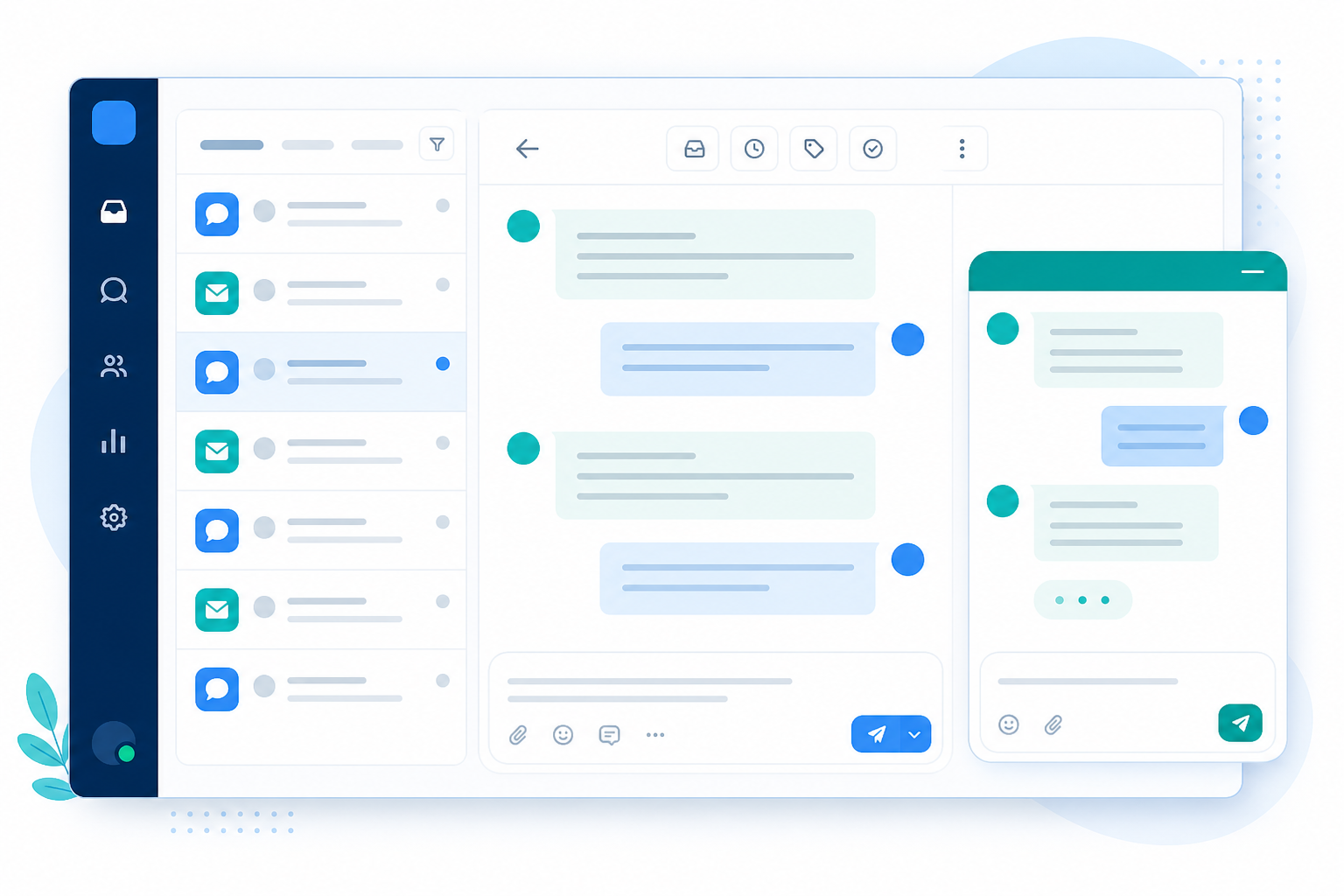
Can you combine email tickets and live chat in one view?
Here's a pain point I hear constantly from small teams: you're managing email tickets in one tool and live chat conversations in a completely separate one. That means two logins, two notification systems and a lot of tab-switching throughout the day. It's tiring, and it's easy to miss something in whichever tool isn't currently open on your screen.
A unified shared inbox addresses this by putting email tickets and live chat conversations side by side in one dashboard. An agent can reply to a customer's email, then move into an active live chat conversation without opening a second app or remembering a second password. The trade-off is usually that you're relying on one vendor for two channels, so check that both the email ticketing and live chat features are equally mature rather than one being a bolted-on afterthought.
For small teams specifically, this isn't just about convenience - it's about cost and focus too. Fewer tools mean fewer subscriptions to justify, fewer logins to manage and less mental overhead from switching between interfaces that all work slightly differently.
As one example, Sonny's shared inbox combines live chat and email ticketing in a single view and, at the time of writing, is priced at a flat $19.99/month (USD) for unlimited agents. For UK teams, factor in currency conversion and check the current price directly on Sonny's pricing page, since exchange rates and any applicable VAT can affect the final cost. This is one option among several worth comparing, not a universal recommendation - compare providers against your team's needs before deciding.
What to look for in email ticketing software
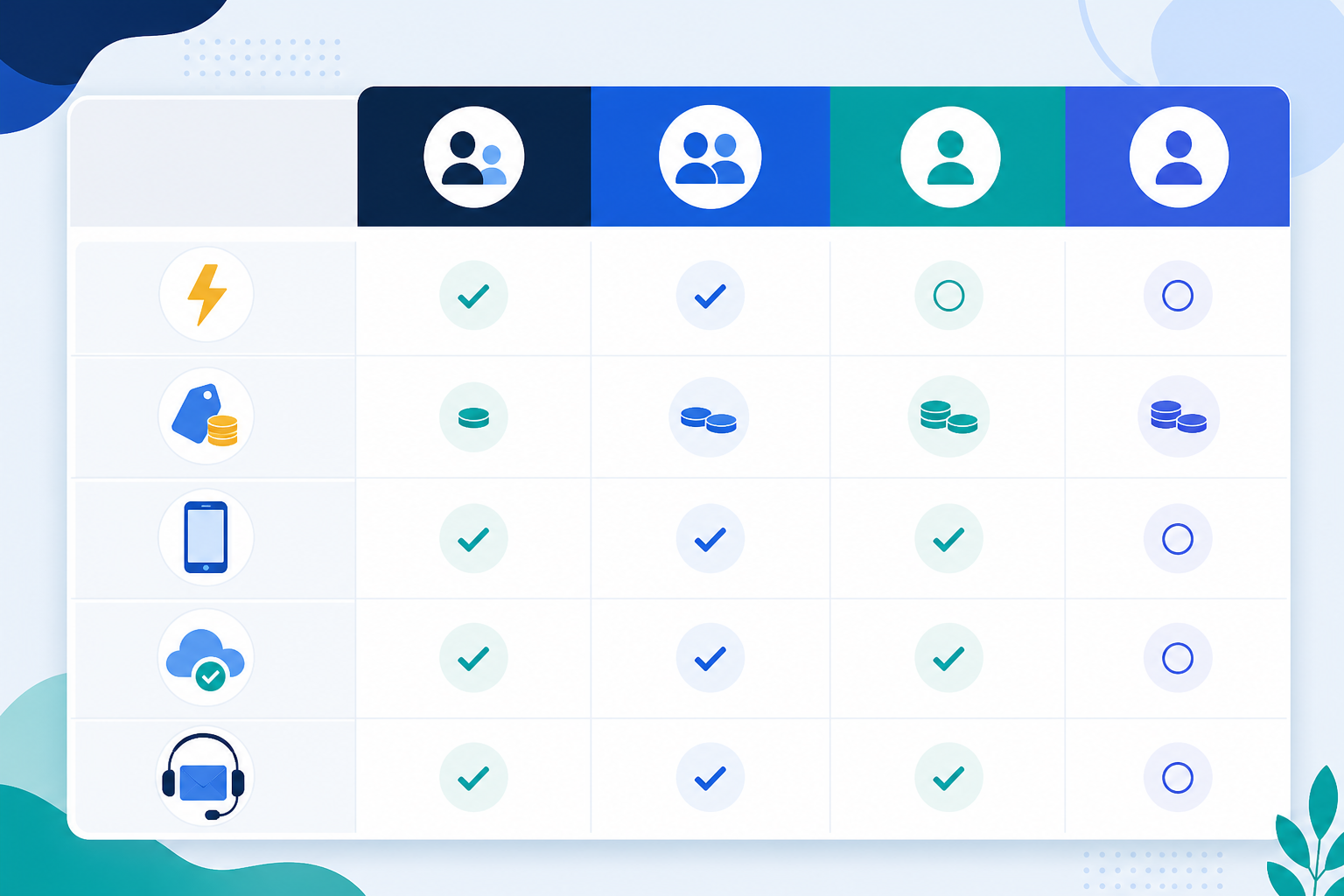
If you're shopping around, it helps to know which features actually matter rather than which ones simply sound impressive in a sales demo. Here's a comparison that includes the trade-offs worth asking vendors about directly.
| What to check | Why it matters | Question or trade-off to consider |
|---|---|---|
| Setup time | Can you connect your inbox yourself in minutes, or does it require a sales call and an onboarding project? | Ask whether DNS changes or verification steps are needed, as these can add time even on "instant setup" tools. |
| Pricing model | Per-agent fees add up quickly as you grow. Flat-rate pricing for unlimited agents can be predictable. | Flat-rate plans sometimes cap features or ticket volume, so check what's excluded at the entry tier. |
| Core features | Tagging, internal notes, assignment rules and response-time reporting are the basics for day-to-day support. | Ask whether reporting is real-time or delayed and whether automation rules are included or a paid add-on. |
| Reliability | Uptime matters when your support tool going down means customers can't reach you. | Ask what the stated uptime figure excludes, such as scheduled maintenance windows, and whether there's a public status page. |
| Mobile access | Native apps let your team respond on the go rather than only through a browser. | If your team mostly works from a desk, this may matter less than data protection or integration options. |
| Data protection | This is particularly relevant for UK and EU teams handling customer data. | Ask where data is stored, whether the provider is GDPR compliant and whether a data processing agreement is available. |
When you compare these points against your team's actual habits, patterns tend to emerge. Some teams genuinely need flat-rate, fast-setup software; others are better served by sticking with a well-organised shared mailbox for a while longer.
Frequently asked questions about email ticketing
What's the difference between a regular inbox and email ticketing?
A standard shared inbox can be organised with labels and folders, but it wasn't built around ownership or status tracking. Email ticketing adds that layer deliberately: each email becomes a ticket with a status, an assigned owner and a full history, making it much easier for a team to know who's handling what.
Does email ticketing work with our existing email address?
Yes. With most help desk software, you forward or connect your current support email address, such as support@yourcompany.com. Customers keep emailing the same address; your team manages replies through the ticketing system instead of a plain inbox.
How do tickets get assigned to team members?
You can assign tickets manually by clicking a teammate's name or set up automatic routing rules based on keywords, tags or workload. Many small teams start with manual assignment and add automation once they spot patterns in their ticket volume.
Will switching to email ticketing slow down our response times at first?
Most small teams find the opposite happens once they get past the first day or two of adjusting to new terminology and workflows. Because tickets are organised by status and owner, agents generally spend less time scrolling through a messy inbox to work out what's already been answered.
What are the common pitfalls when setting up email forwarding?
The main issues are forgetting to update SPF/DKIM records, which can cause emails to bounce or land in spam; forwarding only new emails and losing historical threads; and assuming threading will always work perfectly when customers reply from a different email client or change the subject line. Test the setup thoroughly before relying on it fully.
Does our team need a dedicated help desk or is a shared inbox enough?
If you're handling a handful of emails a day with one or two people, a disciplined shared inbox with clear labels and a simple "claim it before you reply" rule might genuinely be enough. Email ticketing tends to pay off once three or more people are replying regularly, or missed and duplicate replies start happening weekly rather than occasionally.
Is email ticketing right for your small team?
Email ticketing isn't magic, and it won't fix a team that doesn't have basic agreement on who does what. What it does well is remove the guesswork from ownership, give you a history you can actually search, and reduce - not eliminate - the chances of two people replying to the same customer. For most small teams juggling more than a couple of people on a shared inbox, that trade-off is worthwhile.
If you're on the fence, a reasonable next step is to audit your current inbox for a week. Count how many times a reply gets duplicated, how often something sits unanswered for more than a day, and whether anyone could tell you right now who's handling your oldest open email. If the answers are uncomfortable, it may be time to try a ticketing tool, Sonny or otherwise, with a small section of your queue before rolling it out to everything.